Introduction
Thank you for your interest in our Tafri Travel pro WordPress Theme. We are delighted that you have decided to use our Tafri Travel pro WordPress Theme for your website.
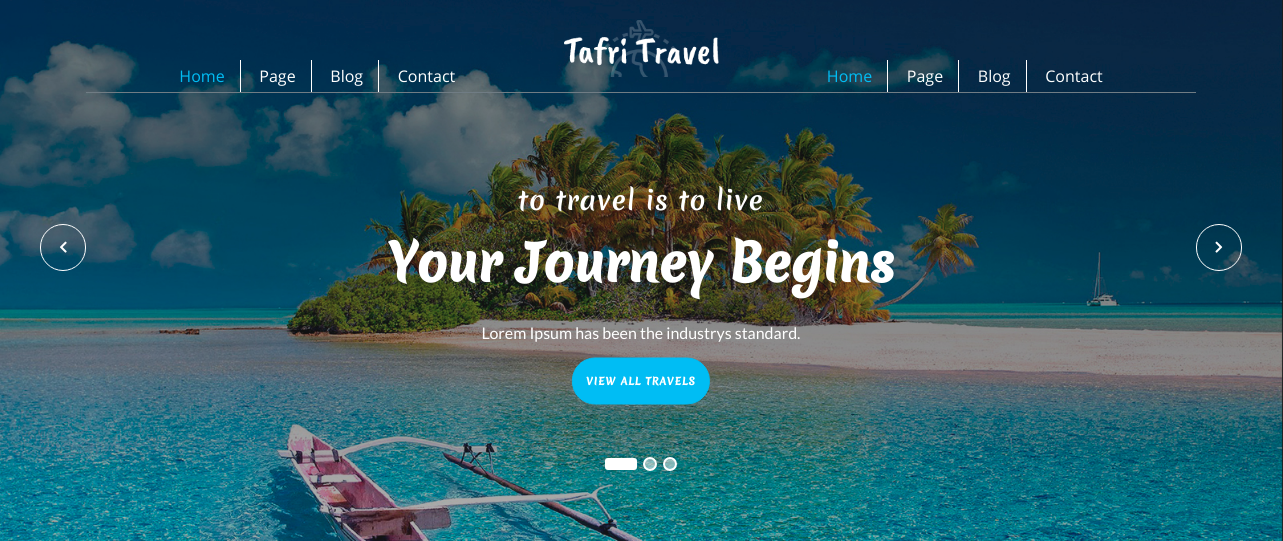
Tafri Travel Pro is a simple, flexible, and fully responsive WordPress theme designed for travel websites.
My site was working fine before? Who changed the File Permissions?
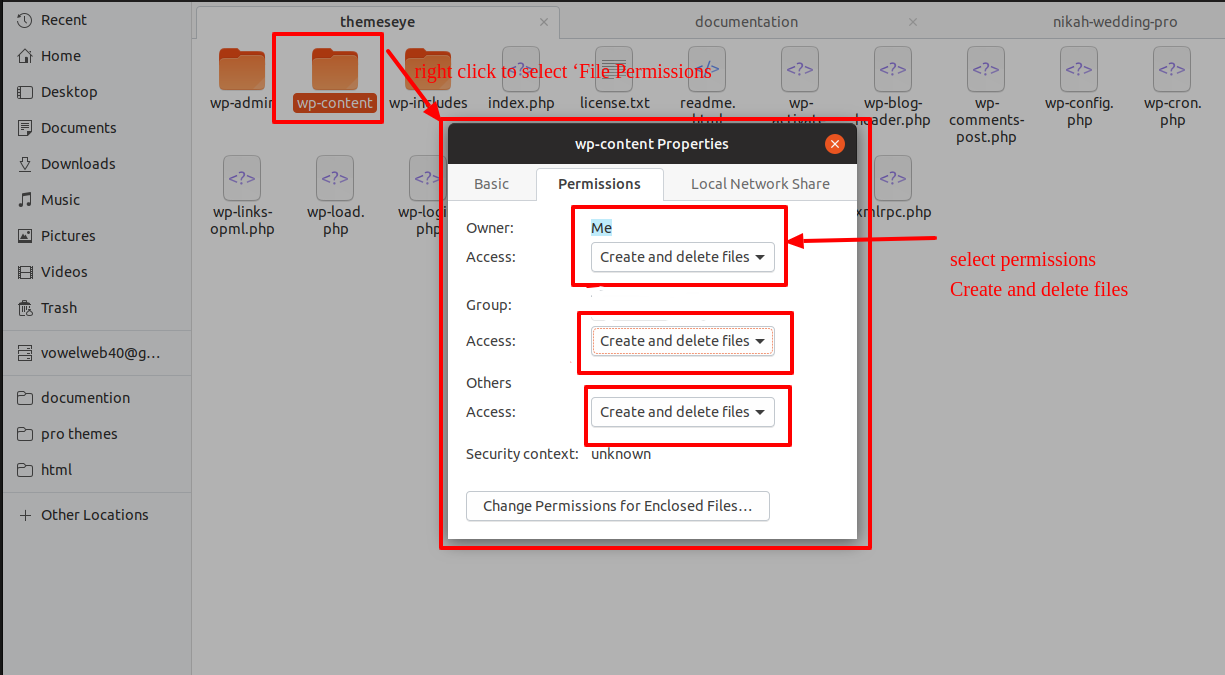
Incorrect file permissions may prevent WordPress from creating folders, uploading images, or running certain scripts.
WordPress requires server permissions to manage files and create folders.
- Then, select all folders in the root directory and right-click to select 'File Permissions'.
- wp-config >> permissions window >> check the box read and write >> To proceed, click the OK button.
- The same procedure should be followed for the wp-content folder.
This document was meticulously written with the goal of making it easy to understand for novice to advanced users or developers. This document is divided into three sections.
1) Getting Started : This section will be extremely beneficial for Quick Start and understanding how to setup theme.
2) Detailed Document : This section explains everything about the theme, including all of the settings.
3) Other : This section contains information about various items such as theme features and so on.
If you have any questions that go beyond the scope of this document, please contact us at [email protected]
- Email: [email protected]
TE Key Activation
The TE Key Activation procedure is as follows.
Because you will receive the License Key on yourEmail, use that key to Activate License.
Follow the following Process to Activate License.
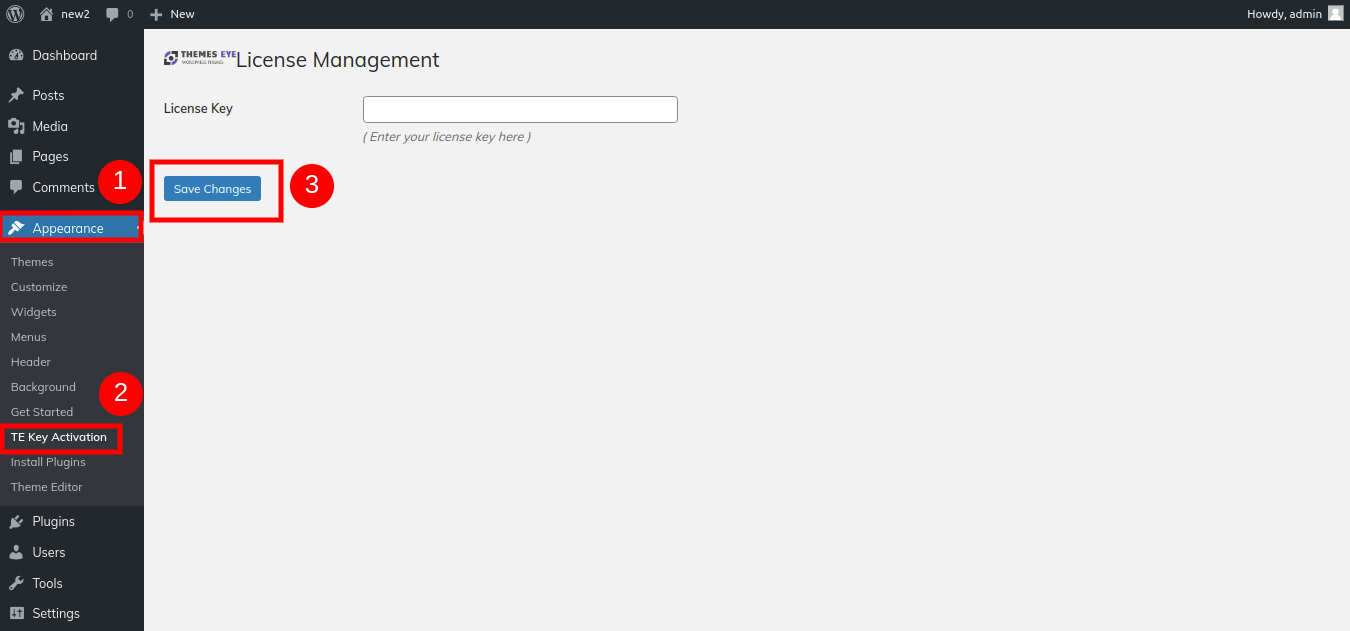
Go to the >>Dashboard>>Appearance >>TE Key Activation>>Enter Key>>Save Changes.
After Entering The Key >> Activate Licence.
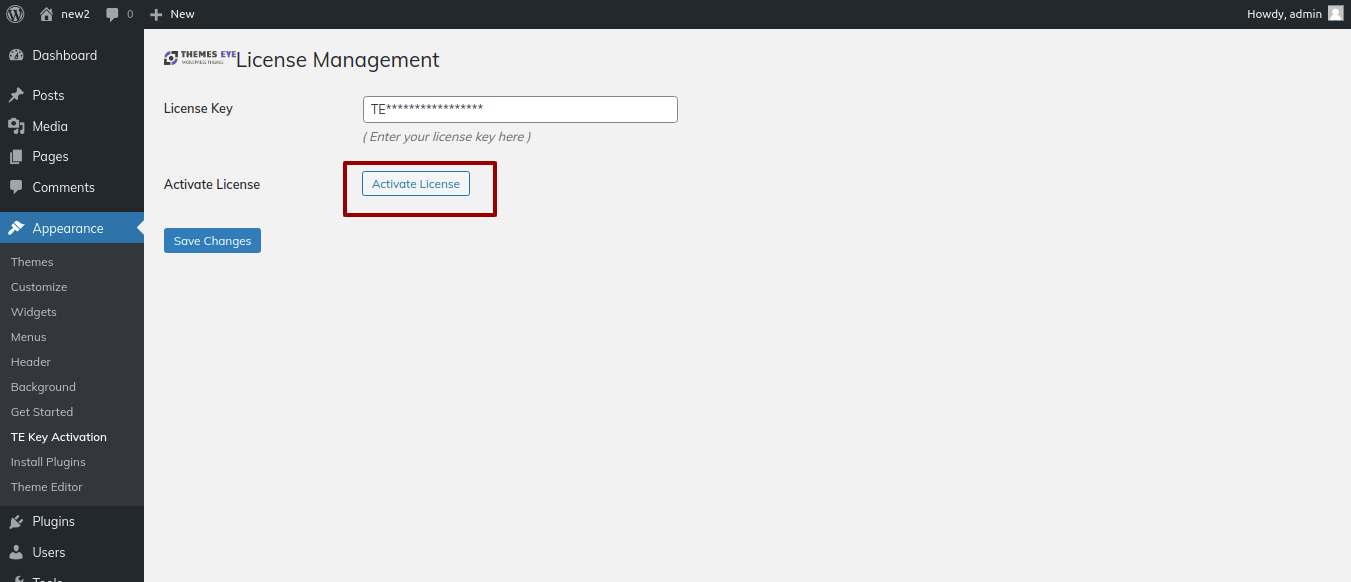
After you Activate Licence,tThe key will be activated, and you will be able toGetstarted with the Theme.
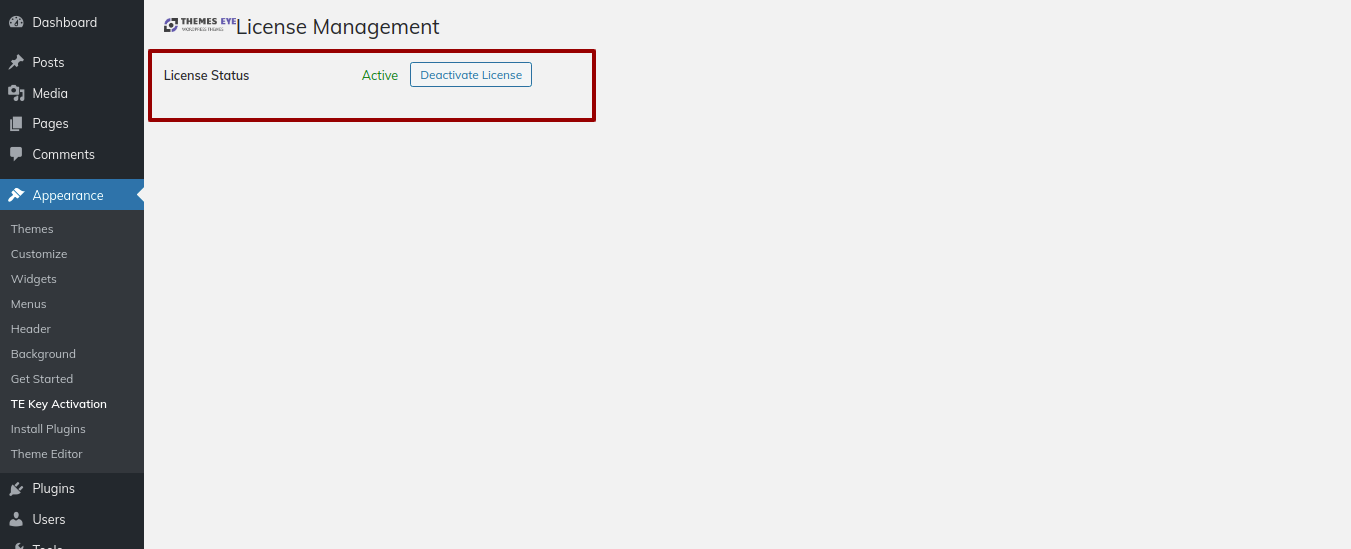
This allows you to activate yourLicence Key.
You must have a working version of WordPress installed in order to install this theme. Please see the WordPress Codex for information on installing the WordPress platform. https://codex.wordpress.org/Installing_WordPress
Step One : Installation Via WordPress Admin area
- Step 1 - Log in to your WordPress administration area.
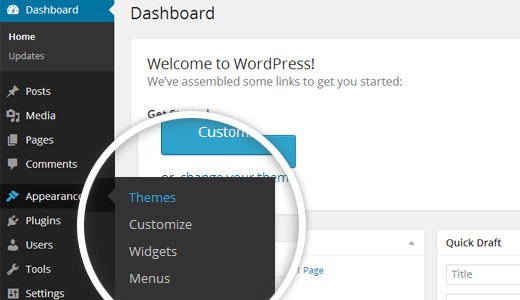
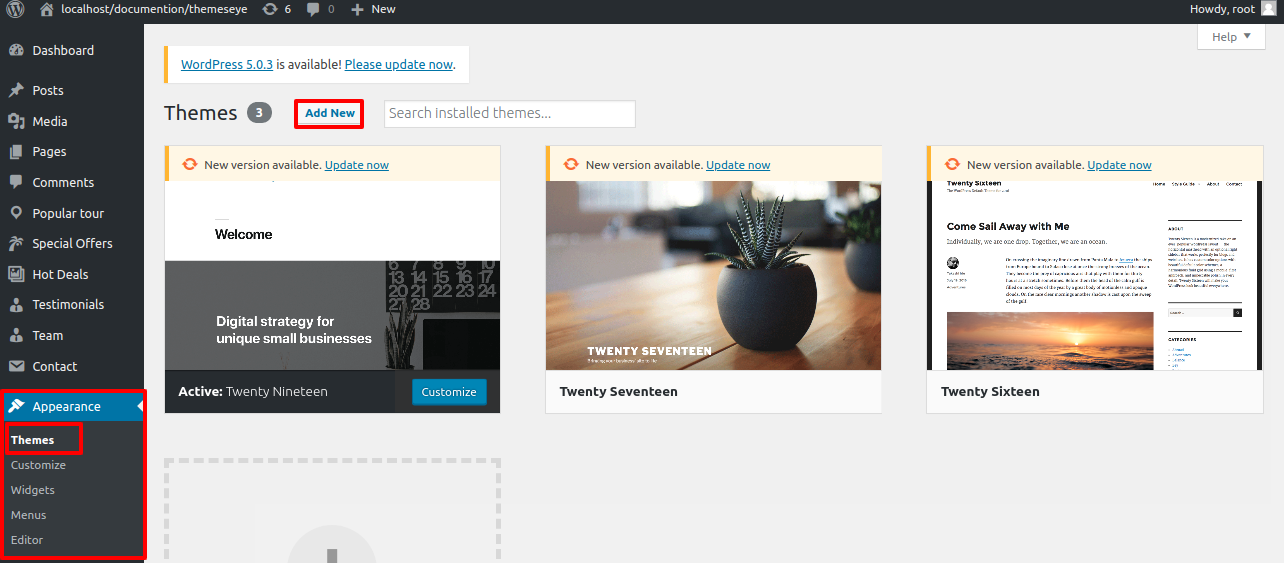
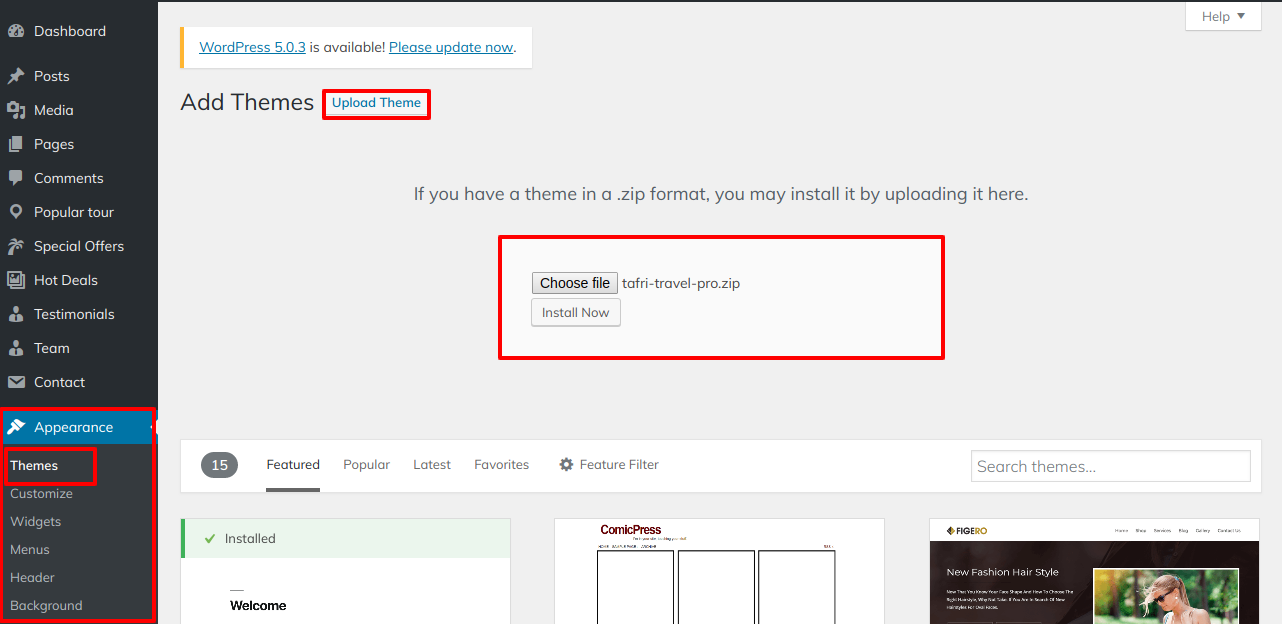
- Step 2 - Go to Dashboard >> Appearance >> Themes.
- Step 3 - Click on Add New Theme button at top.
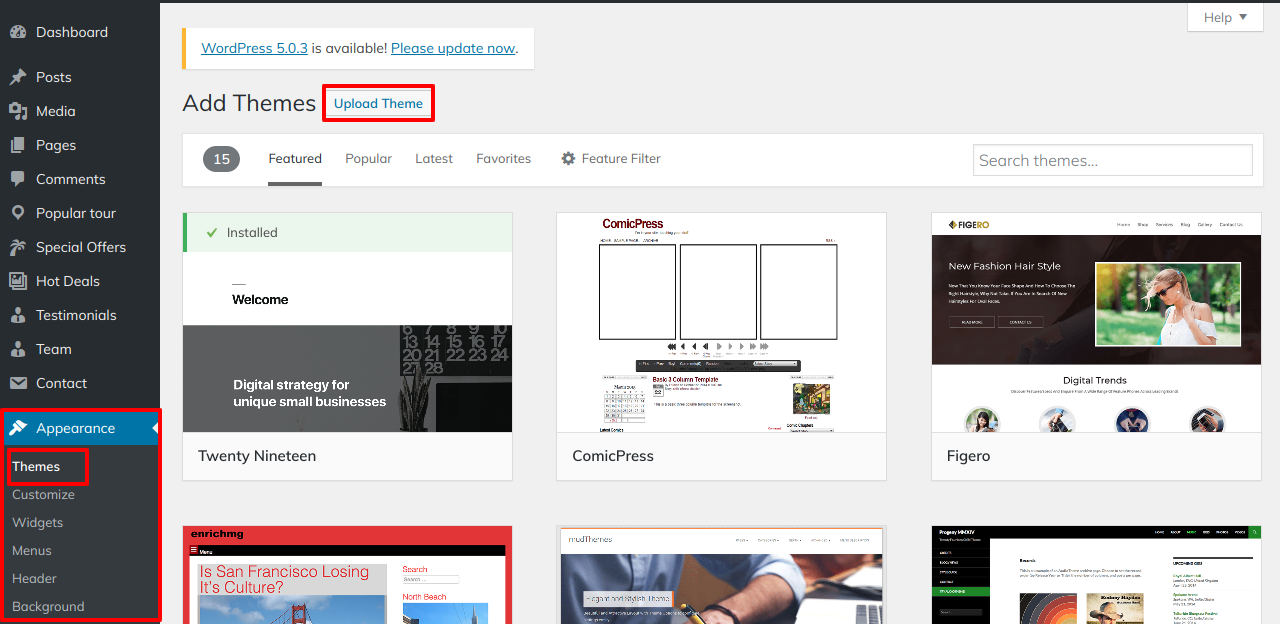
- Step 4 - Now, Hit Upload Theme button at top and upload.
- Step 5 - Click on Browse Button then select your tafri-travel-pro.zip theme and click on install now button.
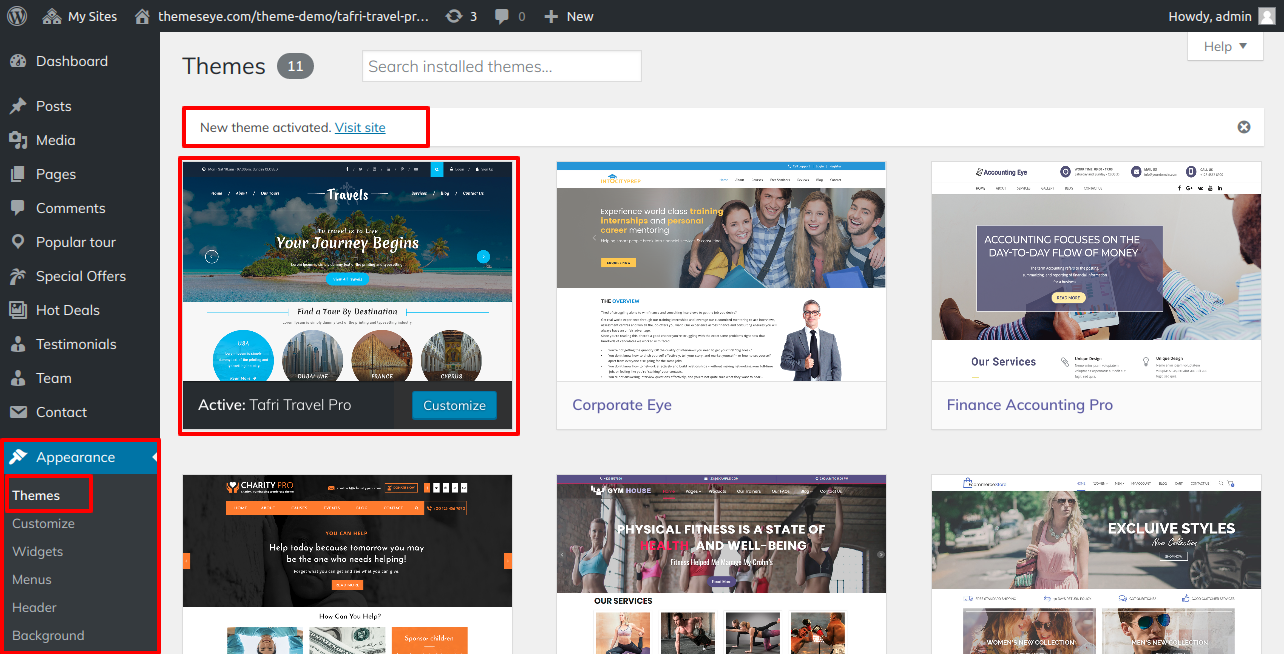
- Step 6 -WordPress will now install your theme and display a success message, as well as a link to activate or view the live preview.
Step Two : Installation Using FTP
- Step 1 - Download tafri-travel-pro.zip file from your My Account ThemesEye.
- Step 2 - Extract Zip file.
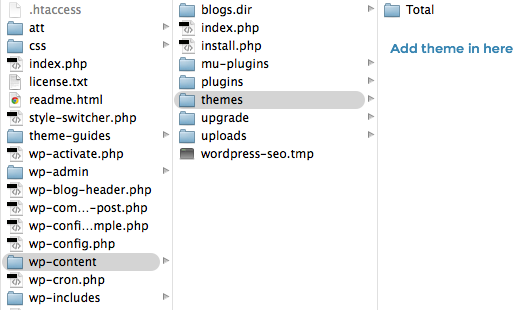
- Step 3 - Upload the non-zipped theme folder into the theme folder using your FTP programme. "/wp-content/themes/" folder on your server.
- Step 4 - Go to Dashboard » Appearance » Themes and find Tafri Travel Pro theme from list
- Step 5 - Click on Activate to active TAFRI Travel Pro Posttype theme.
Installation Using FTP
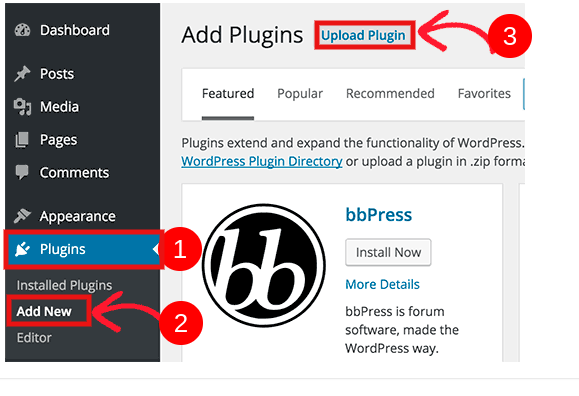
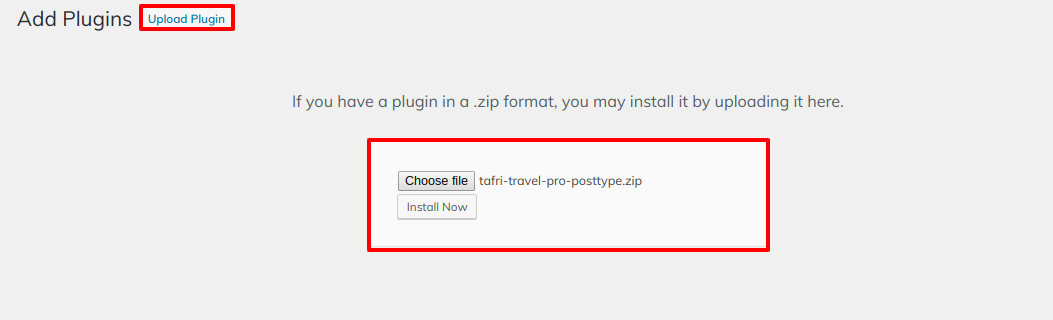
To manually install a WordPress Plugin, download the.zip archive and follow the steps below for Upload plugin installation.
- Install Required Plugins:
- Tafri Travel Pro Posttype Plugin.
- Go to Dashboard >> plugin >> Add New >> Upload plugin.
- click on the install now button and activate
Demo Importer
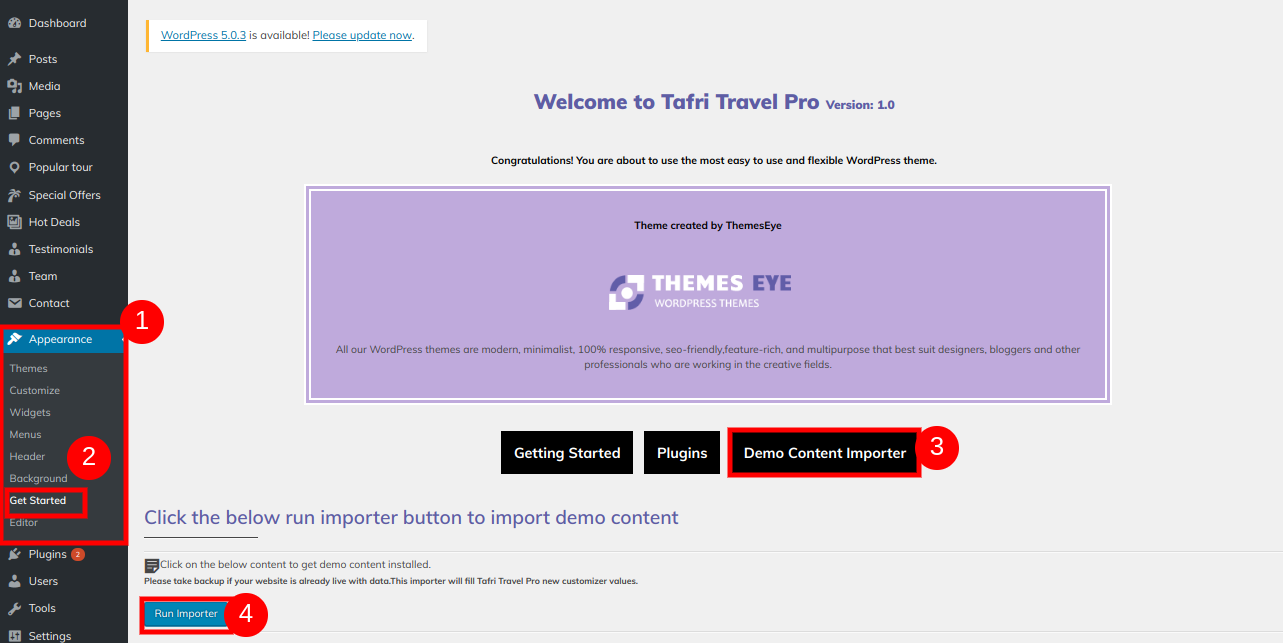
Import demonstration content with a single click to get your theme up and running. This content will walk you through the process of creating a website.
Go to Dashboard >> Appearance >> Get started
Before click on "Run Importer" first you need to install TAFRI Travel Pro Posttype plugin.
Click on "Demo Content Importer" and then "Run Importer".
Color/Font Pallette
Color/font selection is a simple process. These options are available in all sections of the customizer. It is a complete image that demonstrates the colour and font palette. You can change the colour and fonts of the headings, paragraph, and buttons with a single click.
Depending on the number of options available in that section, each individual section has the option to set the colour palette for Headings, Title/Text, Paragraph, Button Text, and Button Background.


Home Page Section
Create a Home Page Template
This section will assist you in organising your site's home page and other pages. This will also show you how to set up WordPress Menus, make a slider/banner, make a home page, use page templates, and insert shortcodes into pages.
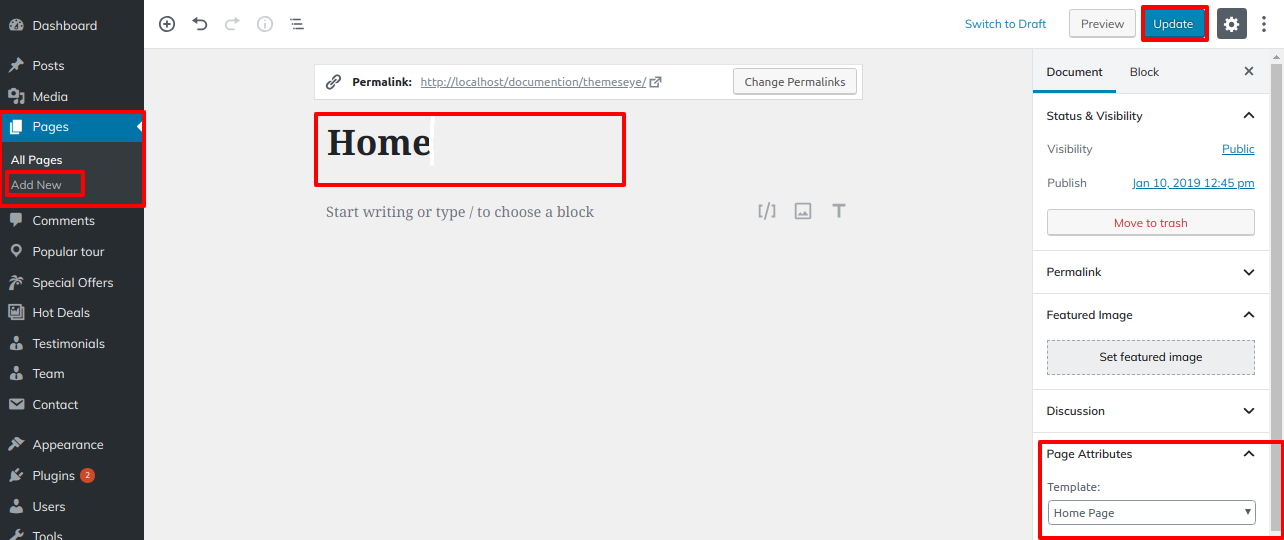
- Step 1 - Go to Dashboard >> Pages >> Add New, enter page name and select template as Home Page Template from Page Attribute as shown in below image
- Step 2 - Publish this page
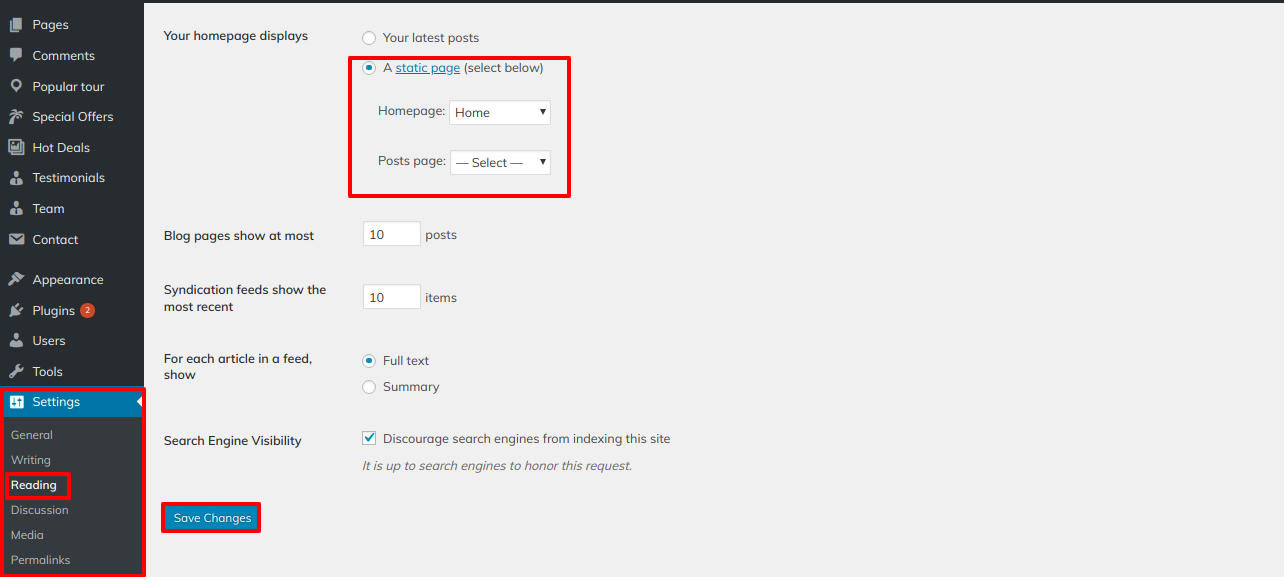
- Step 3 - Go to Dashboard >> Settings >> Reading, select home page as a front page
Section Ordering
Section Arrangement and Reorganization
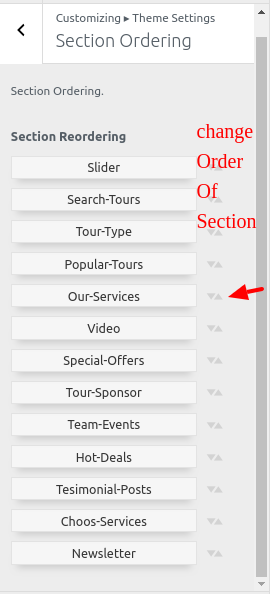
Section reordering essentially means rearranging the section to meet our needs. To proceed with this section, drag the section to the top or bottom of the page where you want it. When you drag any section top or bottom, the front view changes based on the customizer values.
Section re-ordering is as simple as dragging and dropping options into any order you desire.
- Step 1 - Go to Appearance >> Customizing >> Theme Settings >>Section Ordering
In order to move on to Section Ordering.

Header Setting
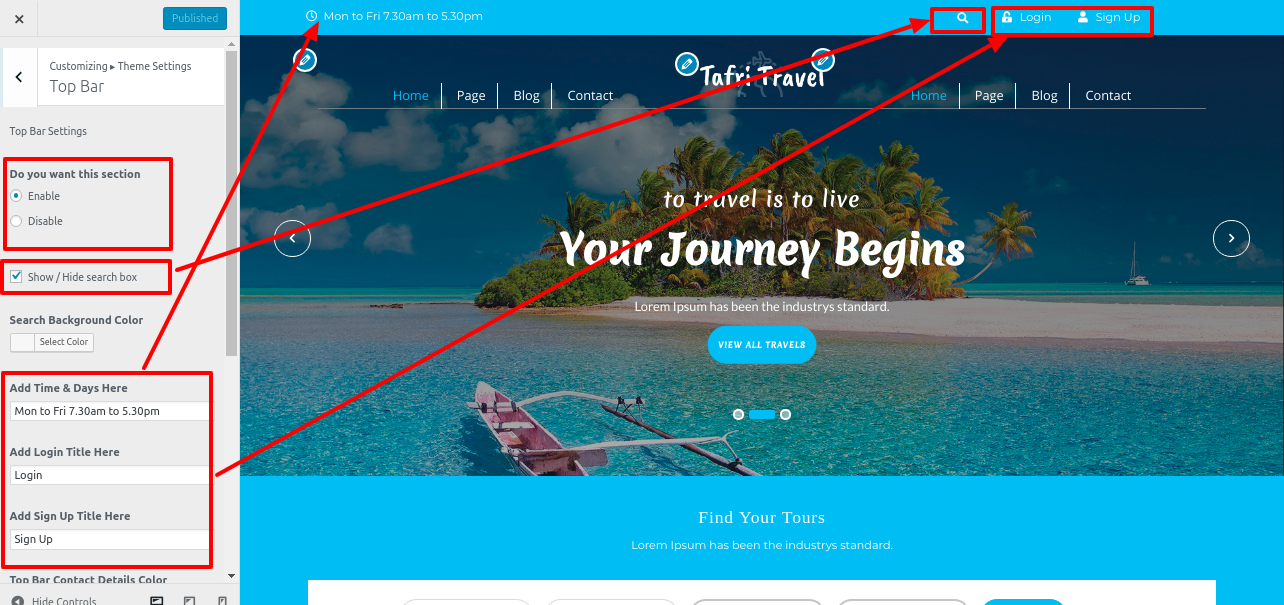
- Step 1 - Go to Dashboard >> >> Appearance >> Customizing >> Site Identity
- a. You can add logo from Select Logo button for set logo
- Step 2 Go to Dashboard >> Pages >> If you want to add an image, create a new page and assign it to that section. You can repeat this process to create multiple pages in the same section.
- Step 1 - Go to Dashboard >> Appearance >> Menus.
- Step 2 - Click on create a new menu as show in below image.
- Step 3 - Enter menu name and click on Create Menu as shown in below image.
- Step 4 - Choose Pages such as Latest Blog, Pages, and About Us from the left side and click onAdd to Menu button as show in below image
- Step 5 - After selecting the pages, choose the menu location. Click on the left menu and then on save menu.
- Step 6 - Click on Manage Locations as show in below image.
- a. Click on Use new menu
- Step 1 - Go to Dashboard >> Appearance >> Menus.
- Step 2 - Click on create a new menu as show in below image.
- Step 3 - Enter menu name and click on Create Menu as shown in below image.
- Step 4 - Choose Pages such as Latest Blog, Pages, and About Us from the left side and click on Add to Menu button as show in below image
- Step 5 - After selecting the pages, choose the menu location. For the right menu, click on save menu.
- Step 6 - Click on Manage Locations as show in below image.
- Menu Front Preview

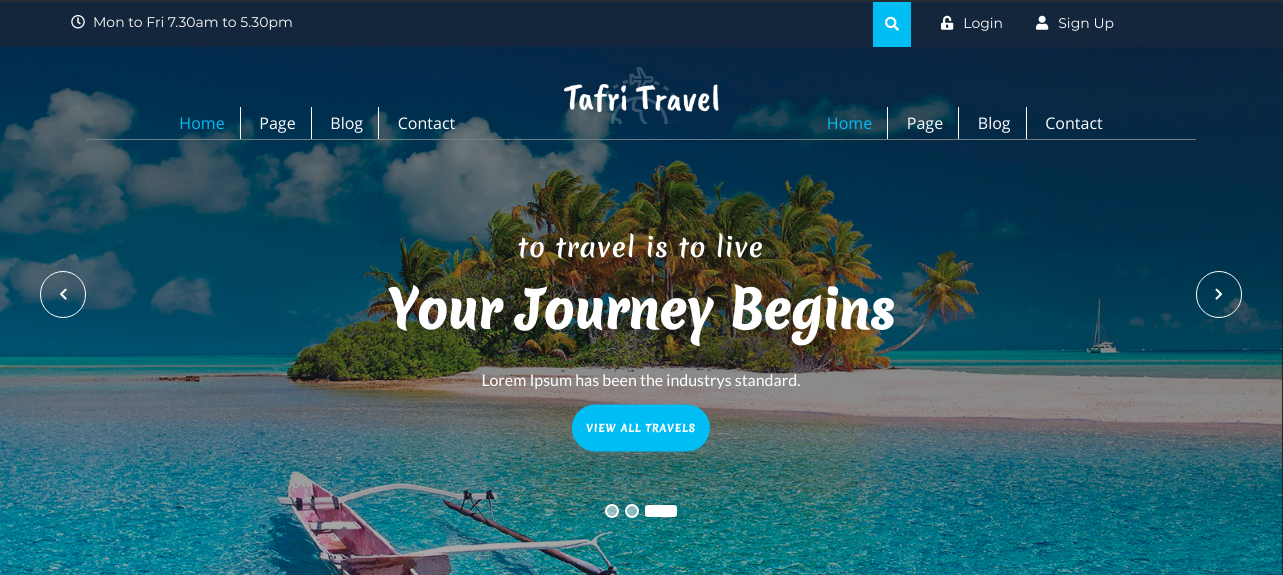
Final display of Header


For Menu
For Left Menu


For Right Menu

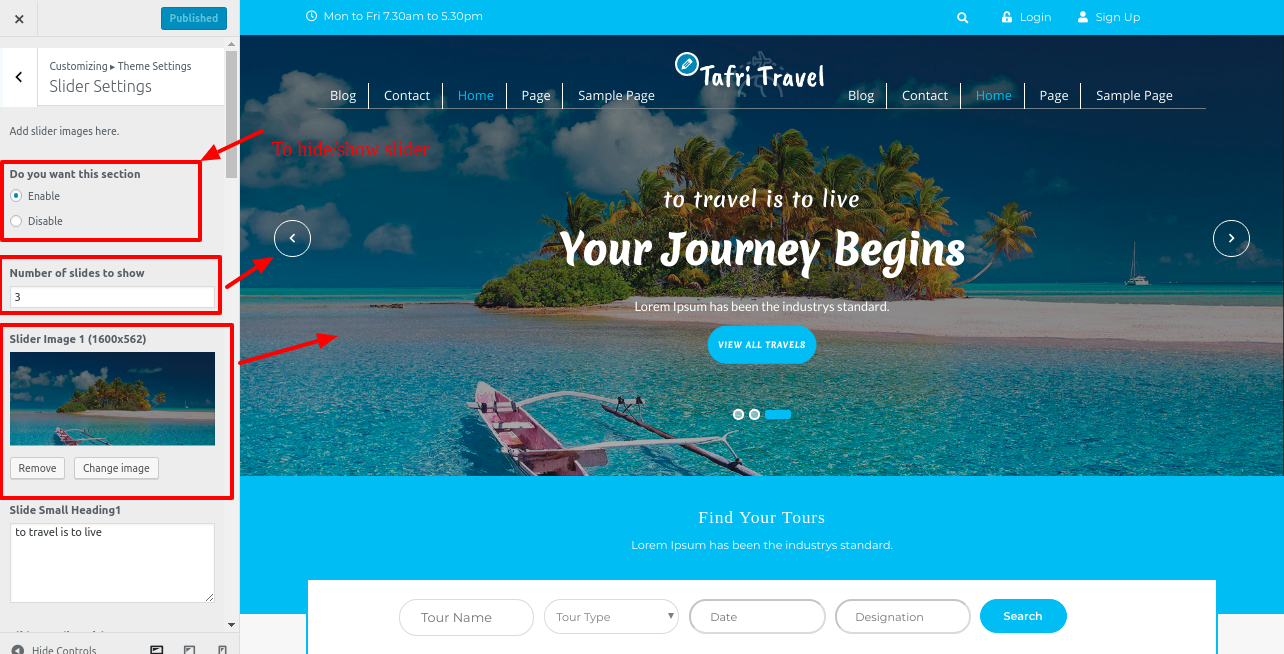
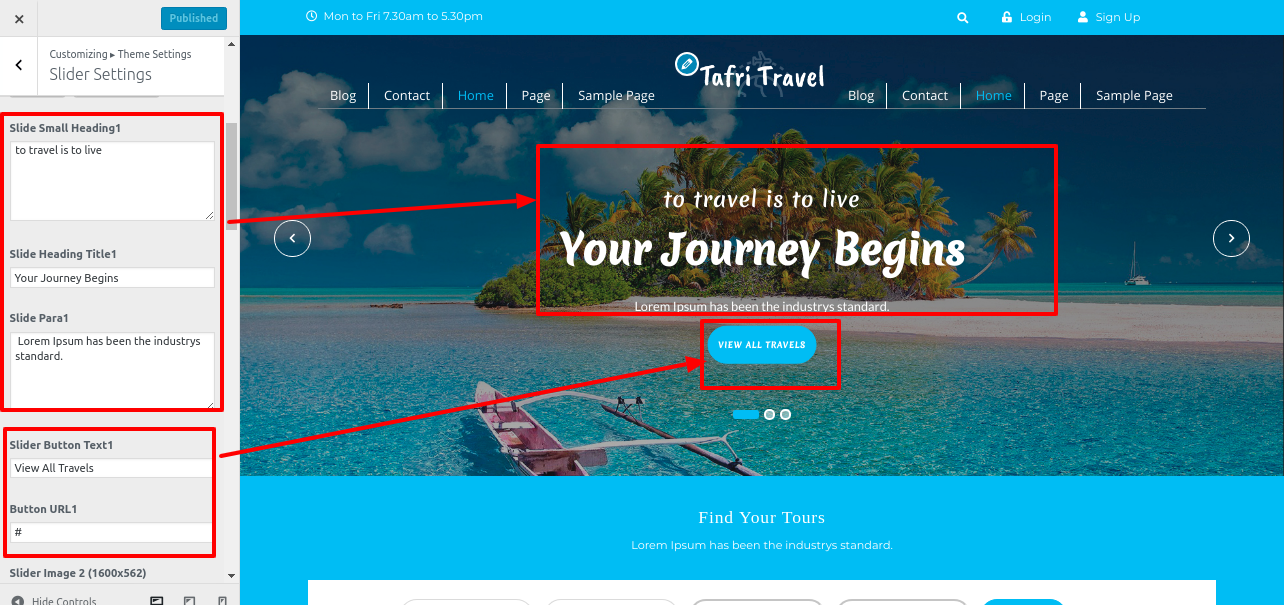
Setup Search Tours Section
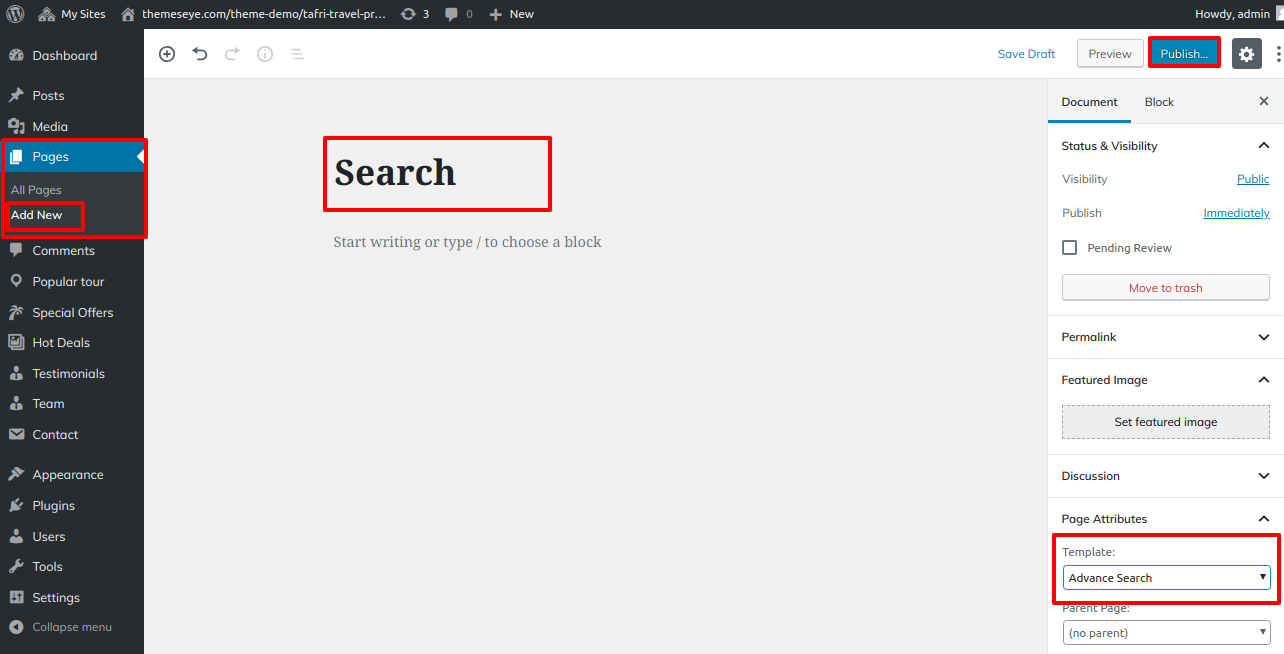
- 1) Create Page to set template for: Go to Dashboard >> Pages >>Add New.
- Label it "Search" or whatever you want. Then, from the template dropdown, select "Advance Search."
- Step 1 - Go to Dashboard >> Appearance >> Customize >> Theme Settings >> Search Tours Step 2 - Manage Background
- (a) Add Background Image
- (b) Add Title
- (c) Select Tour Type Page
- (d) Add button Link
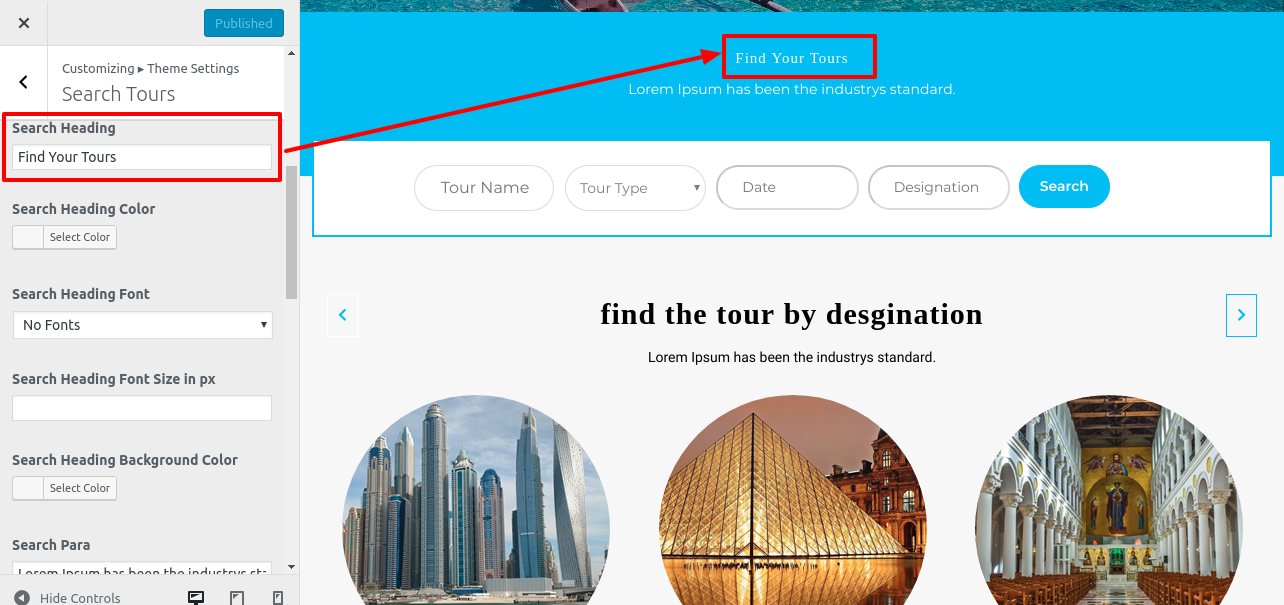
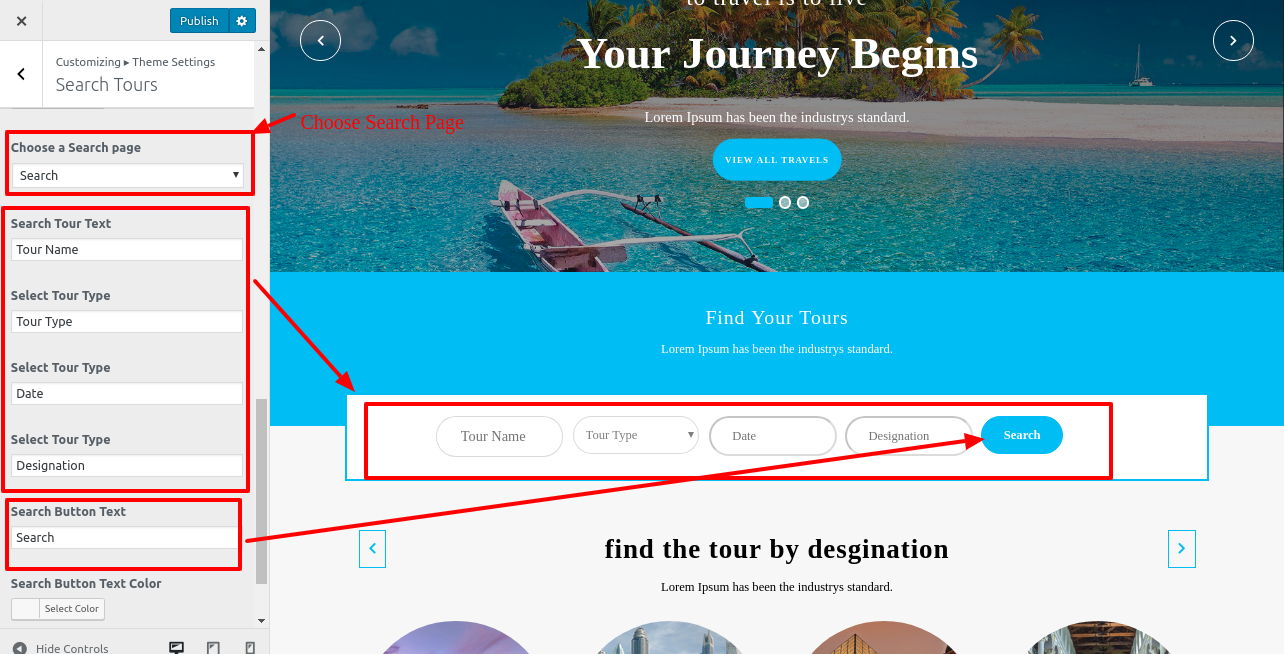
Final display of Search Tours Section

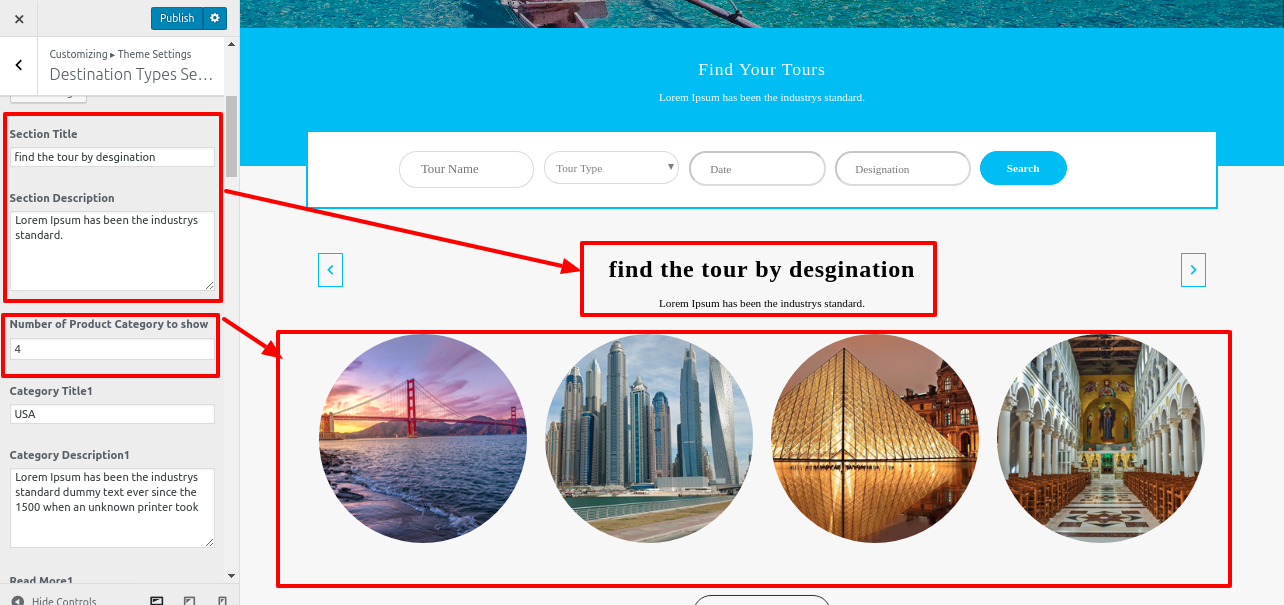
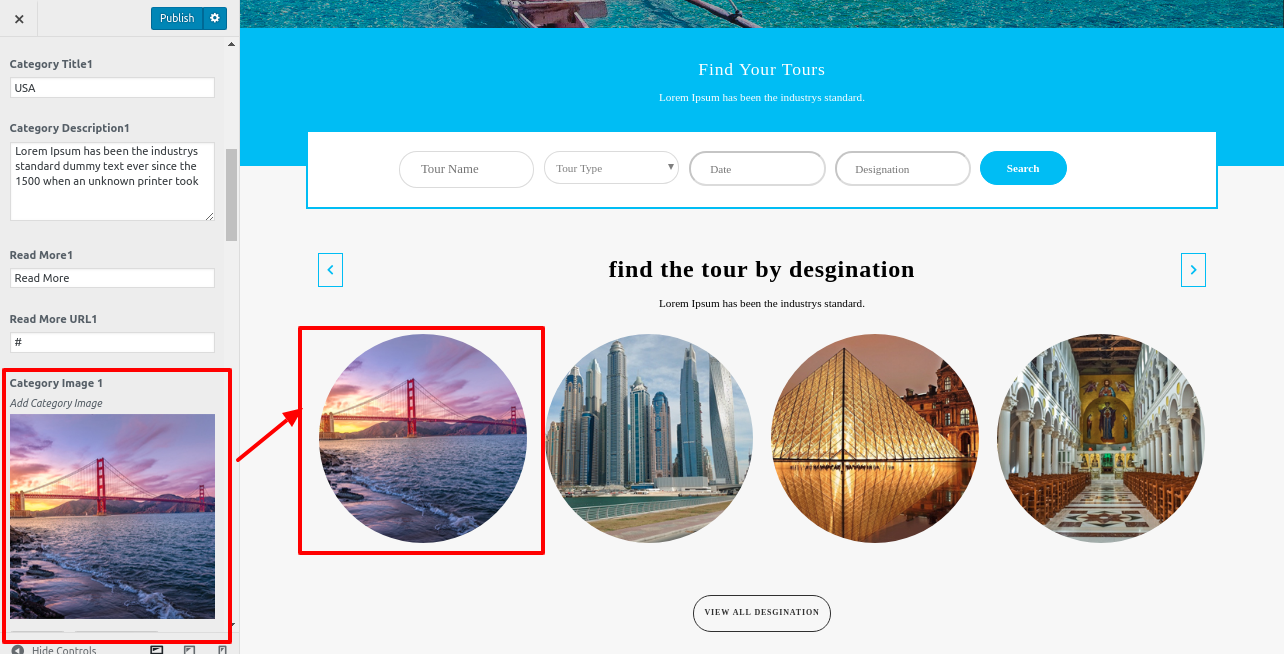
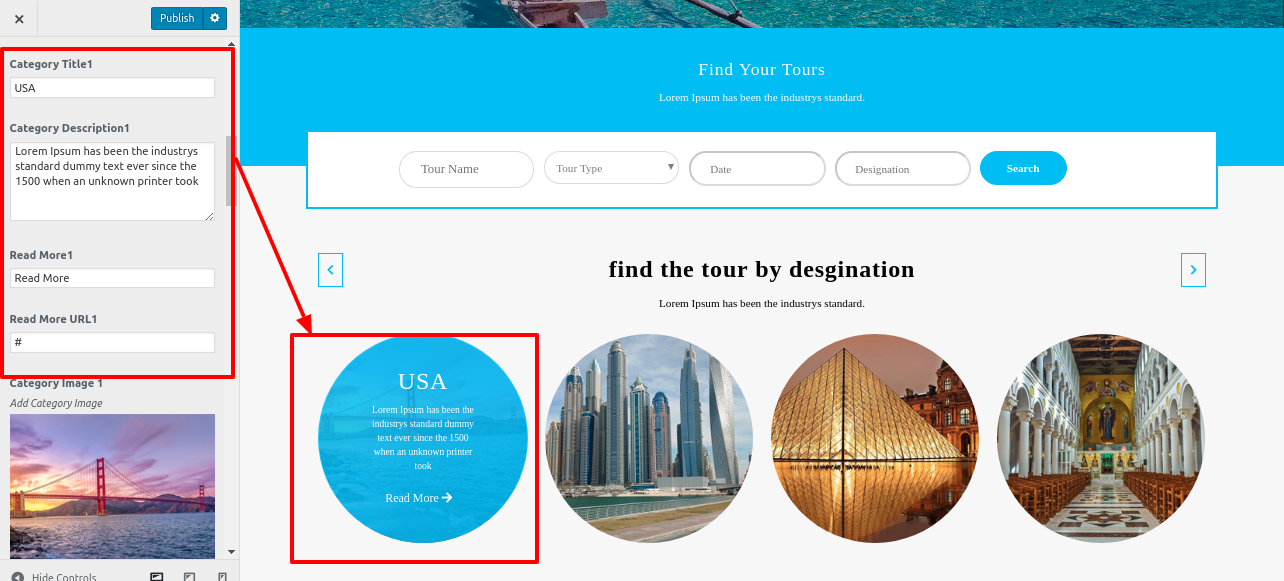
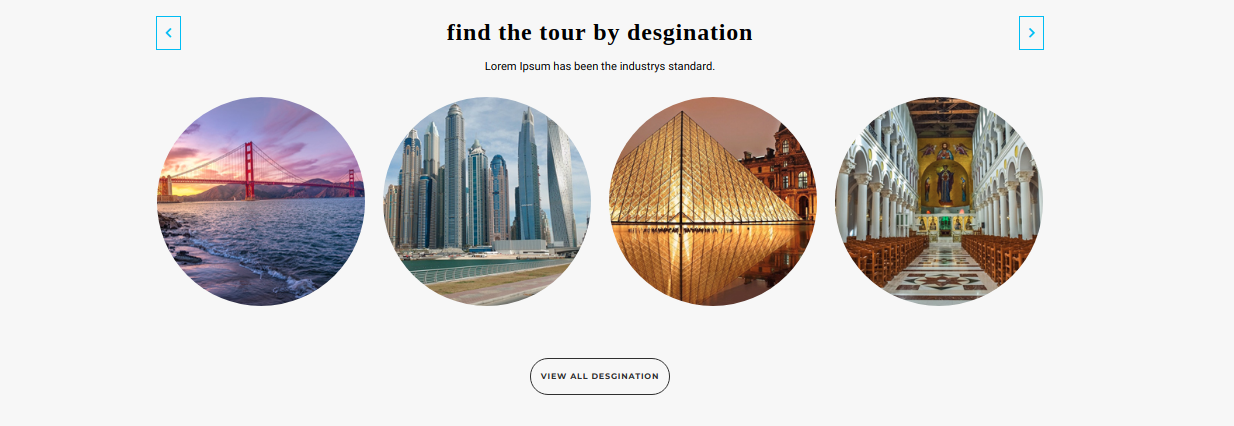
Setup Popular tour Section
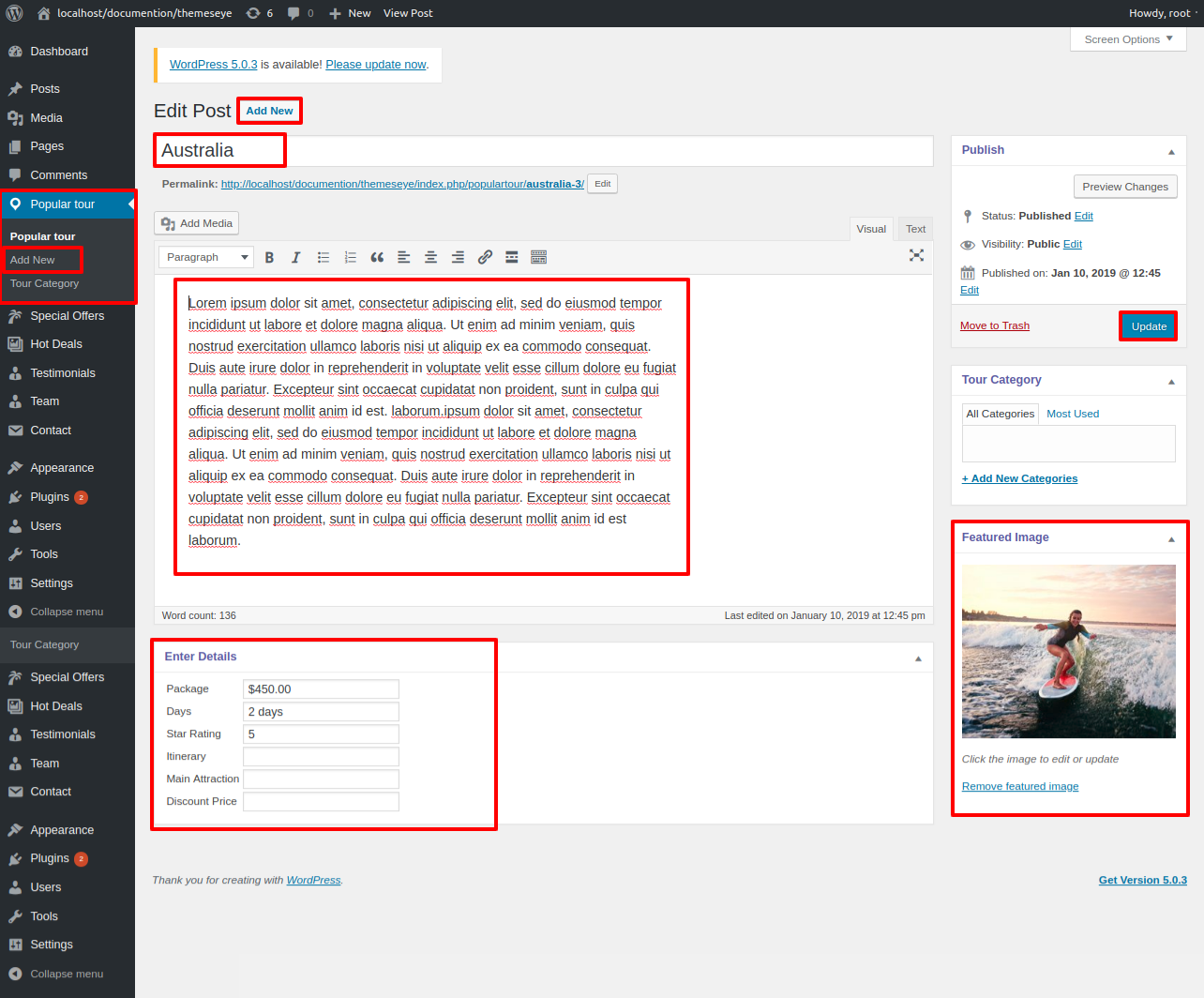
- We must install and activate the Popular Tour section.TAFRI Travel Pro Posttype Plugin
- Step 1 - Go to Dashboard >> Popular tour >> Add New
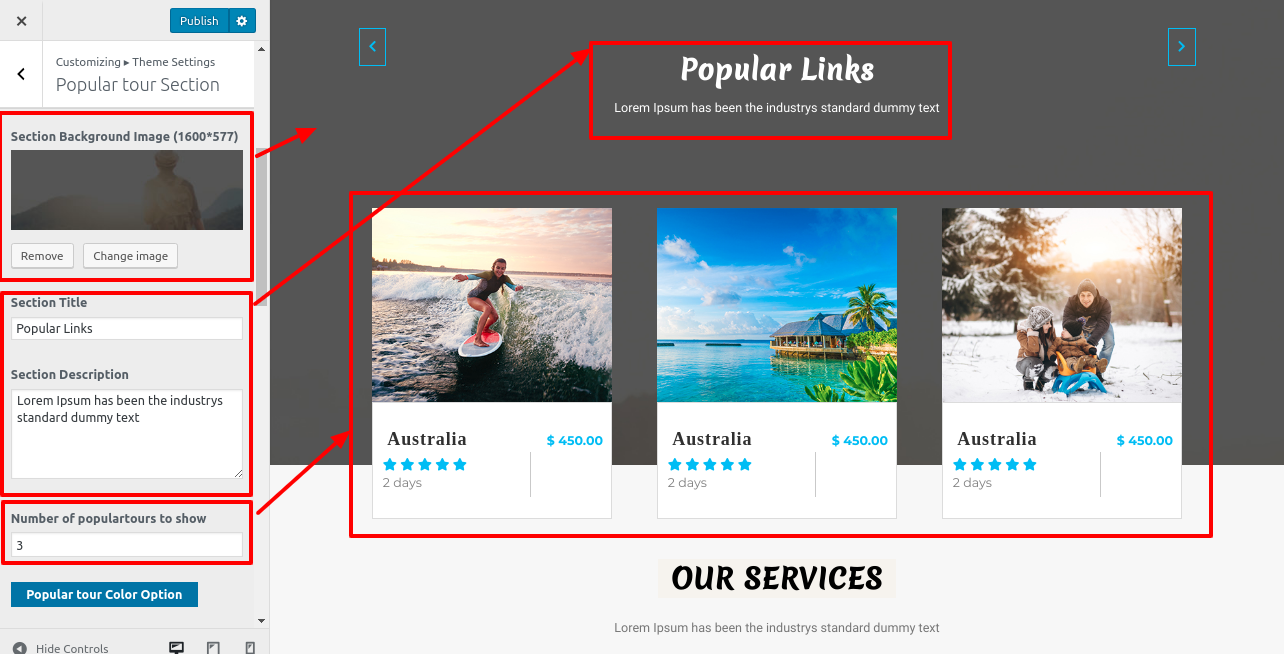
- Step 2 - Go to Dashboard >> Appearance >> Customize >> Theme Setting >> Popular tour Step 3 - Manage Background
- (a) Add Background Image
- (b) Add Title
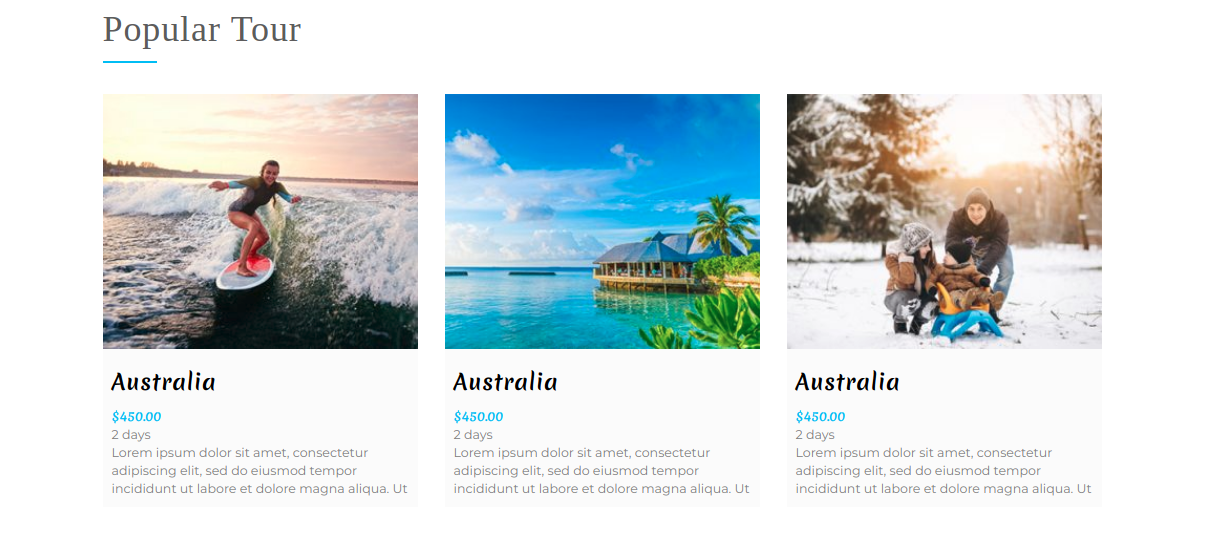
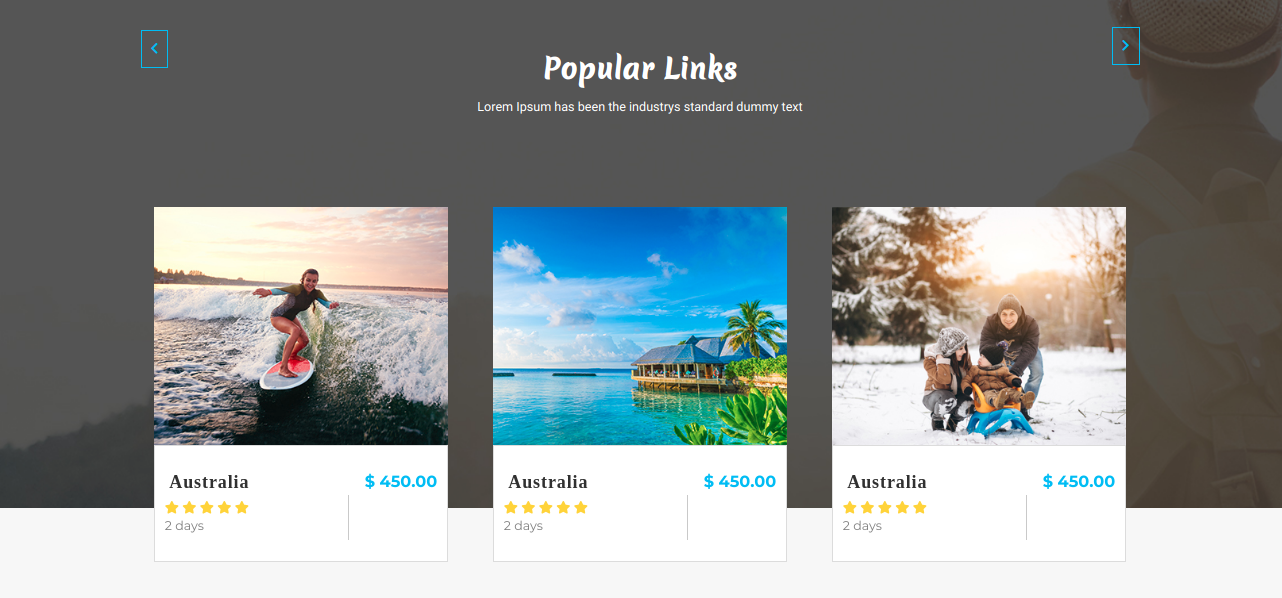
Final display of Popular tour Section
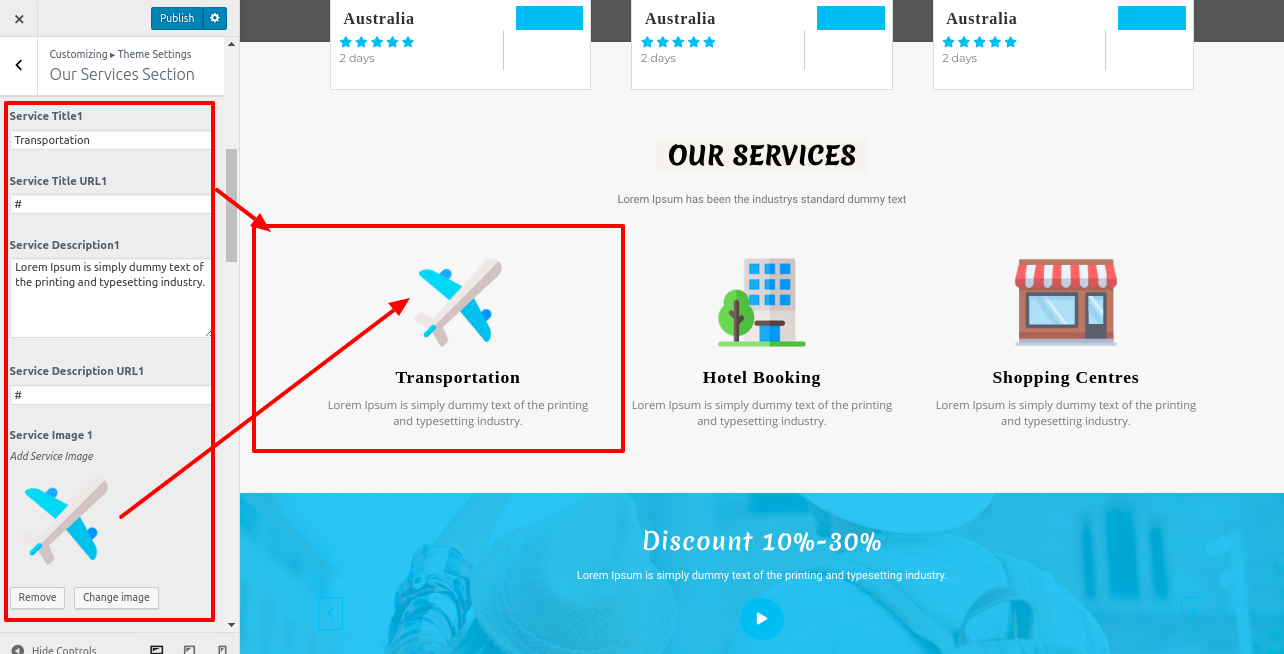
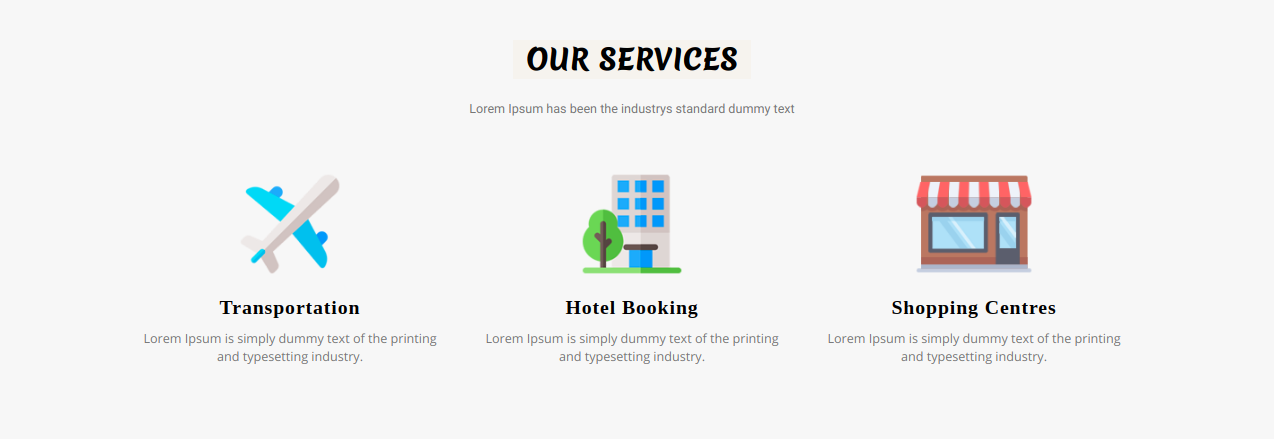

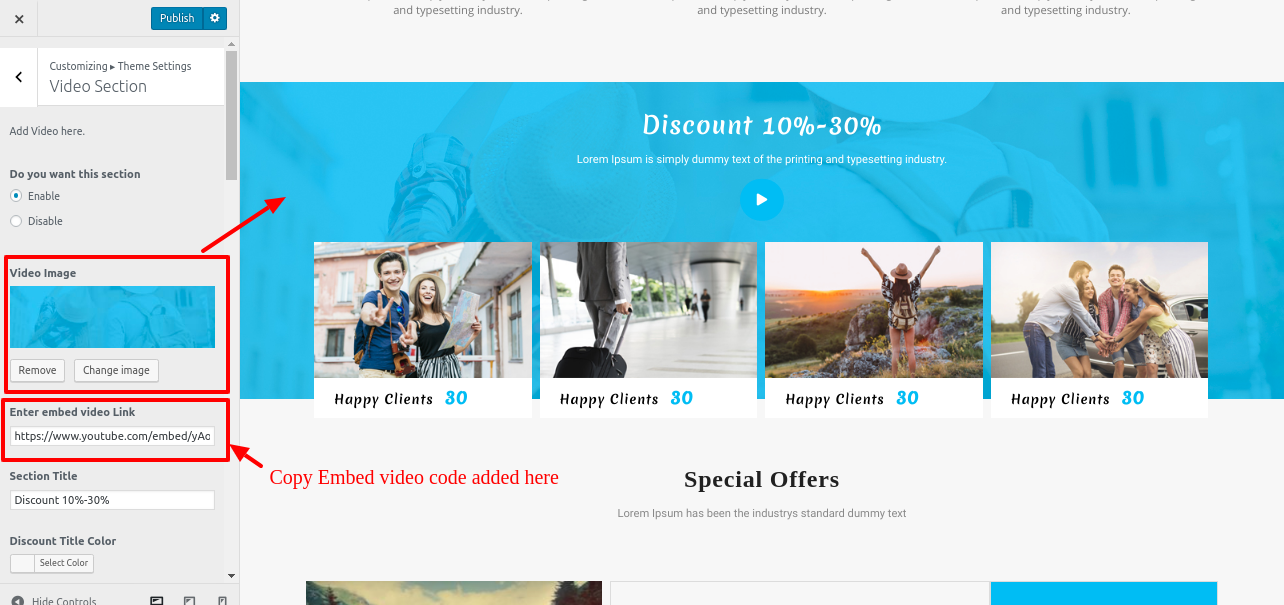
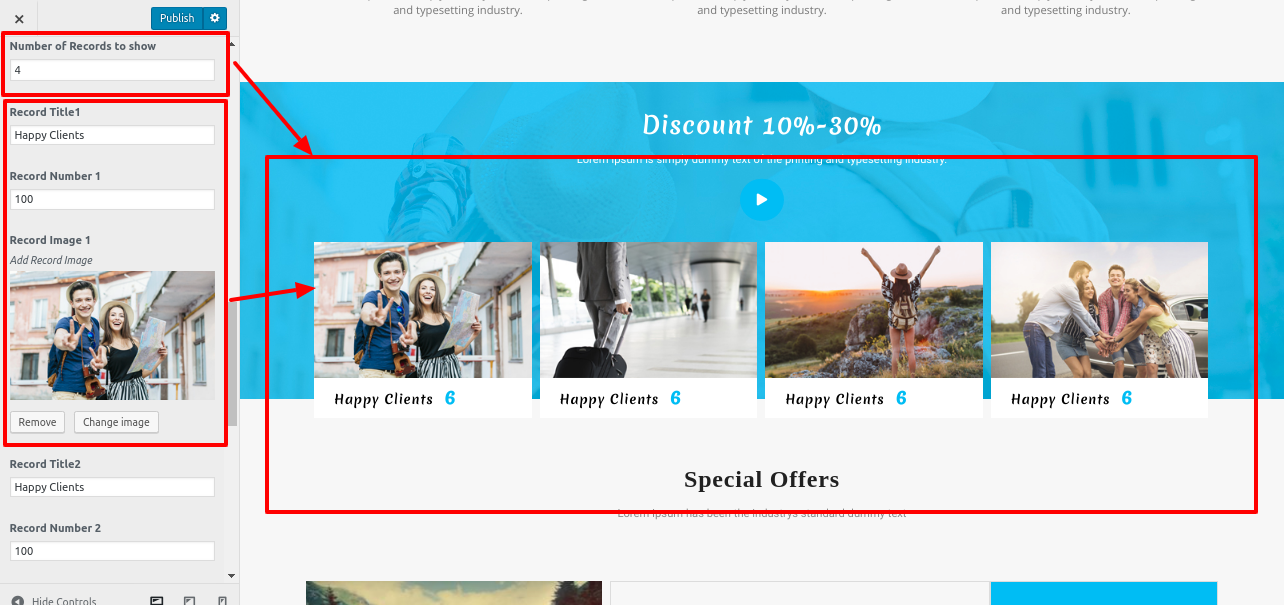

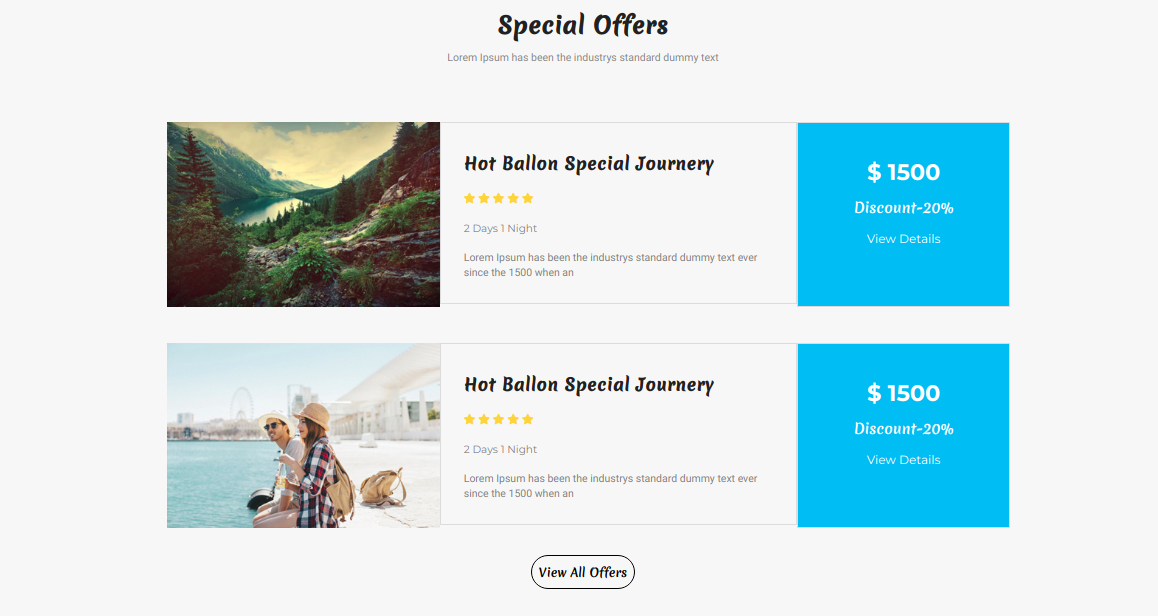
Setup Special Offer Section
- We must install and activate the Special Offer section. TAFRI Travel Pro Posttype Plugin
- Step 1 - Go to Dashboard >> Special Offers >> Add New
- (a) Add New Offer name
- (b) Add images
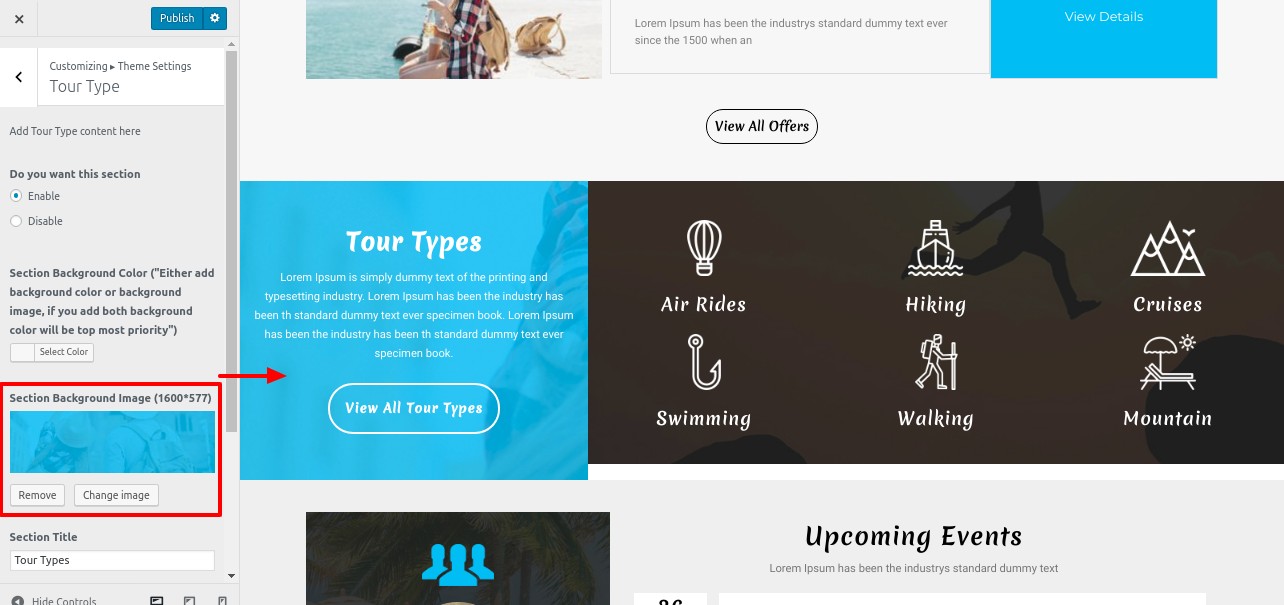
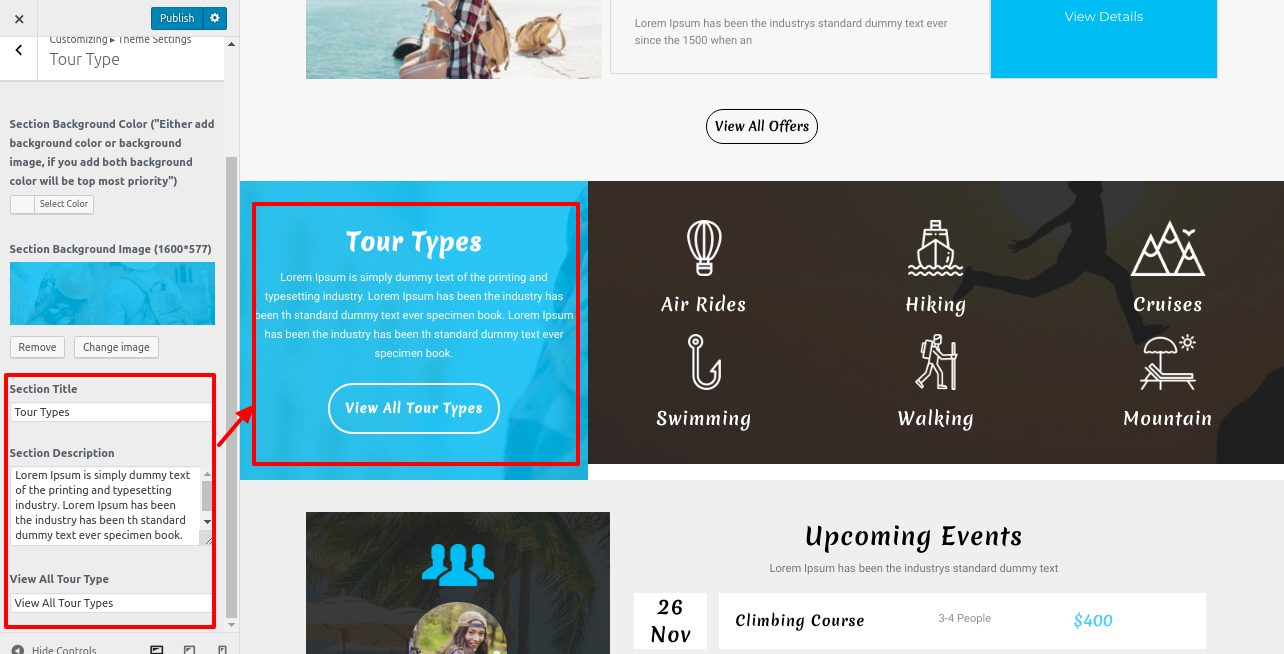
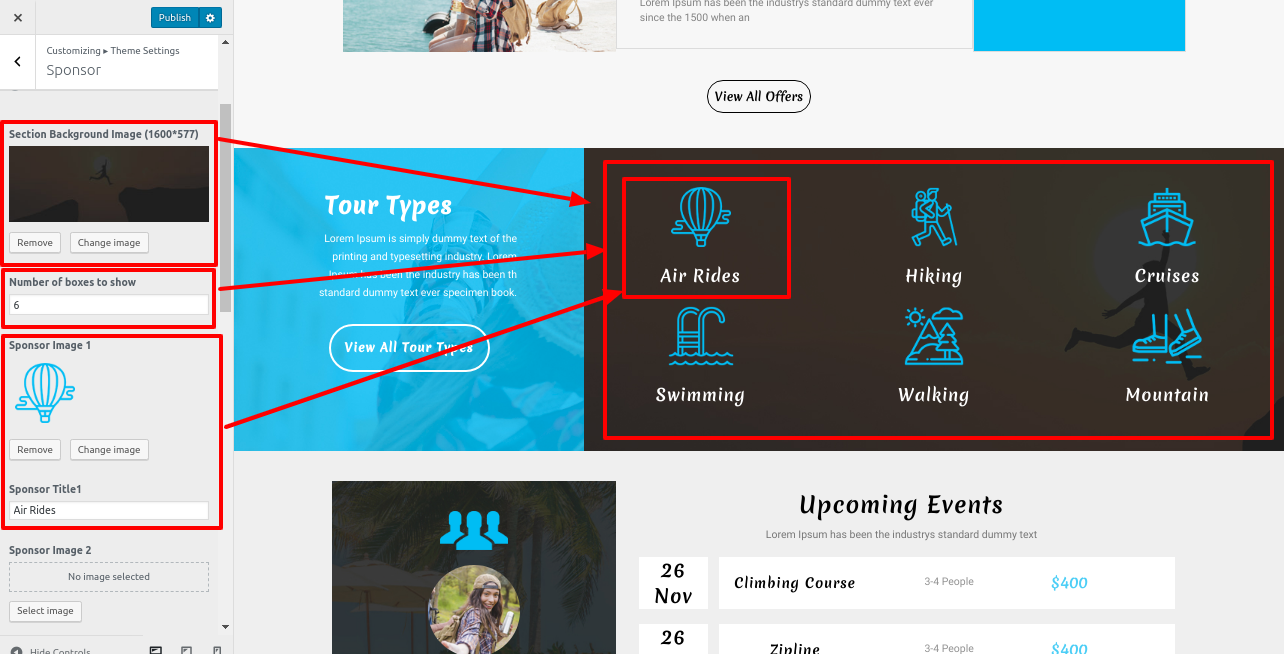
- Step 3 - Go to Dashboard >> Appearance >> Customize >> Themes Setting >> Special Offer Step4 -
- (a) Select background image
- (b) Add Title
- (c) Click Publish Button


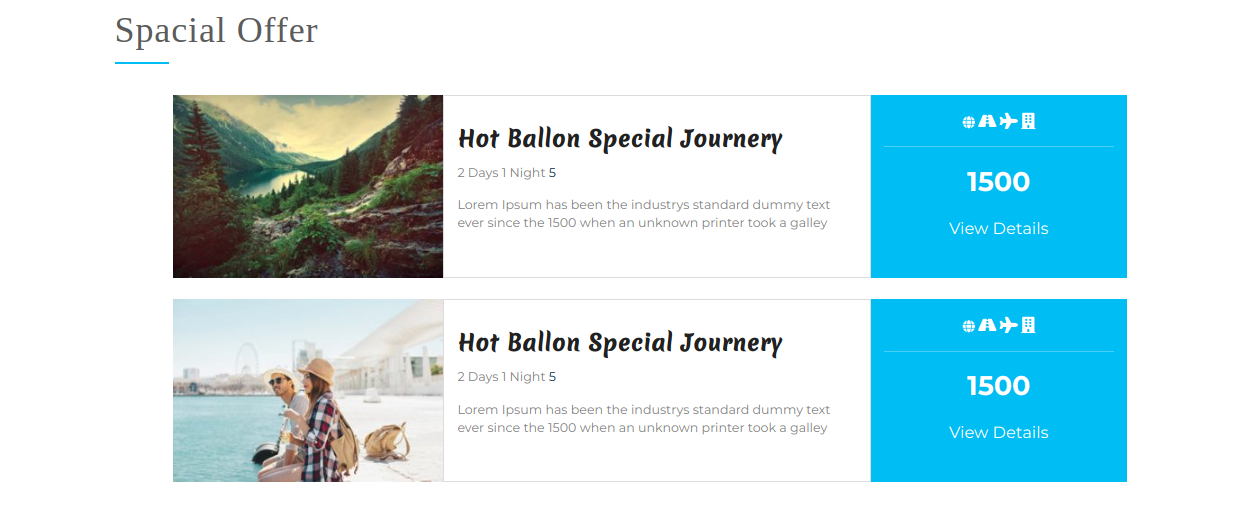
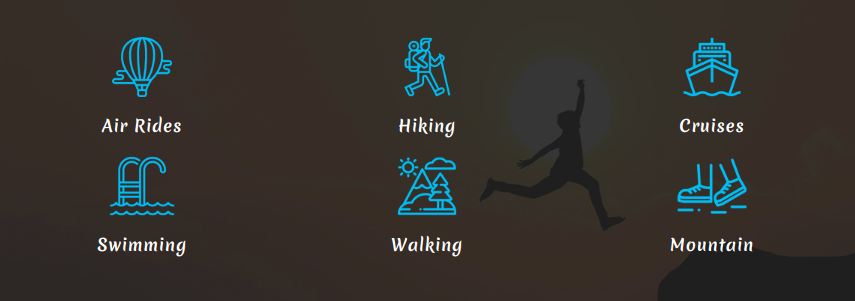
Final display of Special Offer Section
Setup Team Section
- We must install and activate the Team section.TAFRI Travel Pro Posttype Plugin
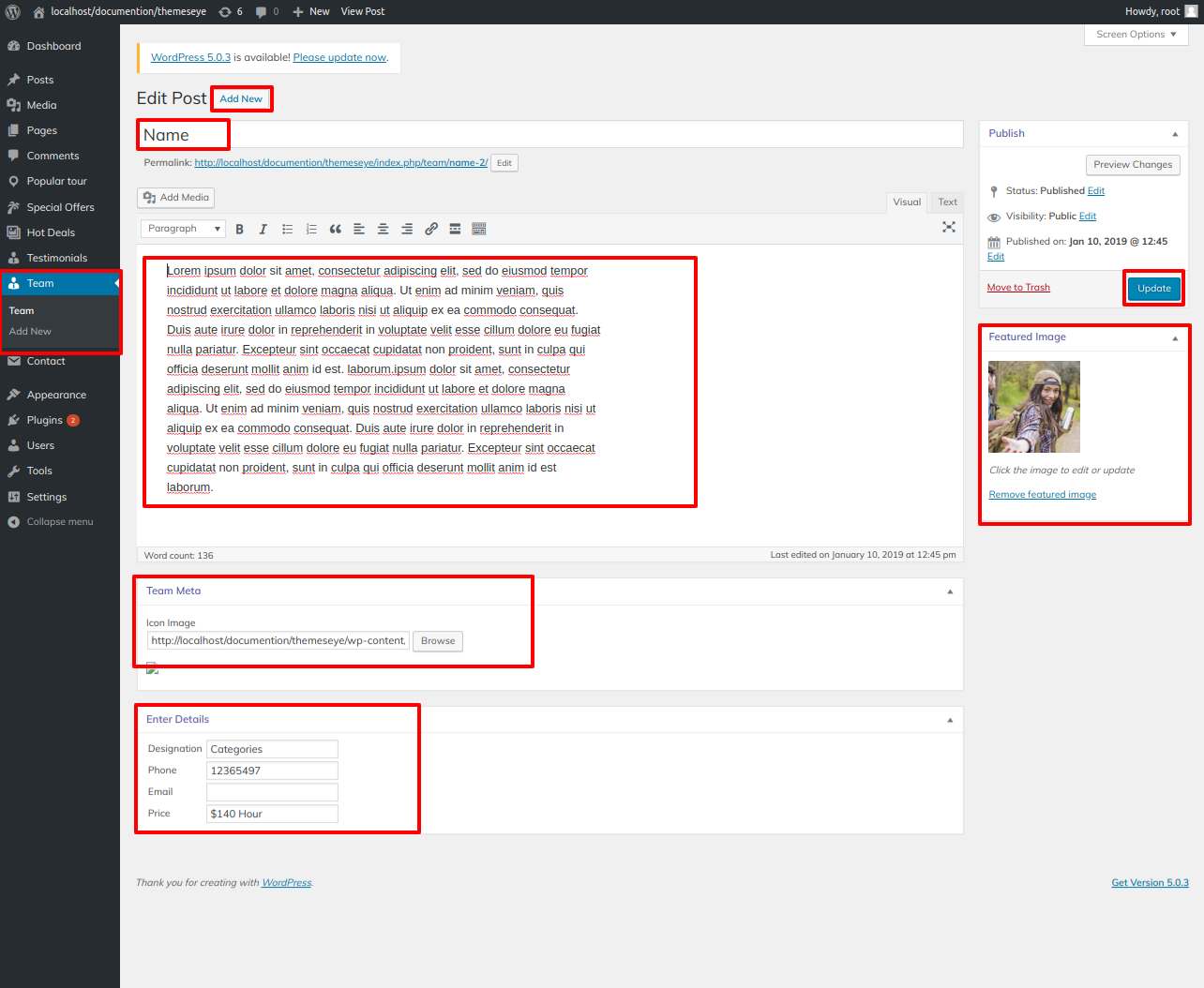
- Step 1 - Go to Dashboard >> Team >> Add New
- (a) Add Team name
- (b) Add images
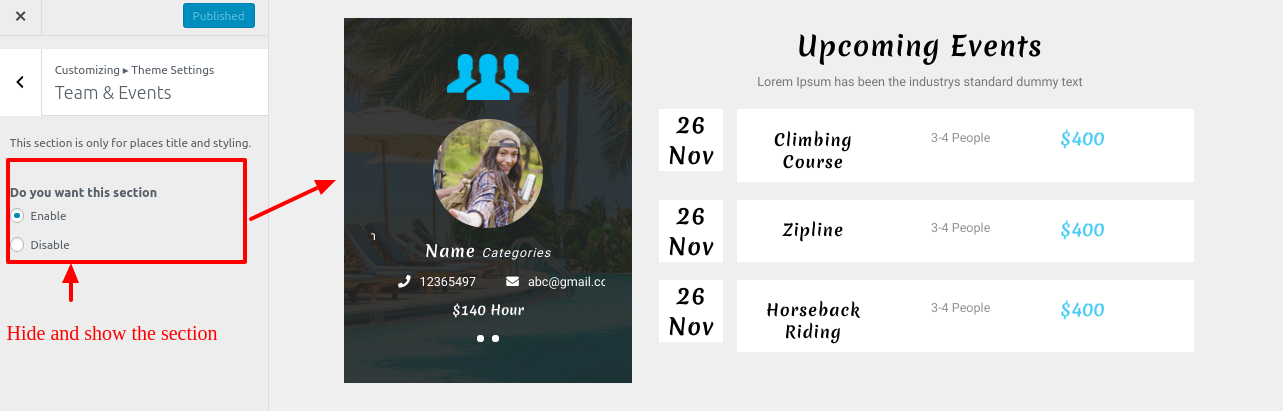
- Step 2 - Go to Dashboard >> Appearance >> Customize >> Home setting >> Team
- (a) Select background image
- (b) Add title
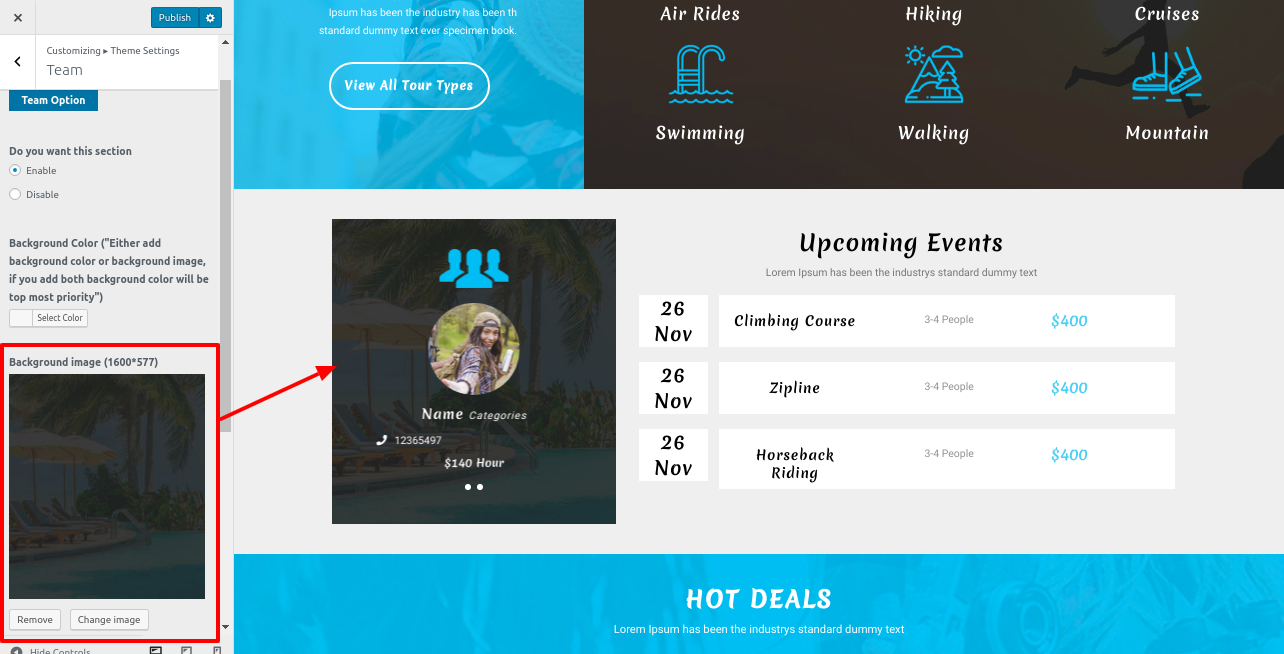
Final display of Team Section
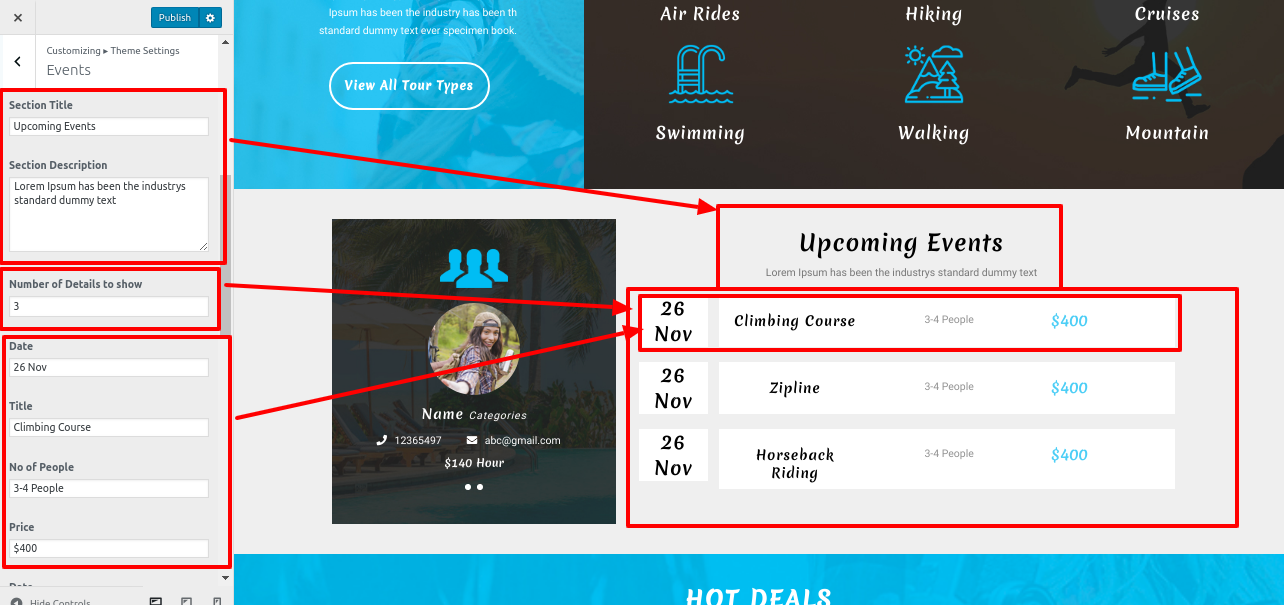
Setup Hot Deals Section
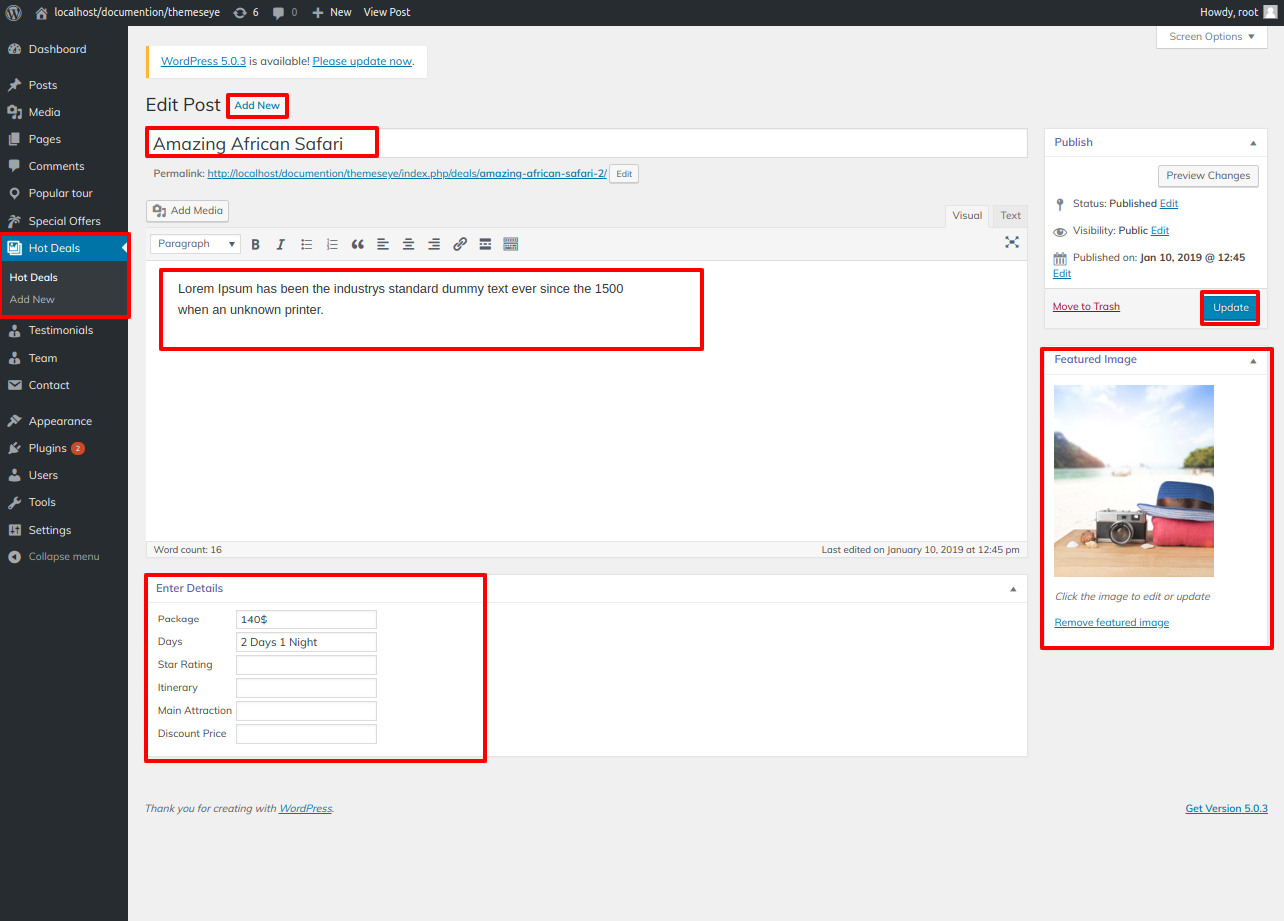
- We must install and activate the Hot Deals section. TAFRI Travel Pro Posttype Plugin
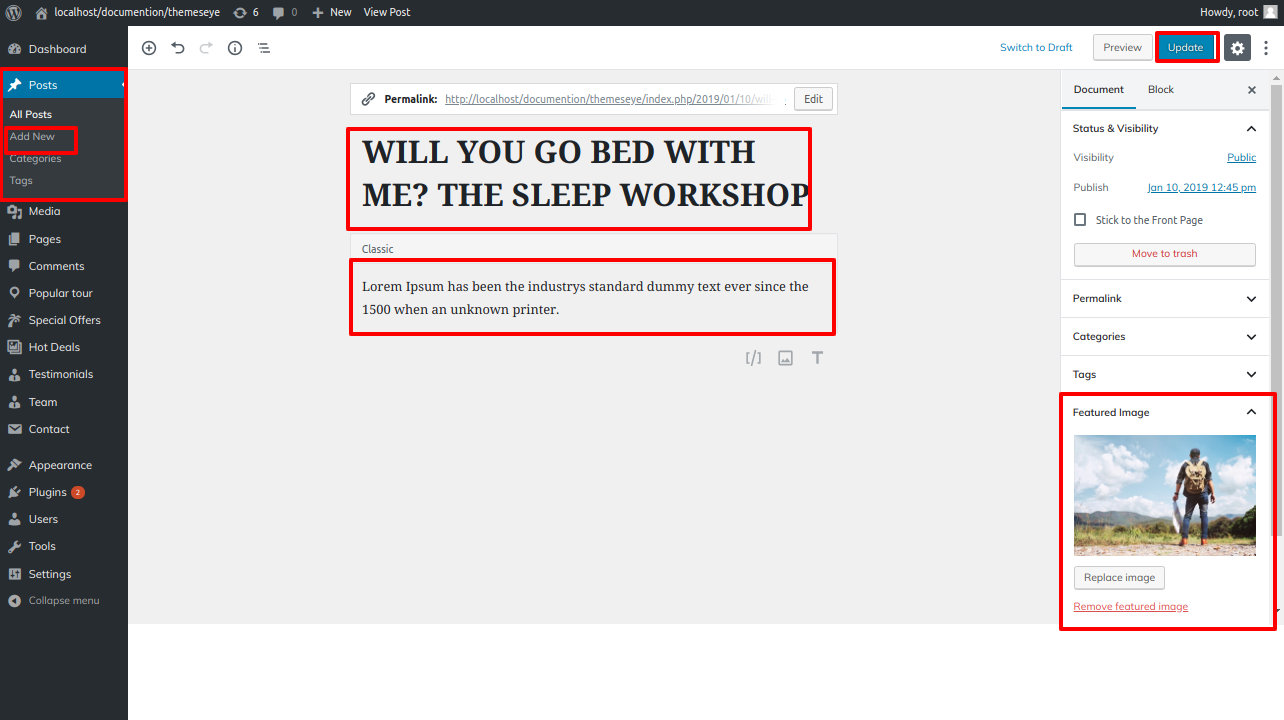
- Step 1 - Go to Dashboard >> Hot Deals >> Add New
- (a) Enter Post name
- (b) Select image
- (c) Publish
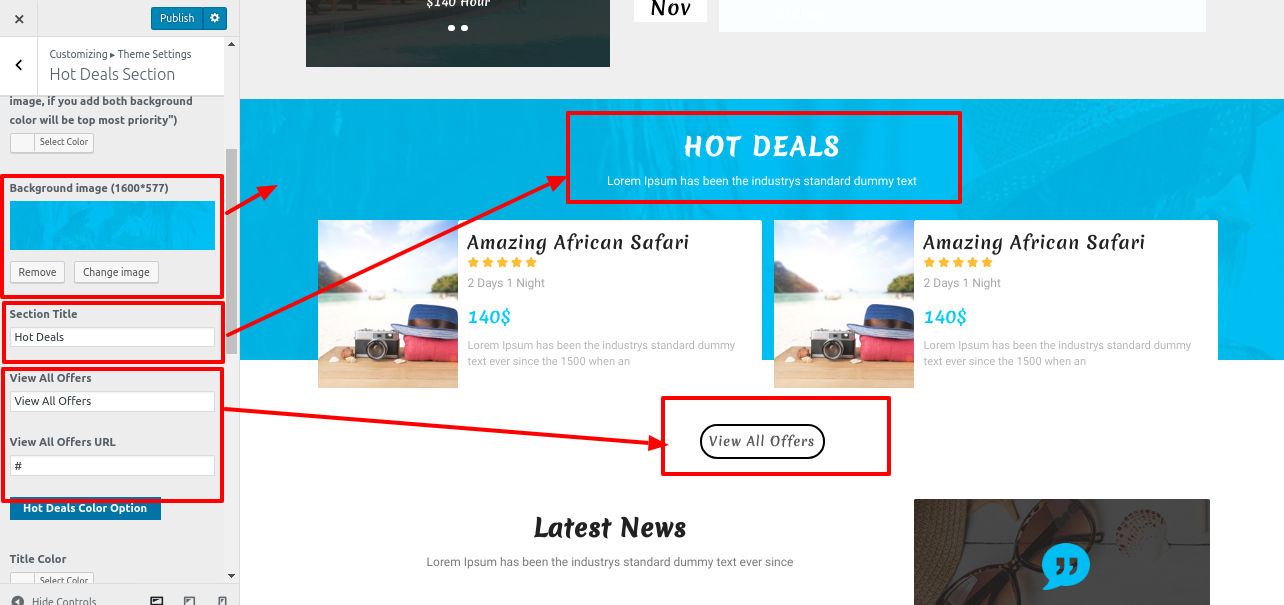
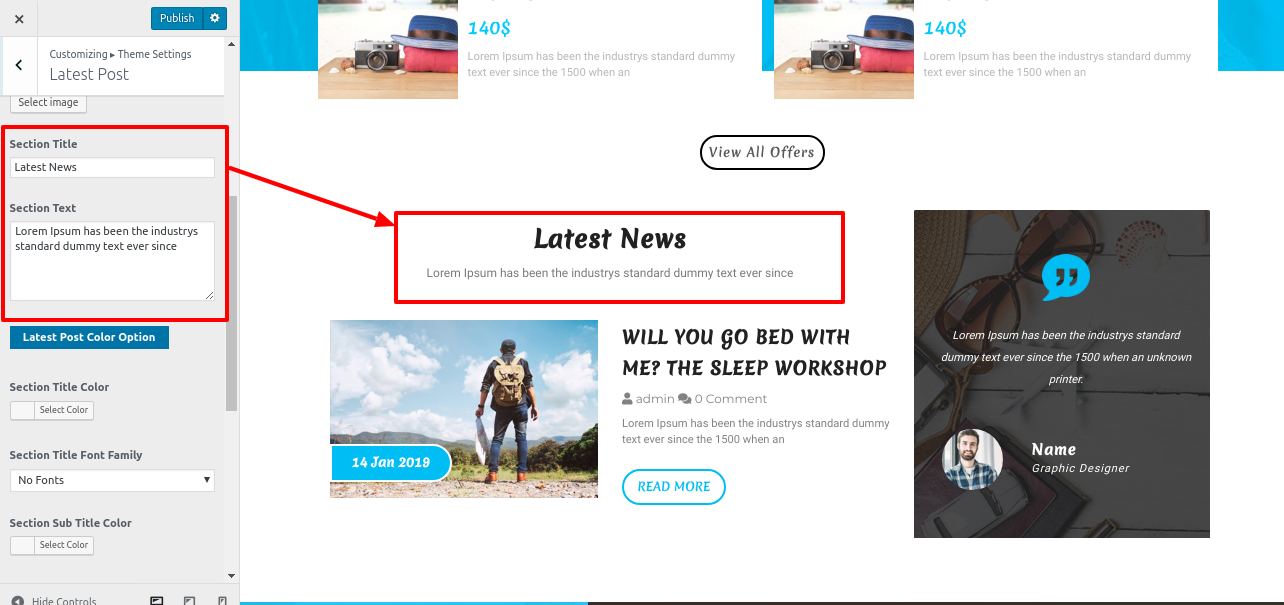
- Step 2 - Go to Dashboard >> Appearance >> Customize >> Themes setting >> Hot Deals Step 3 -
- (a) Select background image
- (b) Add title
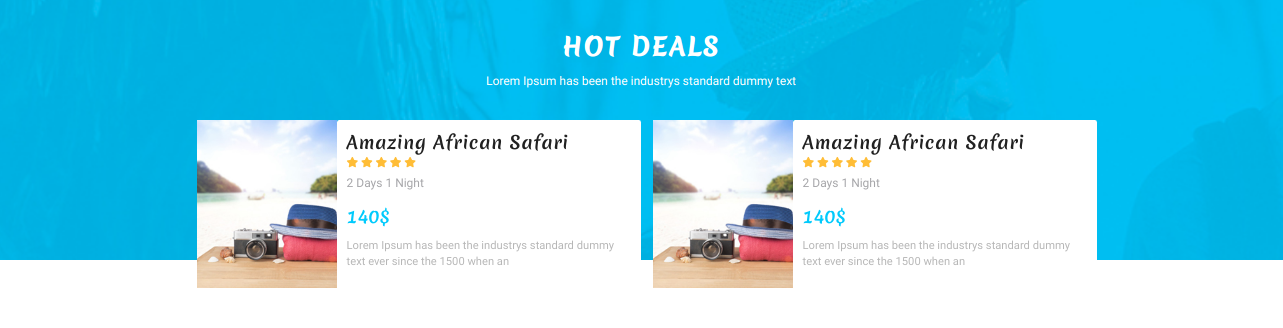
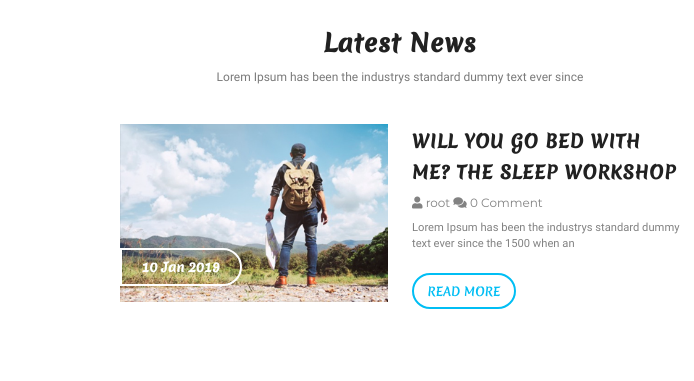
Final display of Hot Deals section
Setup Testimonial Section
- We must install and activate the Testimonial section. TAFRI Travel Pro Posttype Plugin
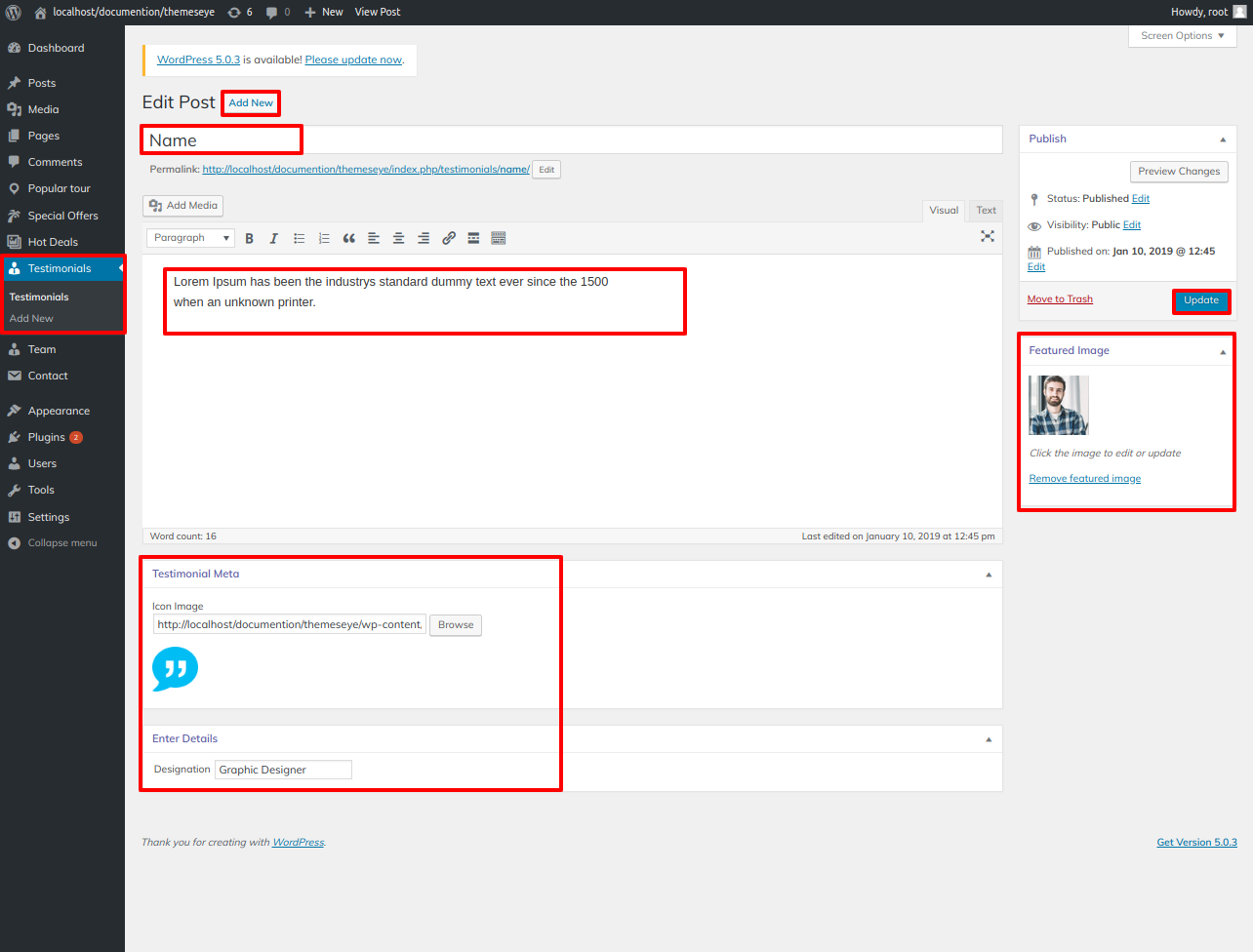
- Step 1 - Go to Dashboard >> Testimonial >> Add New
- (a) Enter Testimonial name
- (b) Select image
- (c) Publish
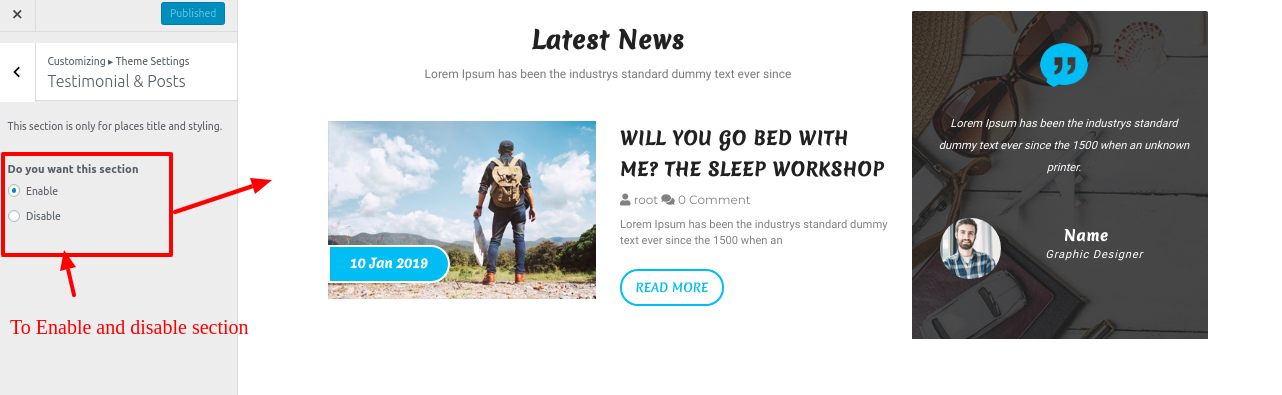
- Step 2 - Go to Dashboard >> Appearance >> Customize >> Themes setting >> Testimonial Step 3 -
- (a) Select background image
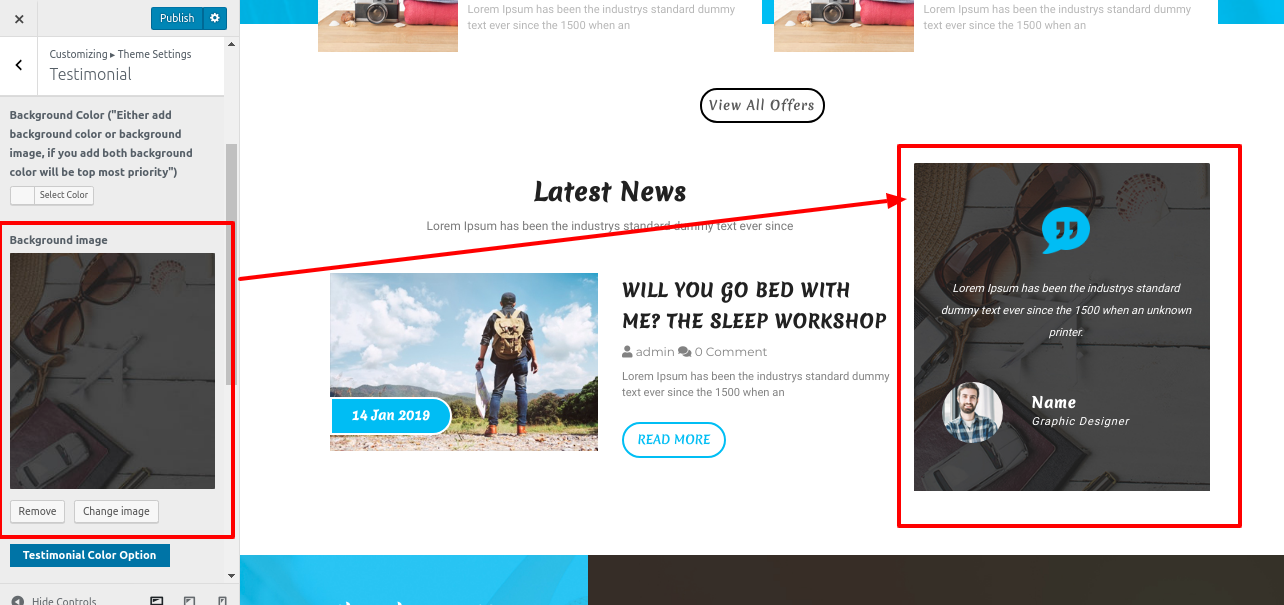
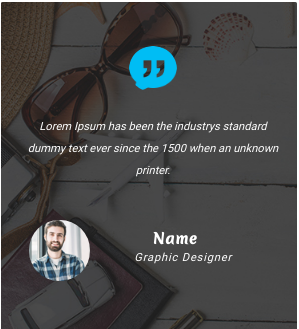
Final display of Testimonial section
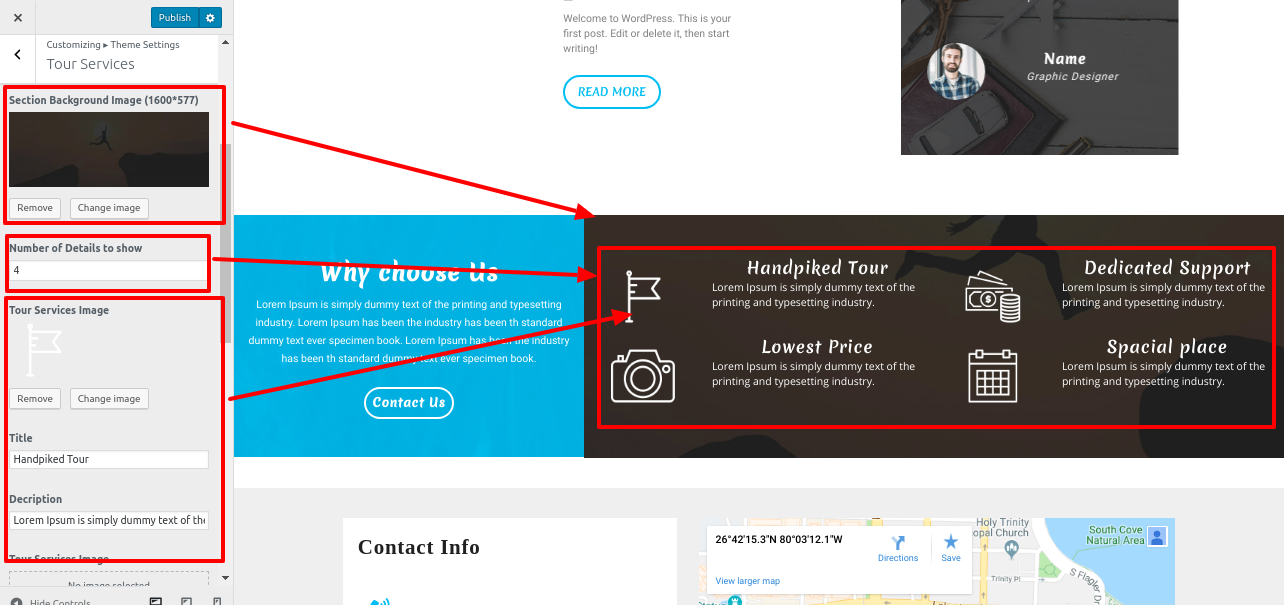
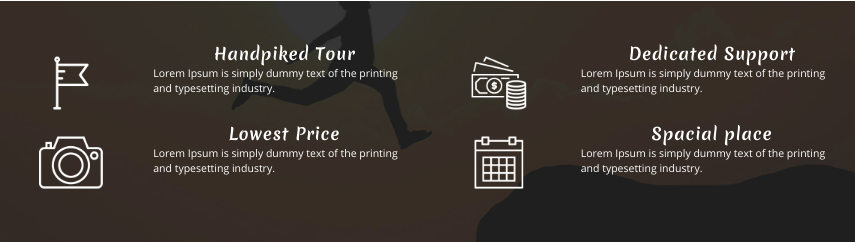
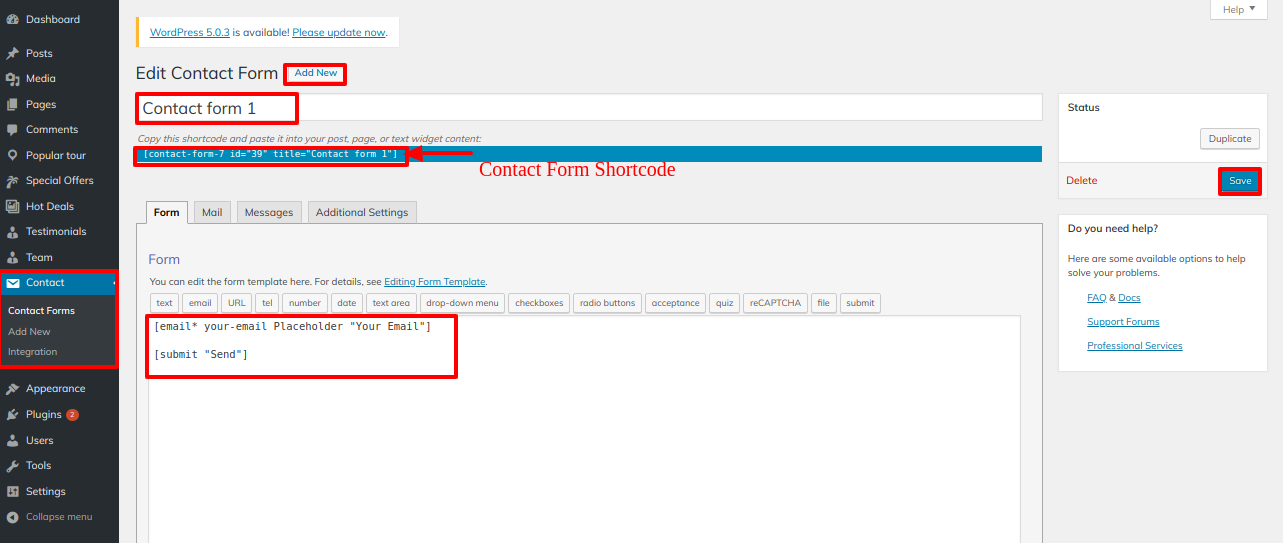
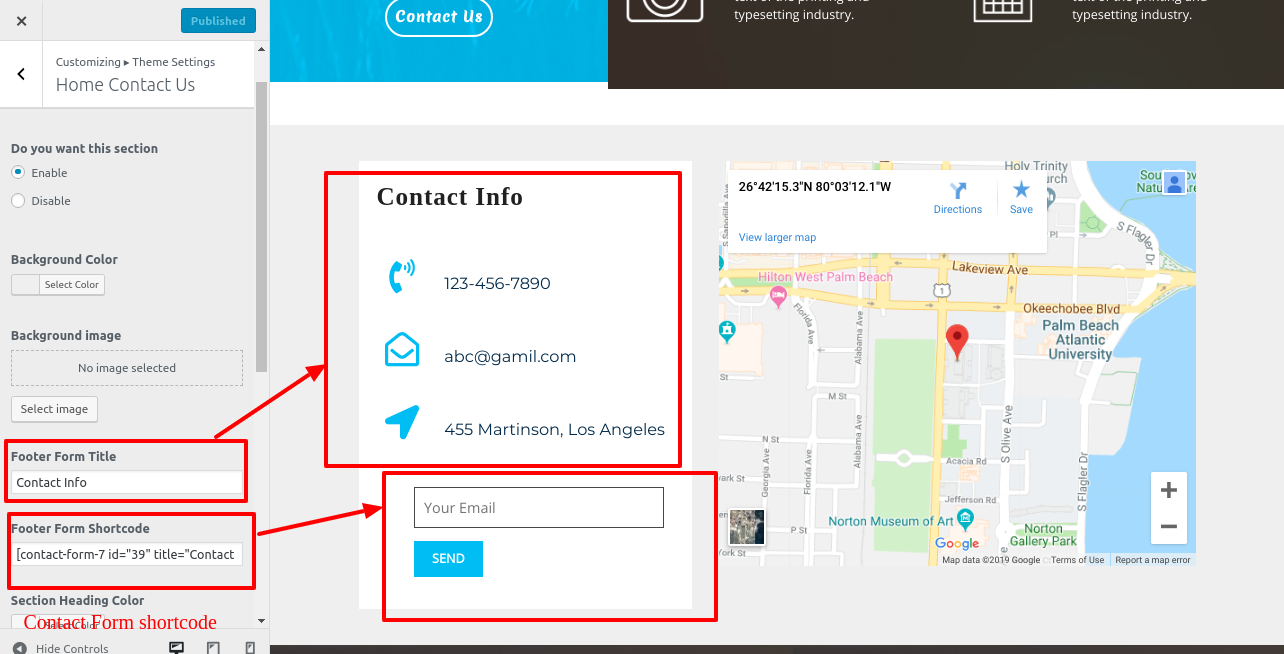

Footer Section
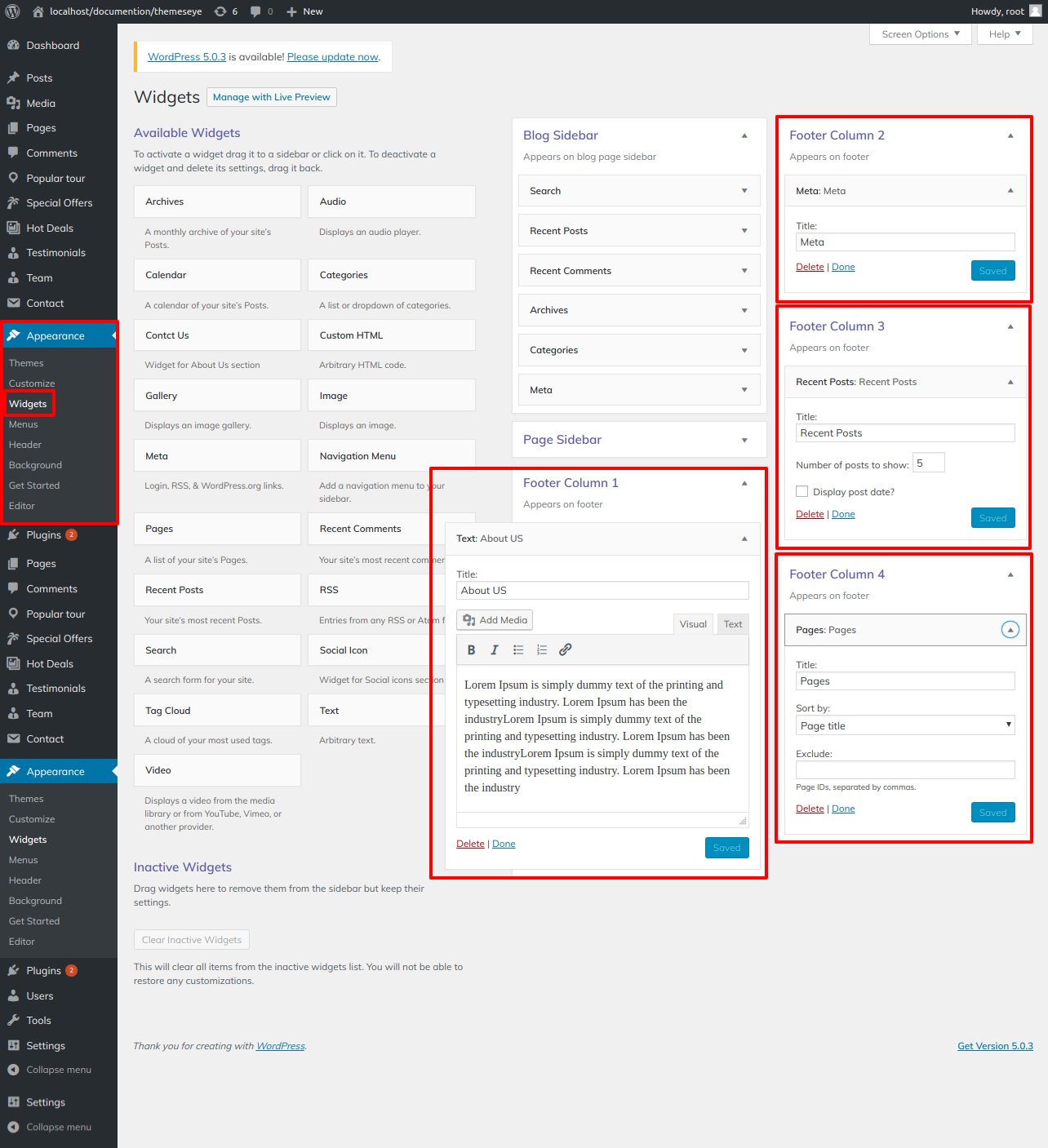
- Step 1 - Go to Dashboard >> Appearance >> Widgets >> Footer Section
- Step 2. Select footer
- (a) footer One
- (b) footer Two
- (c) footer Three
- (d) footer Four
- (ii) Click on "save" button
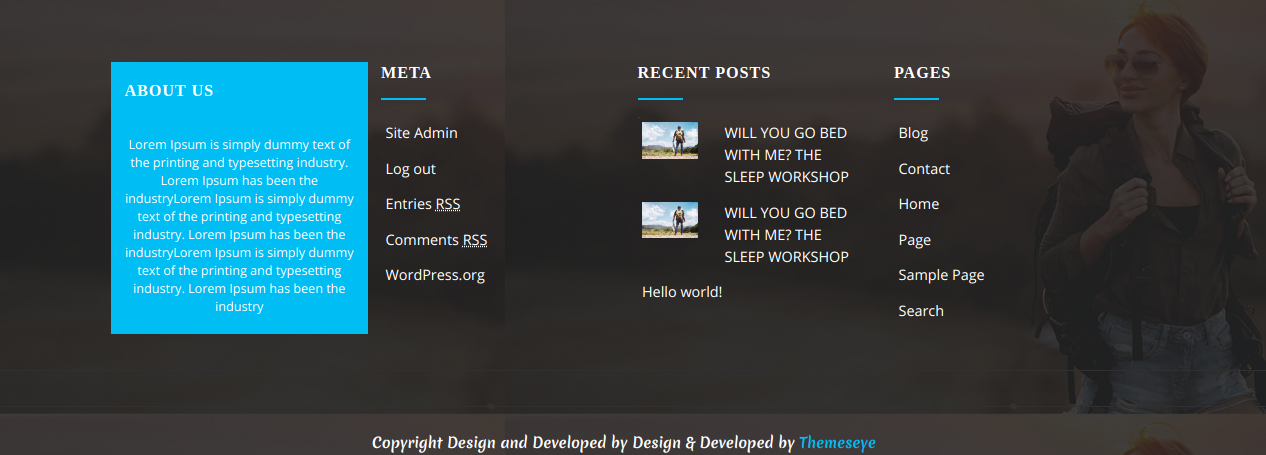
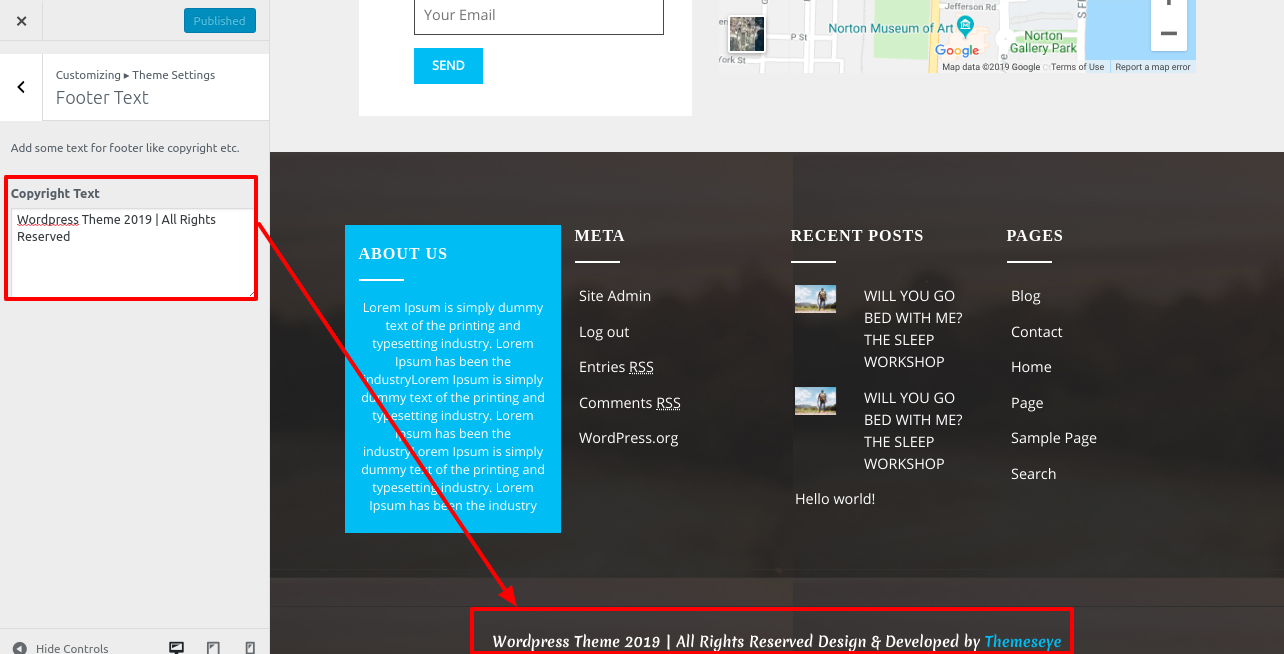
Final display of Footer Section

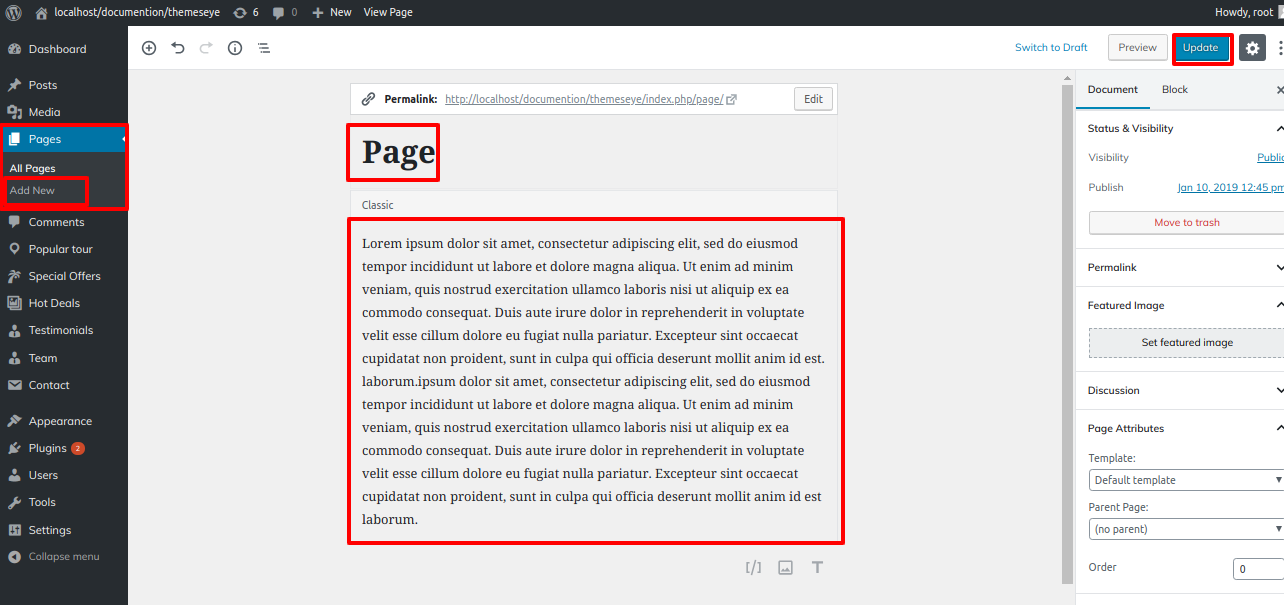
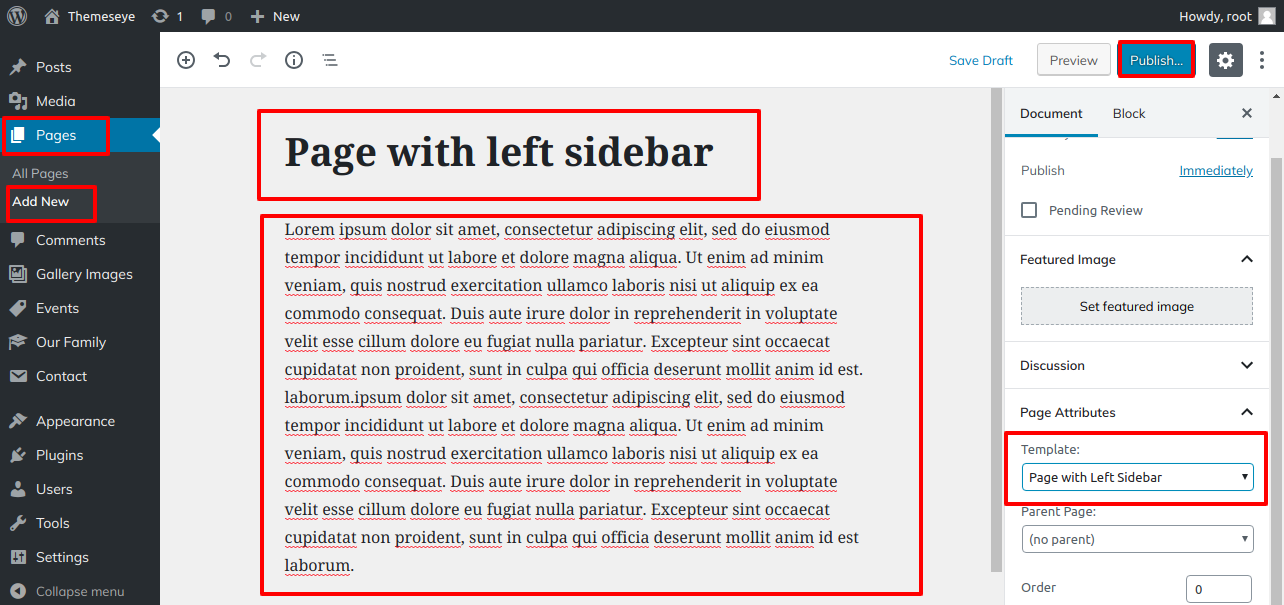
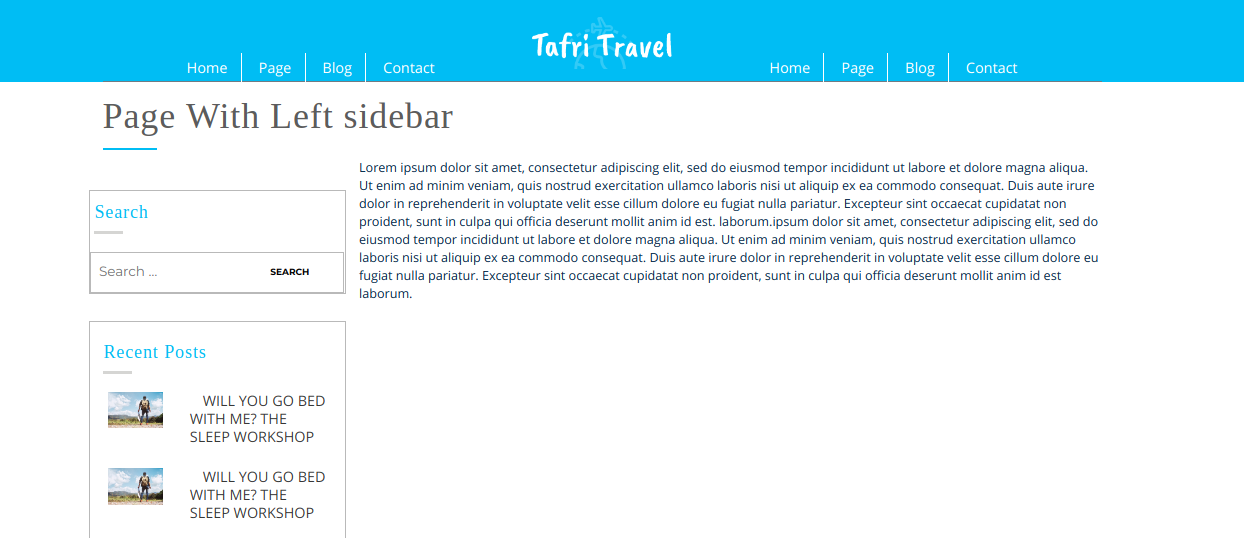
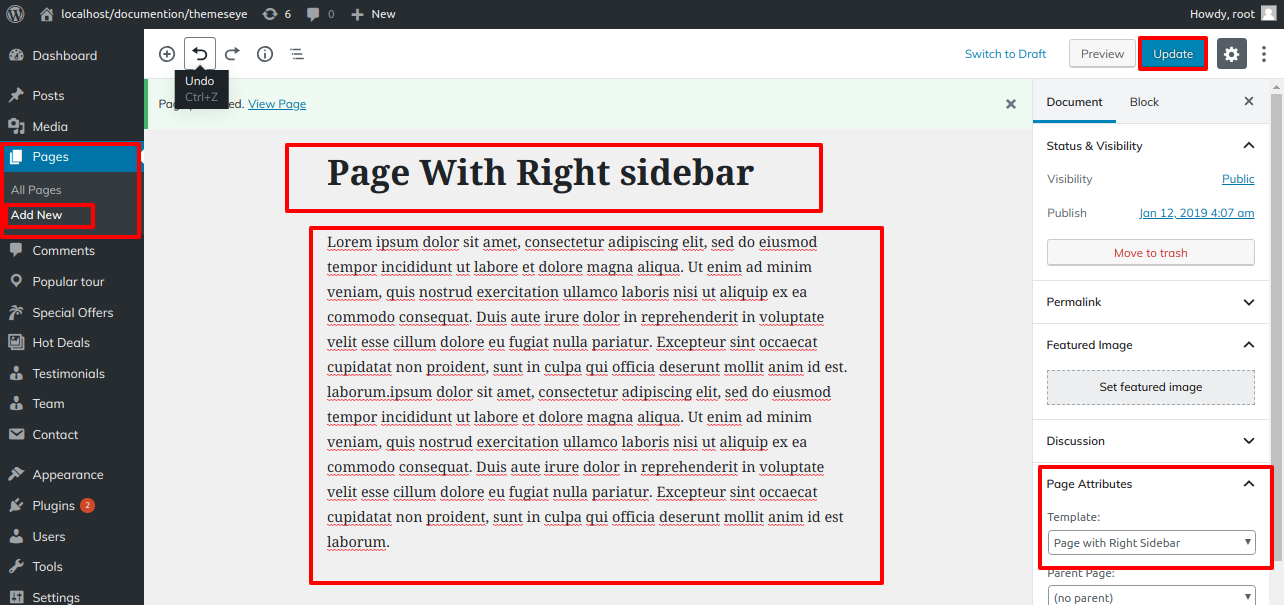
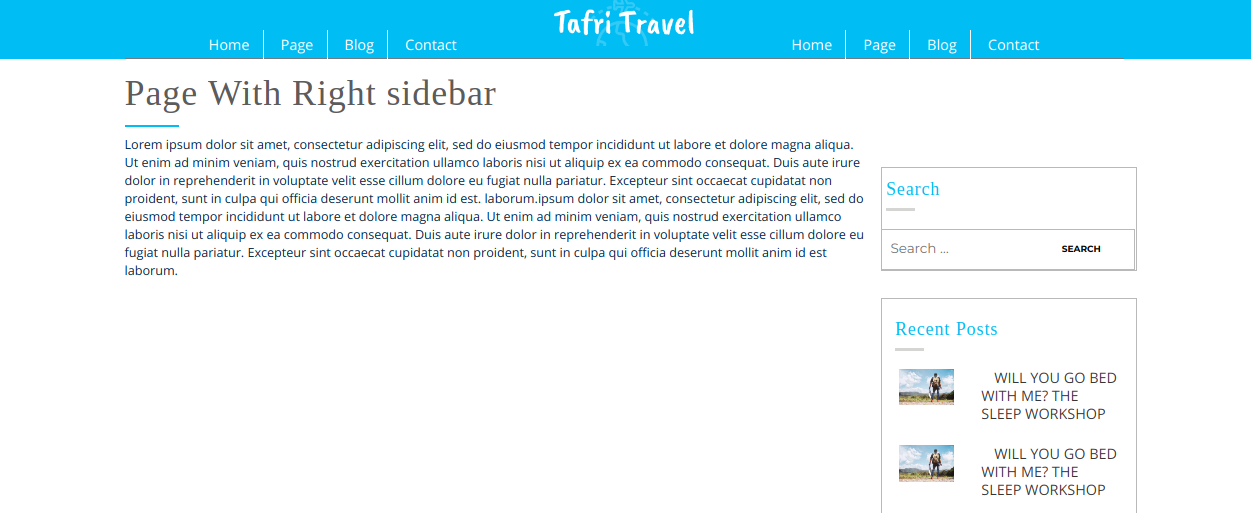
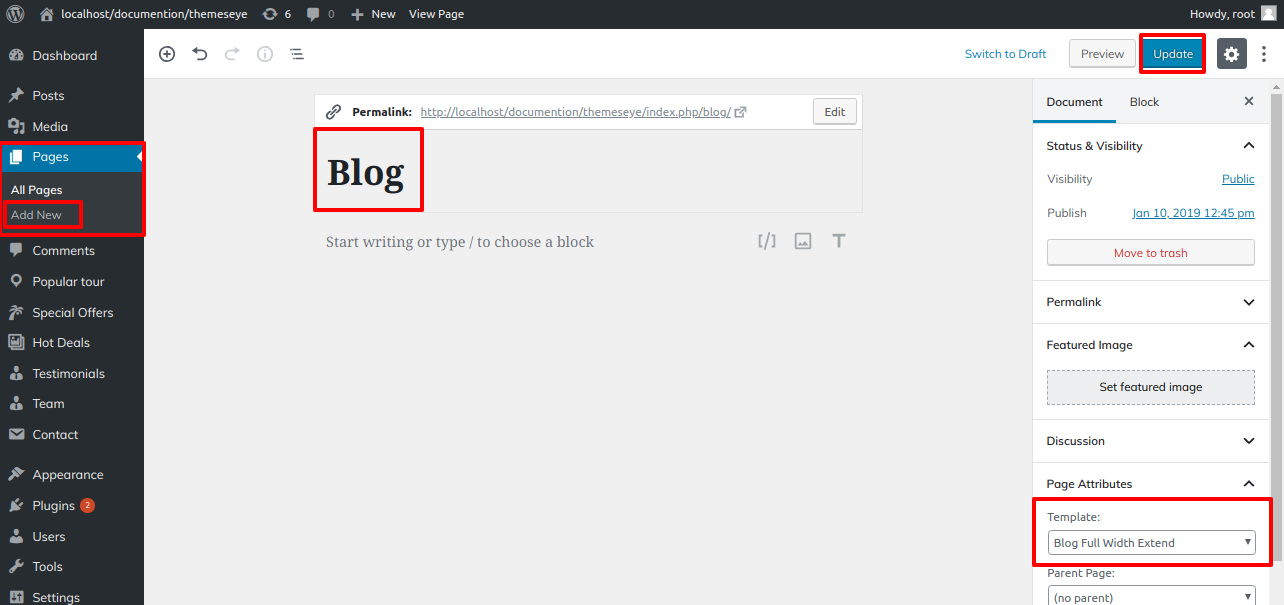
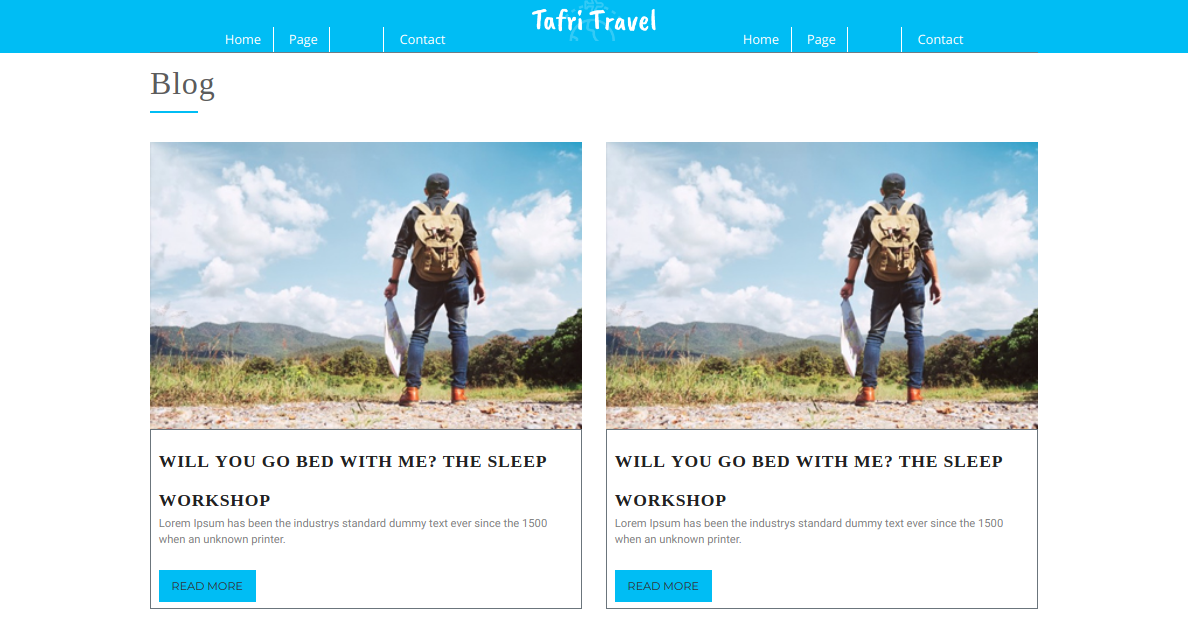
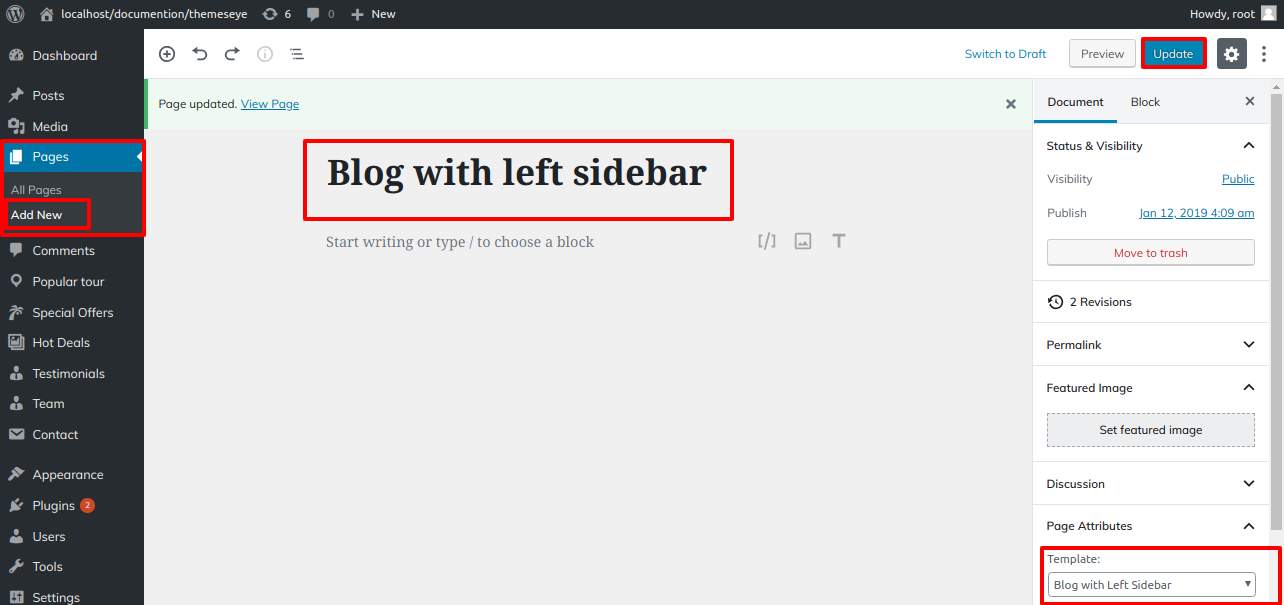
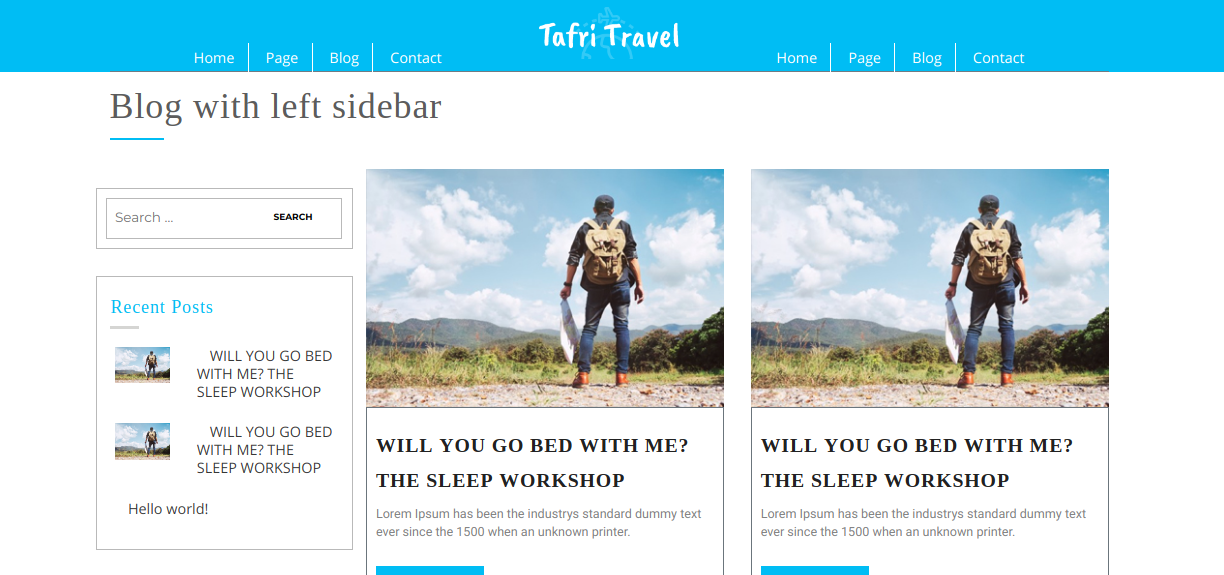
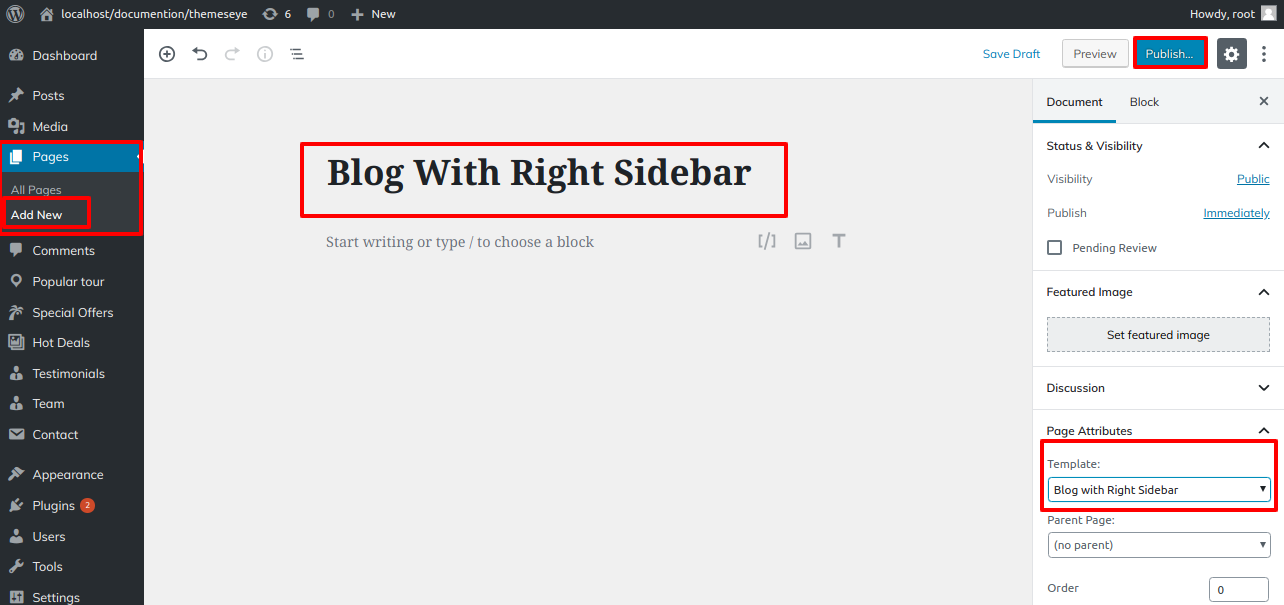
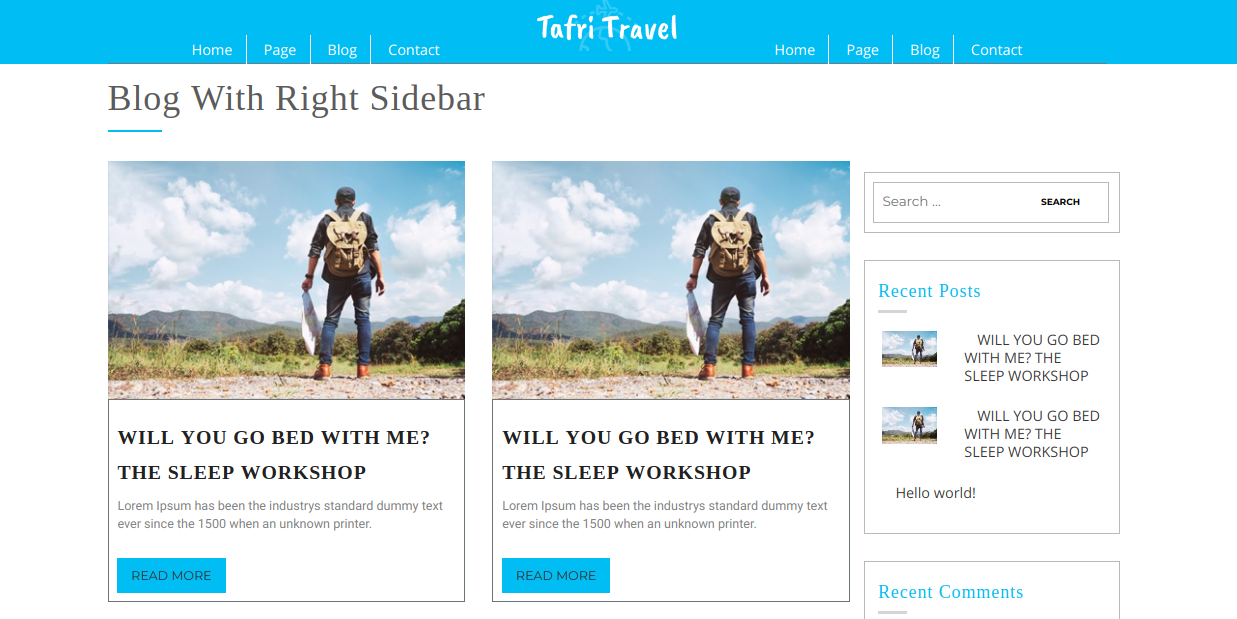
- Step 1. Go to Dashboard >> Page
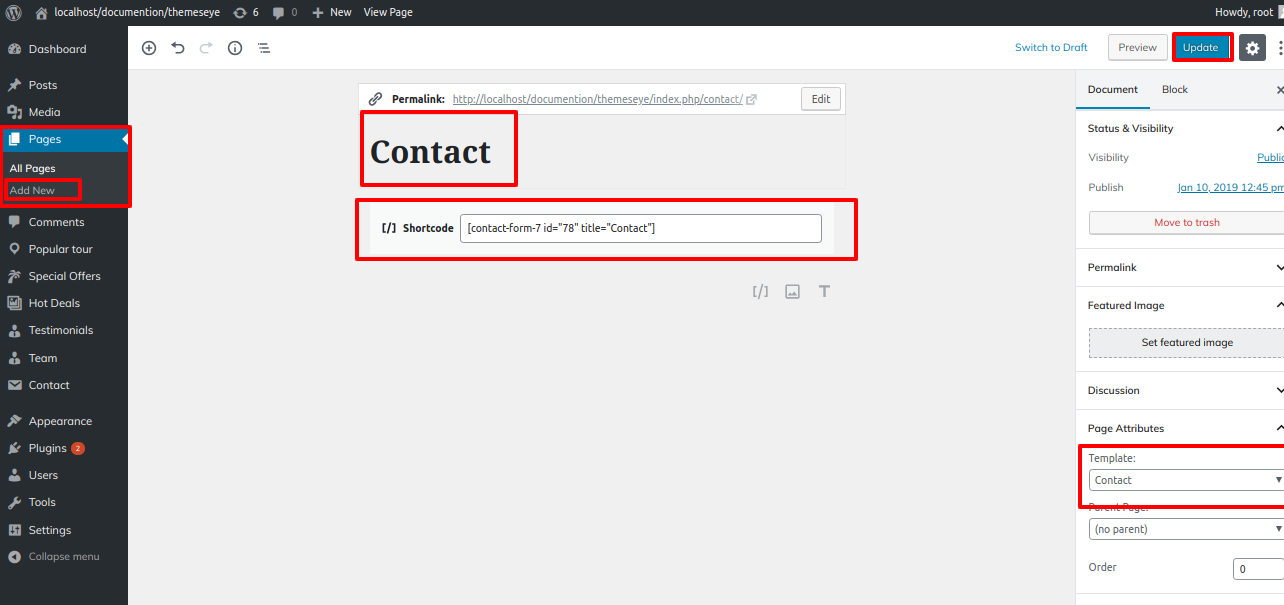
- Step 2. Click Add New button
- Step 3 - Add Contact Page Name
- Step 4. Select Contact Page template at right bottom of page
- Step 5. click publish button
- Step 5. Go to Dashboard >> Appearance >> Customize
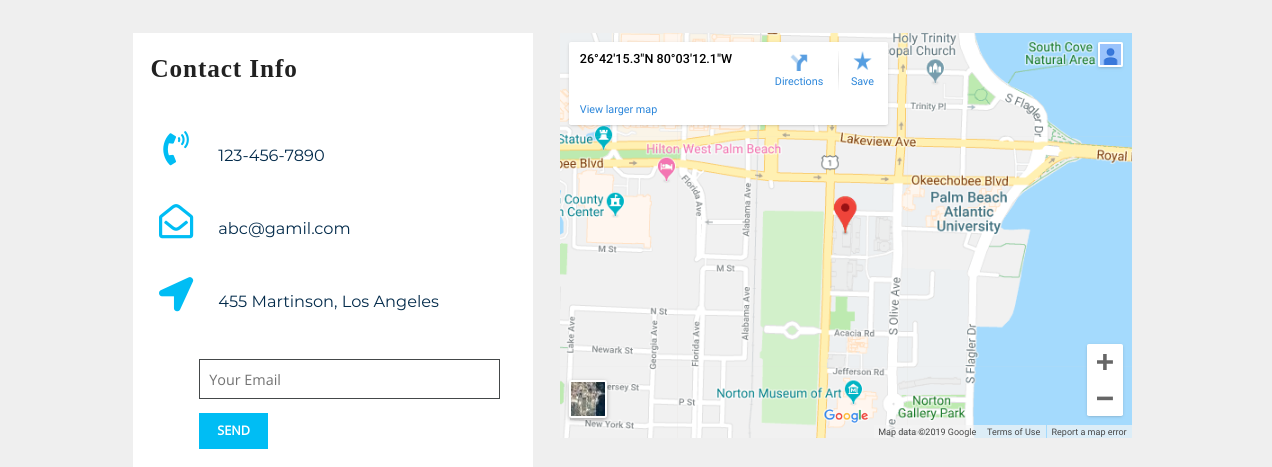
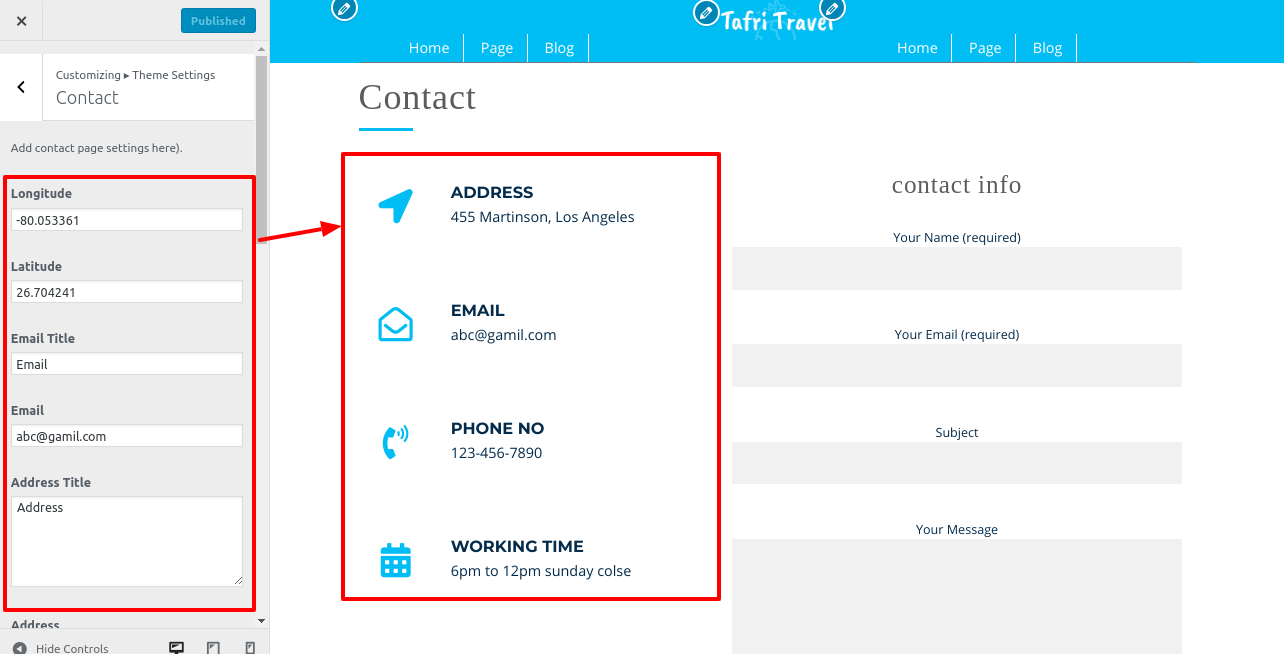
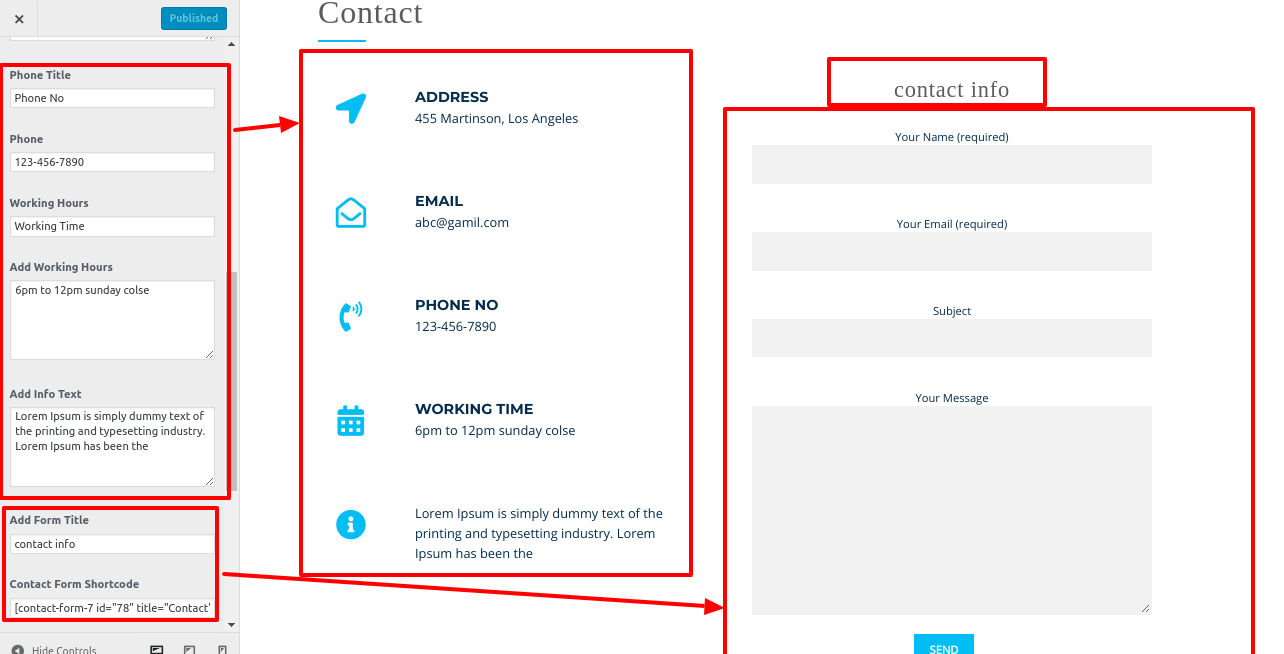
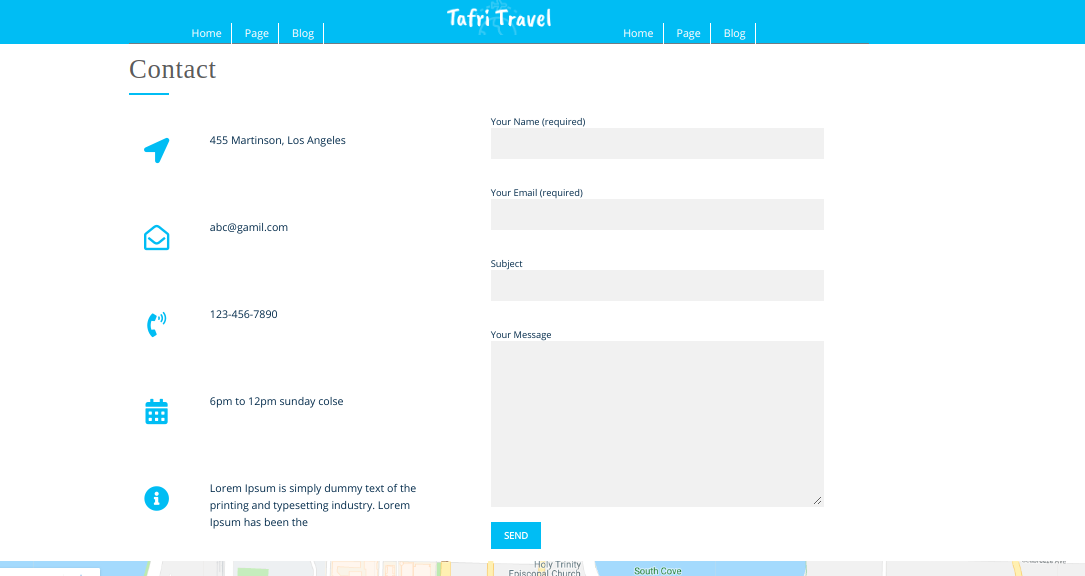
- Step 6. Fill Contact us details
- (a) Contact us Address
- (b) Contact us Email
- (c) Contact us Phone
- (d) Form Title
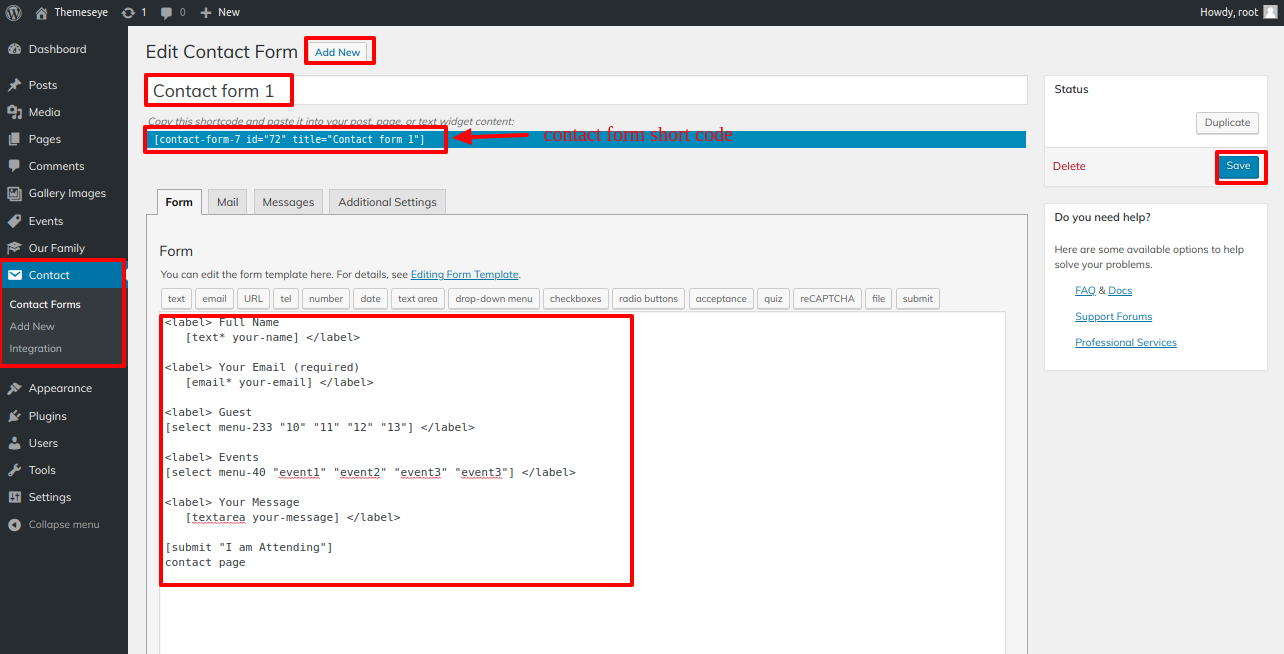
- (e) Form Shortcode
- (f) Code Enter For Map
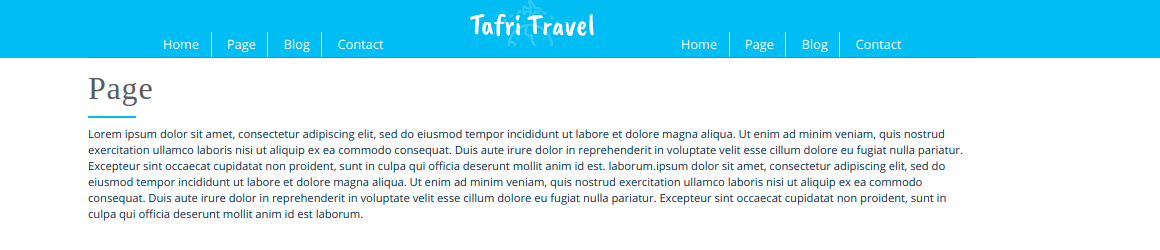
Contact Us Inner Page
Shortcodes
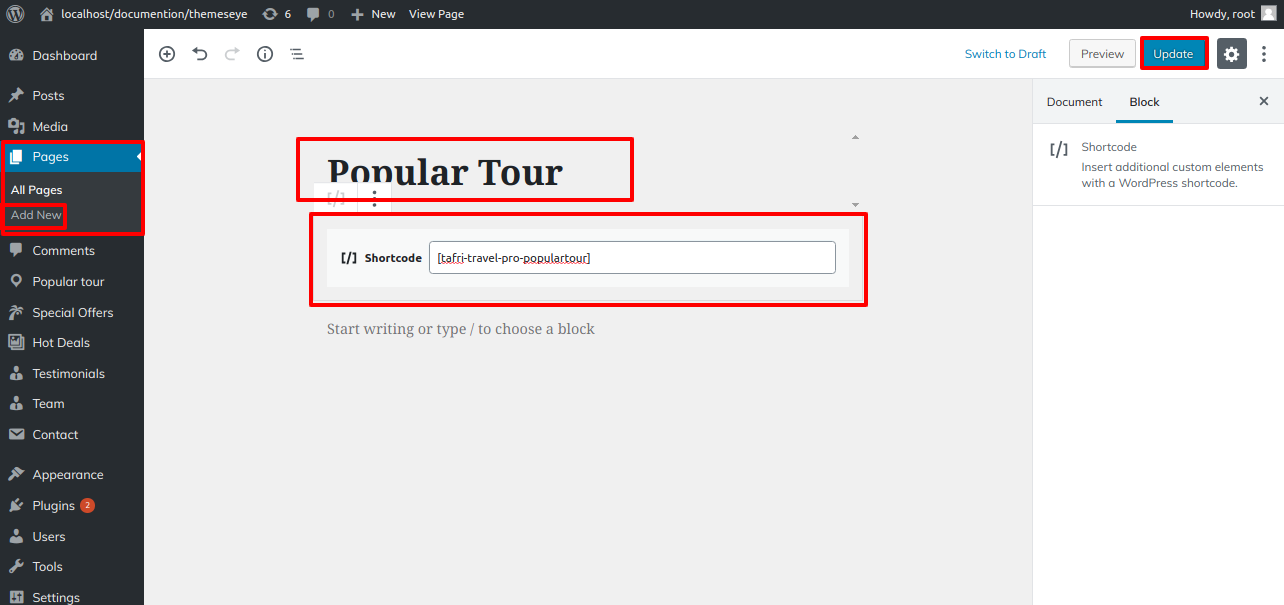
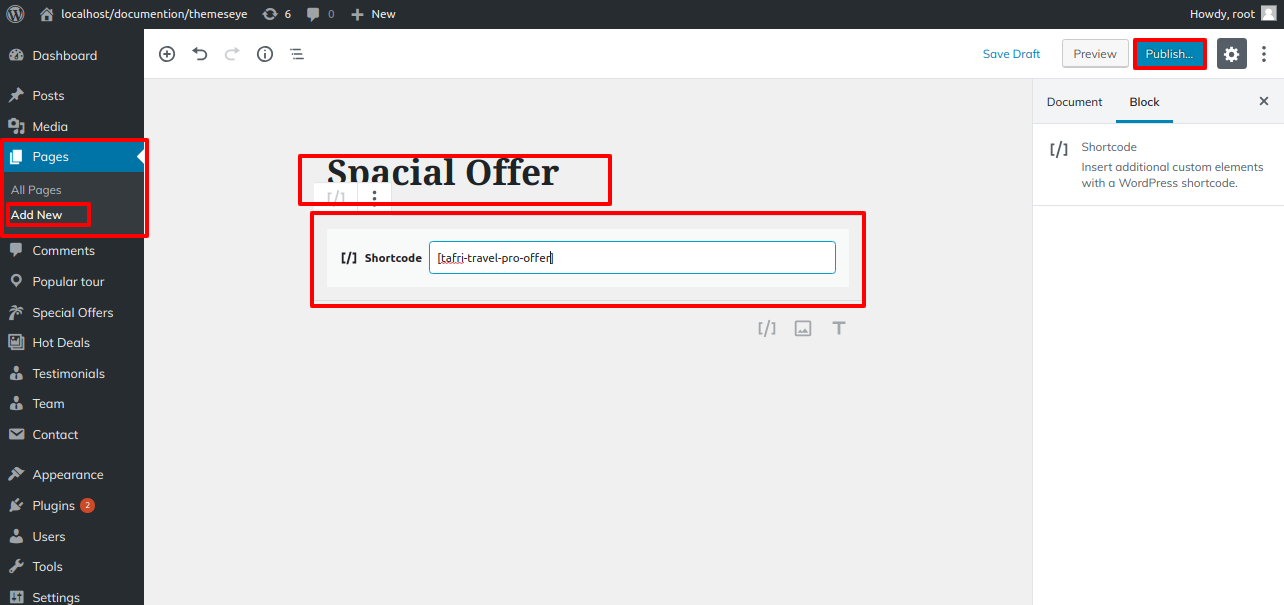
A shortcode is a useful tool for creating content http://codex.wordpress.org/Shortcode. Shortcodes are simple to use. First and foremost, ensure that the editing mode is set to Visual.
All Shortcodes
- Testimonial : [tafri-travel-pro-testimonials]
- Hot Deals : [tafri-travel-pro-deals]
- Team : [tafri-travel-pro-team]
- Hot Offer : [tafri-travel-pro-offer]
- Popular Tour : [tafri-travel-pro-populartour]