Introduction
We appreciate you utilising our WordPress theme, Shams Solor Pro. We are thrilled that your website will be using our Shams Solor Pro WordPress Theme.
The Shams Solor Pro theme for WordPress is simple, incredibly adaptable, and completely responsive.
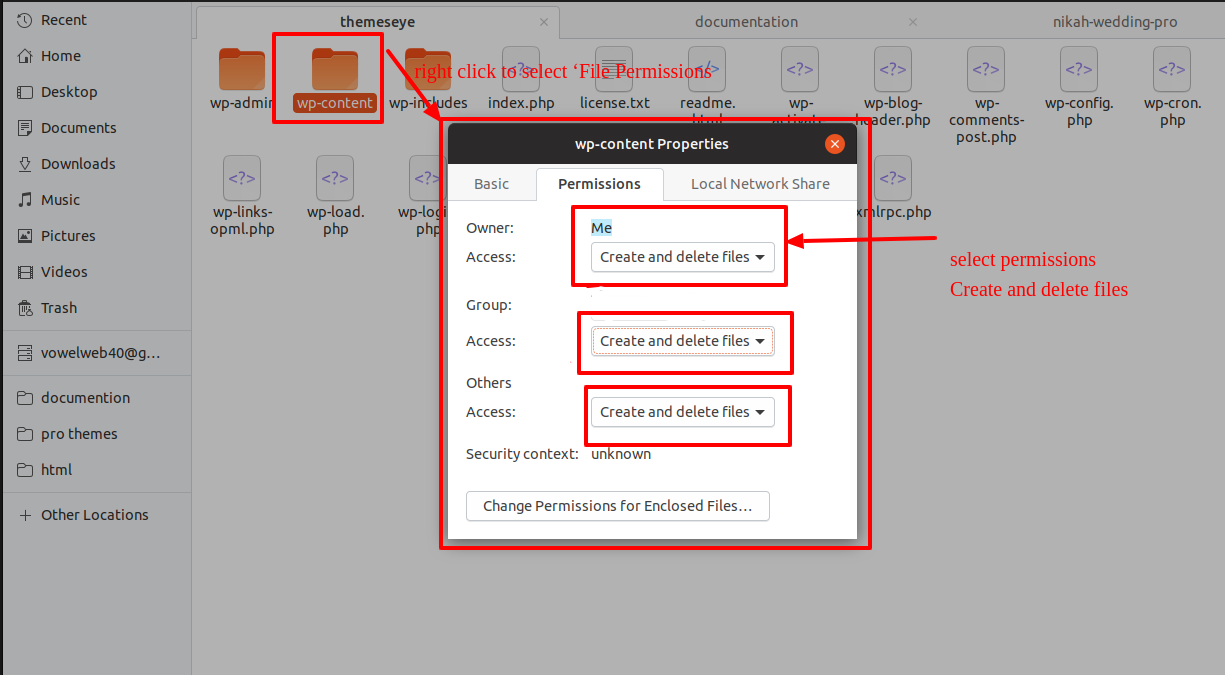
My site was working fine before? Who changed the File Permissions?
WordPress may be unable to create folders, submit images, or execute some scripts if file permissions are set incorrectly.
To manage files and make folders on the server, WordPress requires permissions.
- After that, right-click to choose "File Permissions" after selecting all of the folders in the main directory.
- the access dialogue box in wp-config check the option next to "Read and Write" >> To go further, click the OK option.
- Repeat the same procedure for the wp-content subdirectory.
This document was carefully crafted with the goal of making it simple to comprehend for both new and experienced users and developers. This document is divided into three major sections.
1) Getting Started : In order to get started quickly and to grasp how to set up a theme, refer to this section.
2) Detailed Document : The entire theme, including all settings, is explained in this part.
3) Other :This section gives details on various items, such as theme features, etc.
Please reach us at if you have any questions that go beyond the scope of this document. [email protected]

- Email: [email protected]
TE Key Activation
The steps for activating a TE key are as follows.
Given that you will receive the License Key via Email, use that key to Activate License.
Follow the following Process to Activate License.
Go to the >>Dashboard>>Appearance >>TE Key Activation>>Enter Key>>Save Changes.
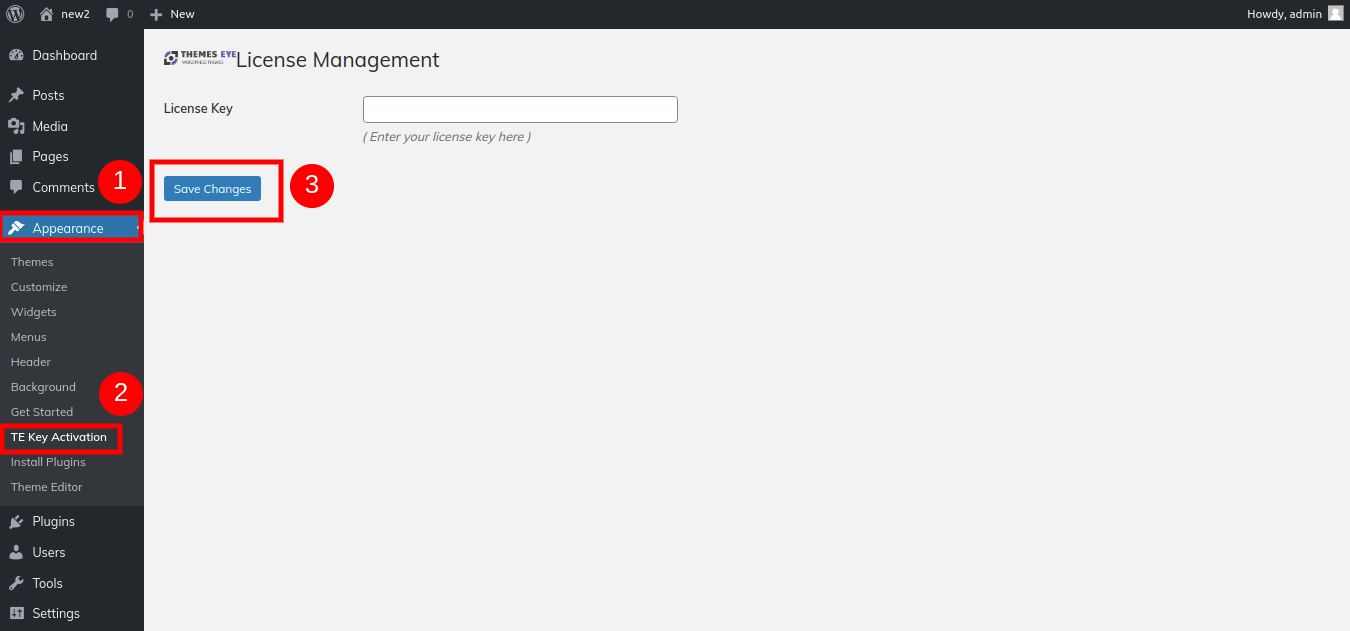
After Entering The Key >> Activate Licence.
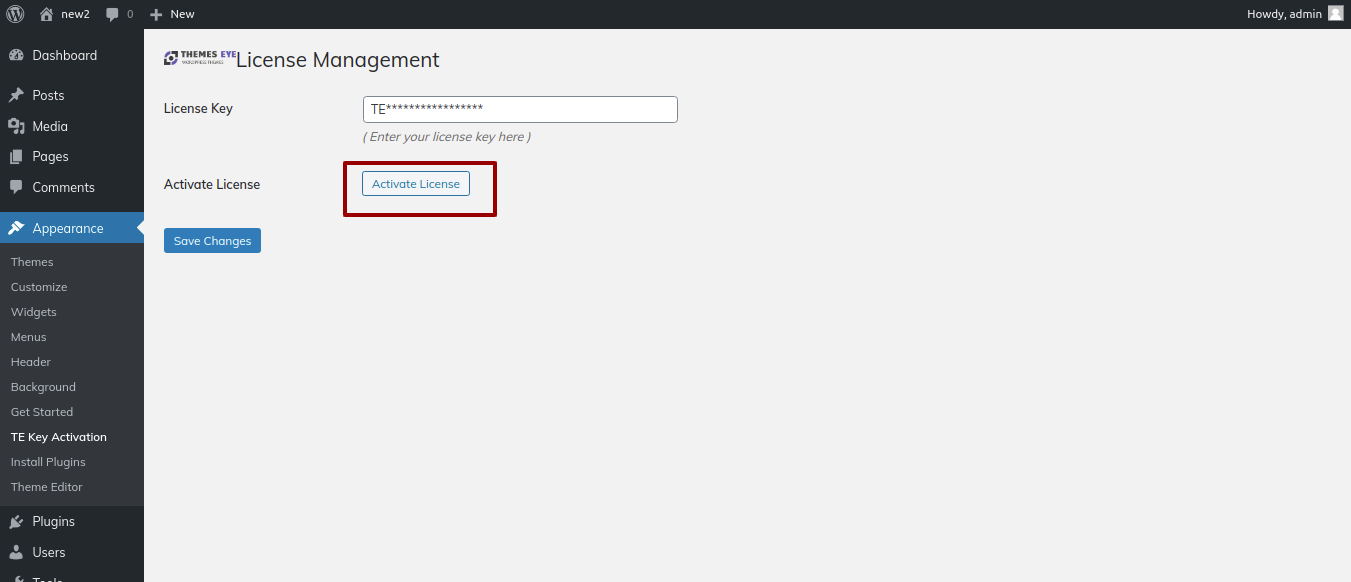
After you Activate Licence,the key will be active and then you can Getstarted with the Theme.
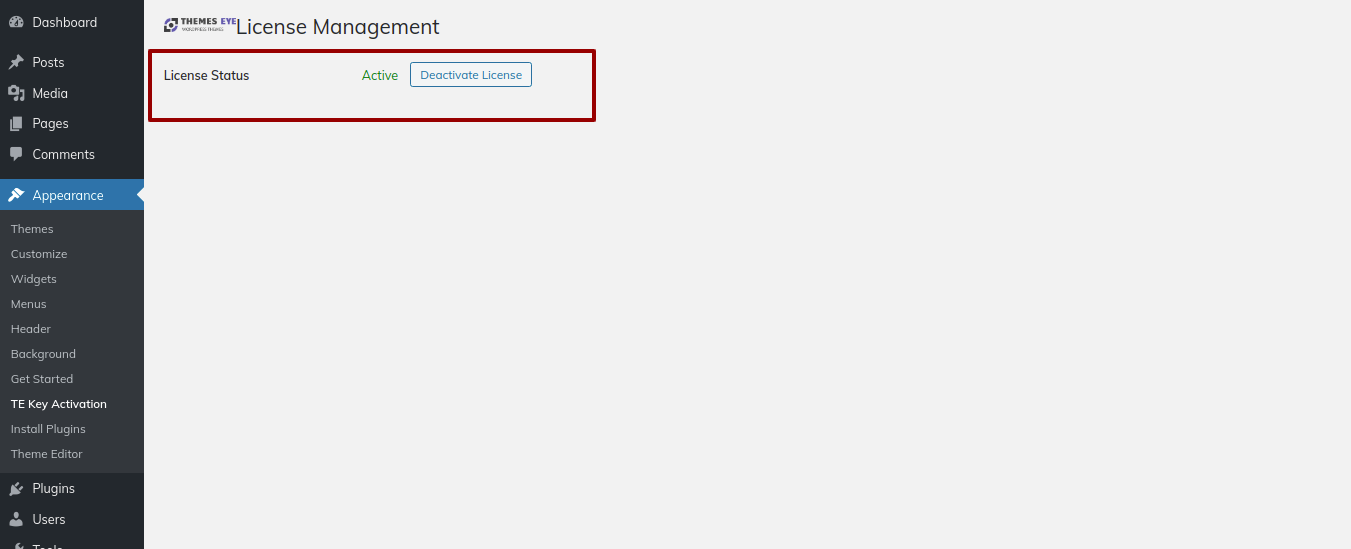
In this way you can activate your Licence Key.
You need to already have a functioning installation of WordPress in order to setup this theme. Please refer to the WordPress Codex for details on how to setup the WordPress platform. https://codex.wordpress.org/Installing_WordPress
Step One : Installation Via WordPress Admin area
- Step 1 - Log into your WordPress admin area.
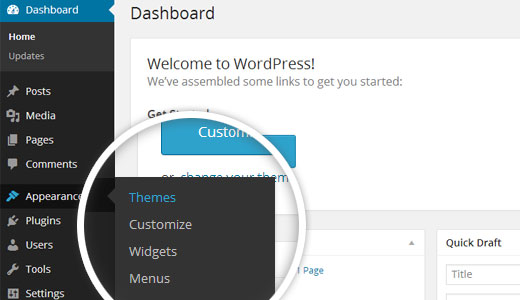
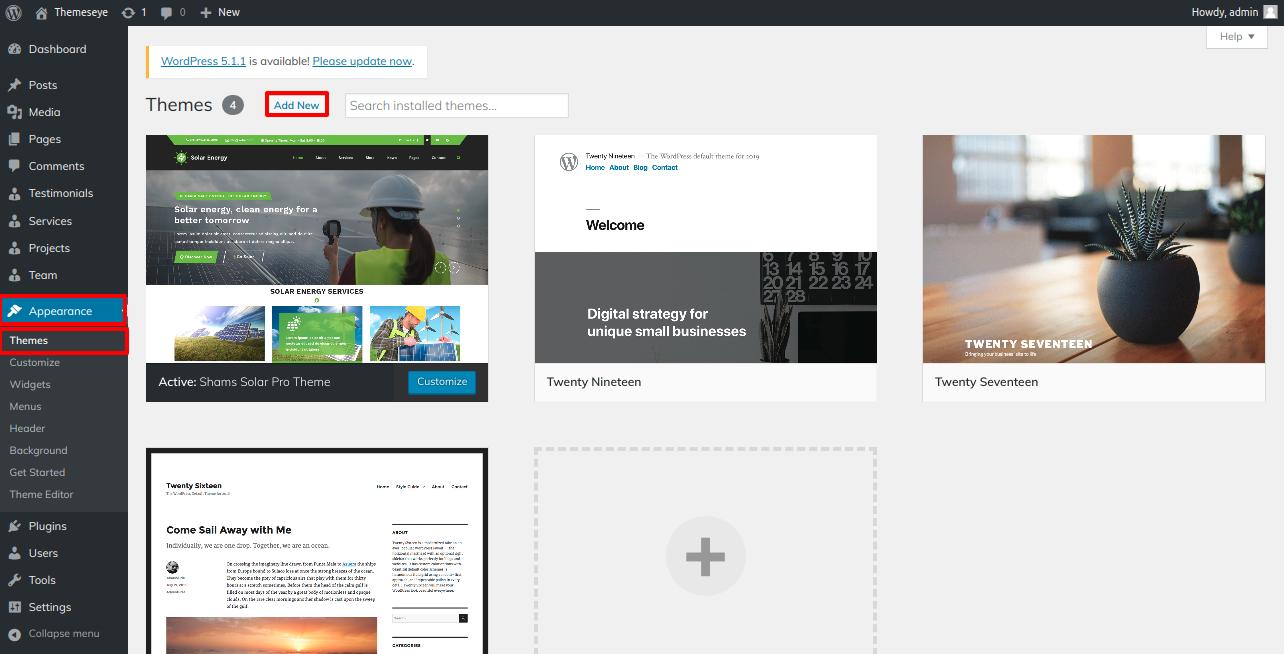
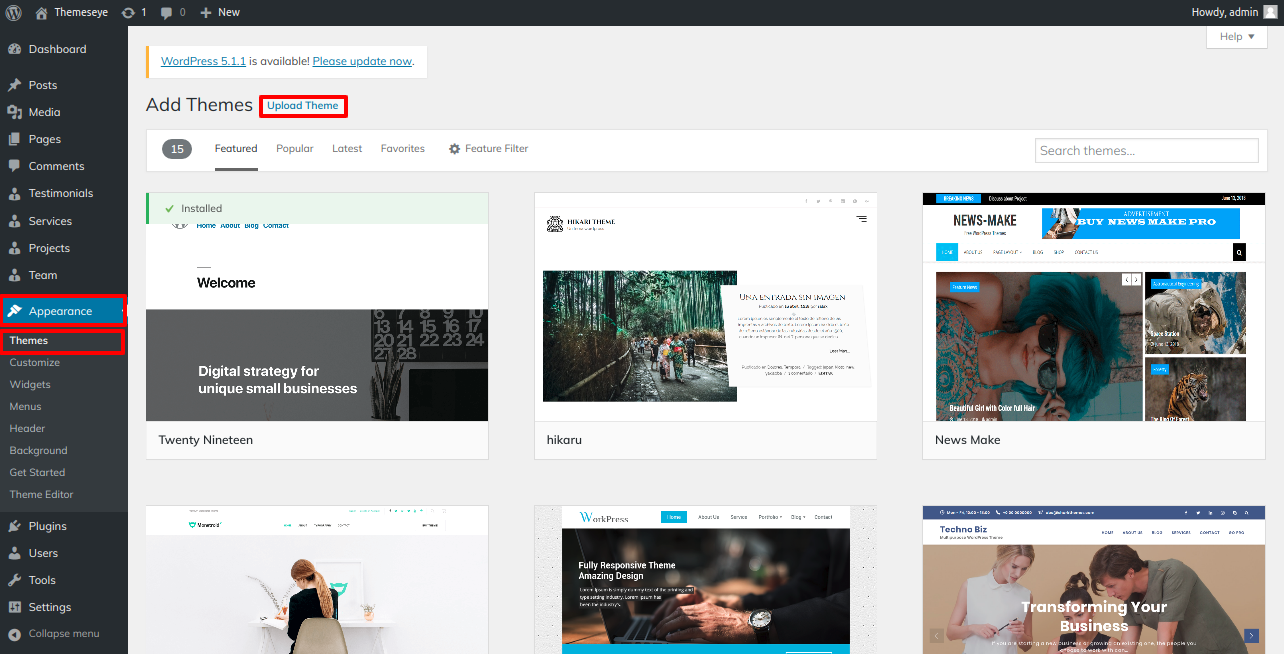
- Step 2 - Go to Dashboard >> Appearance >> Themes.
- Step 3 - Click on Add New Theme button at top.
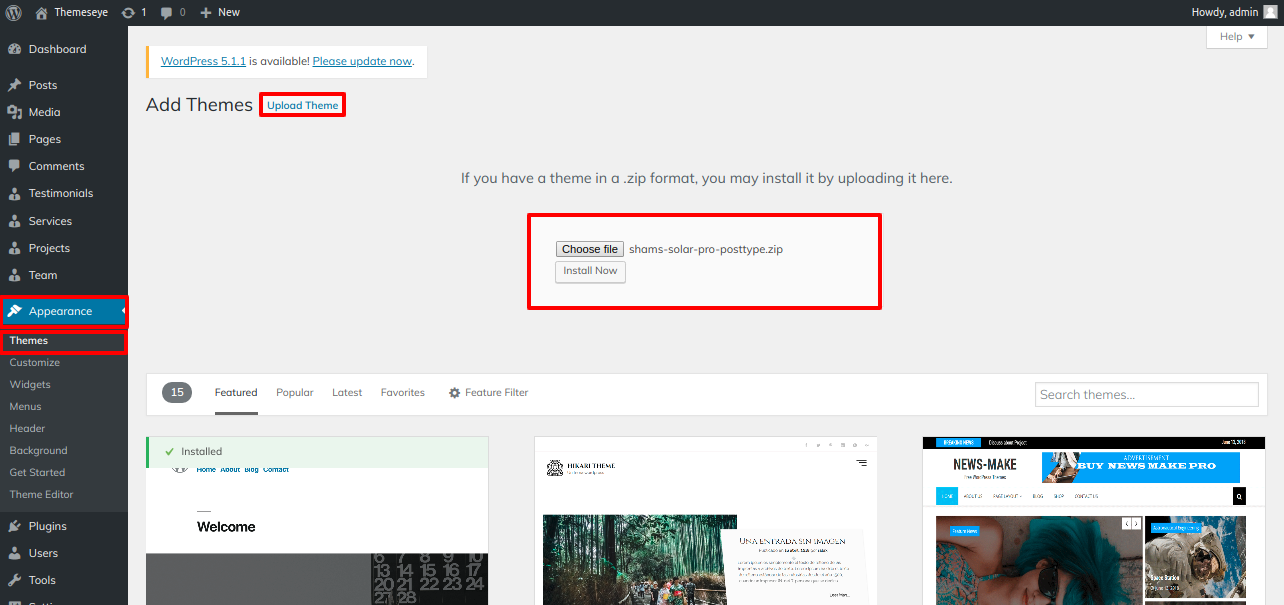
- Step 4 - Now, it Upload Theme button at top and upload.
- Step 5 - Select your shams-solor-pro.zip theme by clicking the Browse button, and then click the Install Now button.
Step Two : Installation Using FTP
- Step 1 - Download shams-solor-pro .zip file from your My Account ThemesEye.
- Step 2 - Extract Zip file.
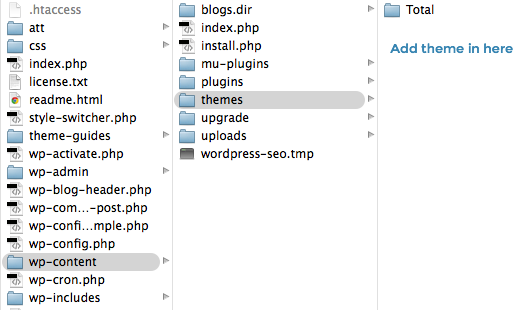
- Step 3 - Using your FTP program, upload the non-zipped theme folder into the "/wp-content/themes/" folder on your server.
- Step 4 - Go to Dashboard » Appearance » Themes and find Shams Solor Pro theme from list
- Step 5 - Click on Activate to active shams-solor-pro Posttype theme.
Plugin Installation
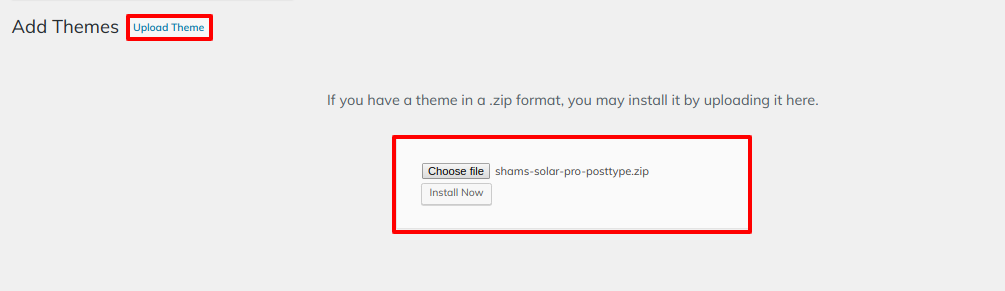
To directly install a WordPress plugin using a.zip archive, follow the instructions below for uploading the plugin.
- Install Required Plugins:
- contact-form-7, gallery image plugin, and shams-solor-pro - posttype plugin
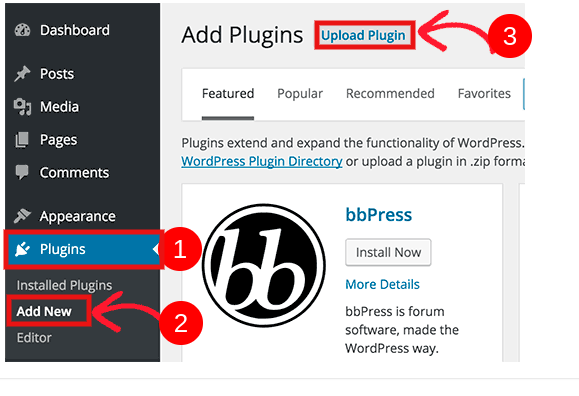
- Go to Dashboard >> plugin >> Add New >> Upload plugin.
- enable the install button after clicking it.
Demo Importer
To set up your theme, simply select to import sample content. You can follow the instructions in this content to create your website for website creation.
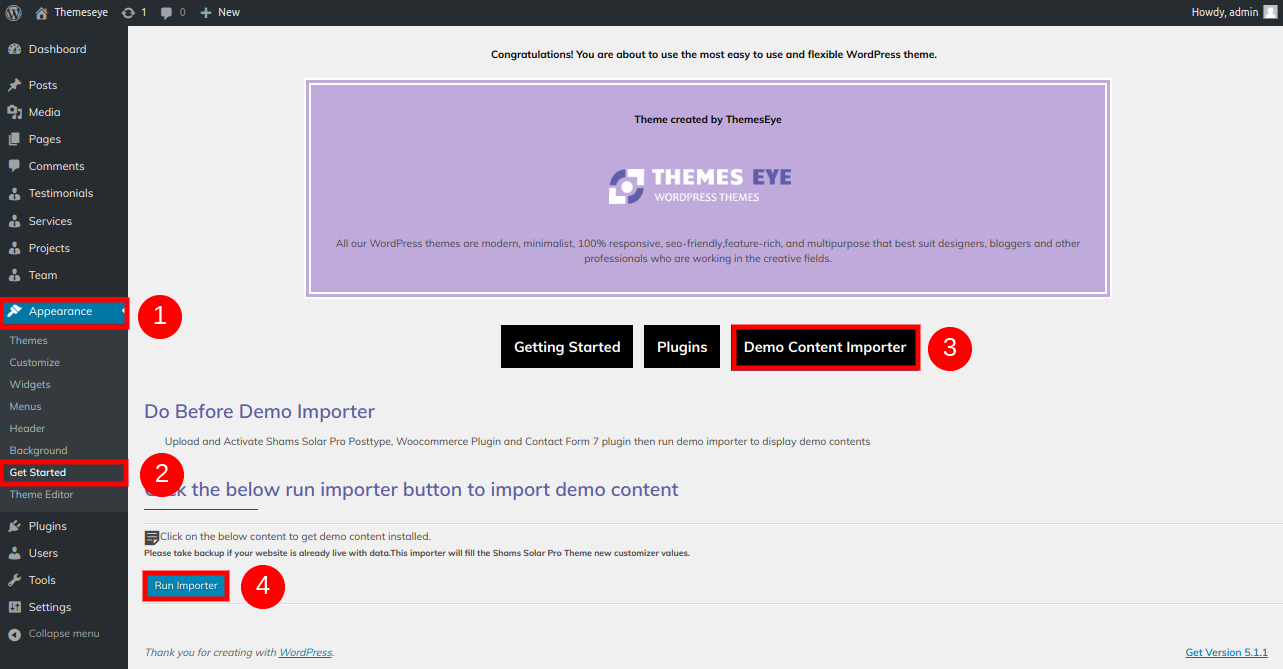
Go to Dashboard >> Appearance >> Get started
You must first install the Shams Solor Pro Posttype and contact-form-7 plugins before you can select "Run Importer."
After selecting "Demo Content Importer," click "Run Importer."
Color/Font Pallette
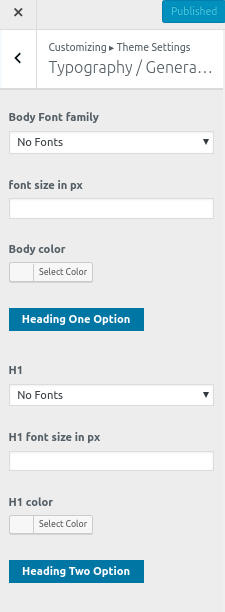
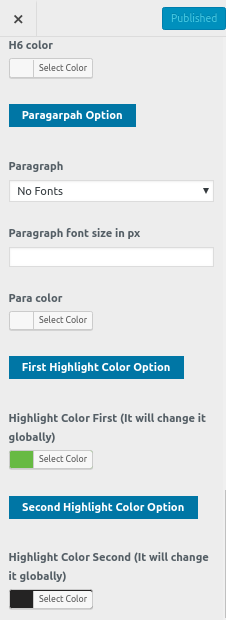
The procedure of changing the colour or font is very simple. These choices are available in all customizer sections. It is a full image that demonstrates the font and colour palette. You can change the colour and font of the headings, paragraphs, and buttons with a single look or click.
Depending on the amount of options available in each section, there is an option to change the colour scheme for the headings, title/text, paragraph, button text, and button background.
Section Ordering
How to Reorder and Arrange Section
To reorder an area simply means to arrange it according to our needs. Drag the section to the top or bottom as necessary to continue with this part. Your front view will alter in accordance with customizer values when you drag any section to the top or bottom.
You can reorder sections by simply dragging and dropping the choices into the desired order.
to continue with Section Ordering.
Step 1 - Go to Appearance >>Theme Settings >> Section Ordering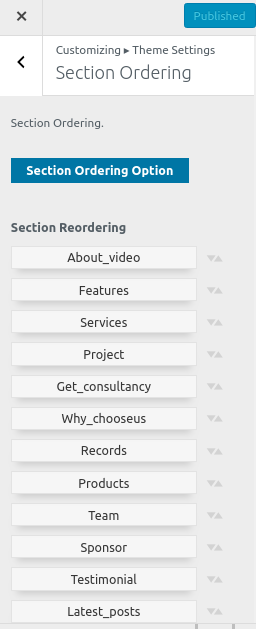
Home Page Section
Setup Home Page Template
You can organise your site's home page and other pages with the aid of this part. Additionally, it will show you how to set up WordPress menus, make a slider, make a home page, use page templates, and put shortcode into pages.
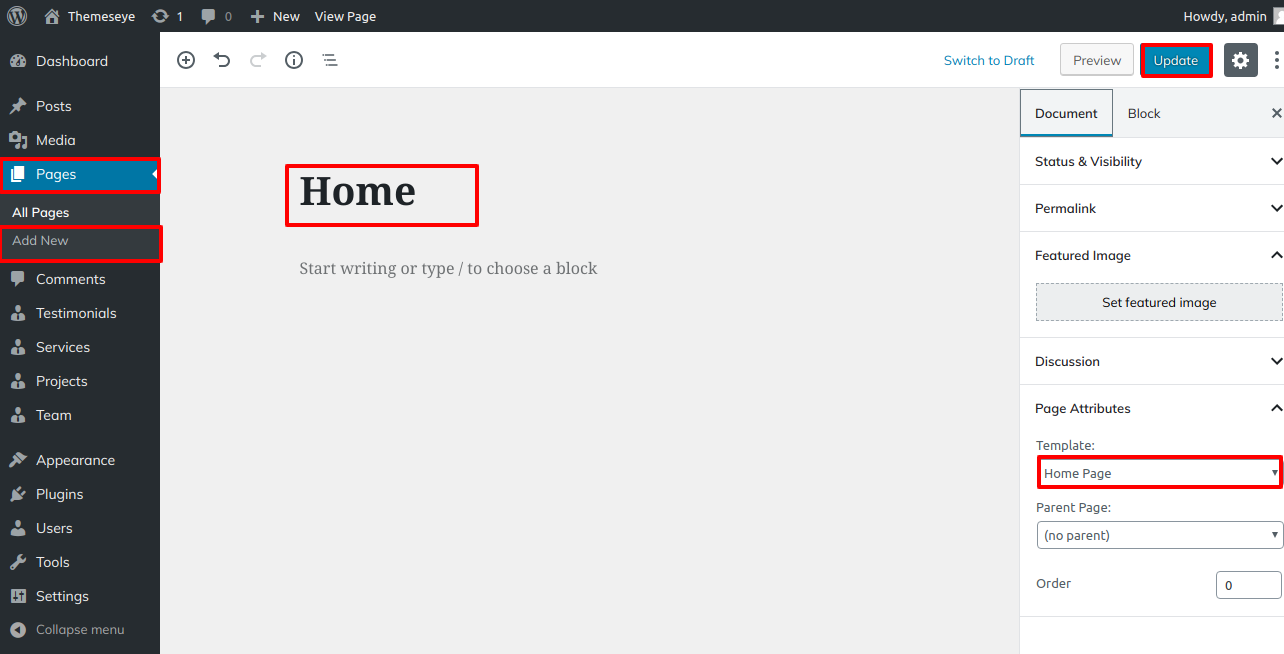
- Step 1 - Go to Dashboard >> Pages >> Add New, enter page name and select template as Home Page Template from Page Attribute, as displayed in the figure below
- Step 2 - Publish this page
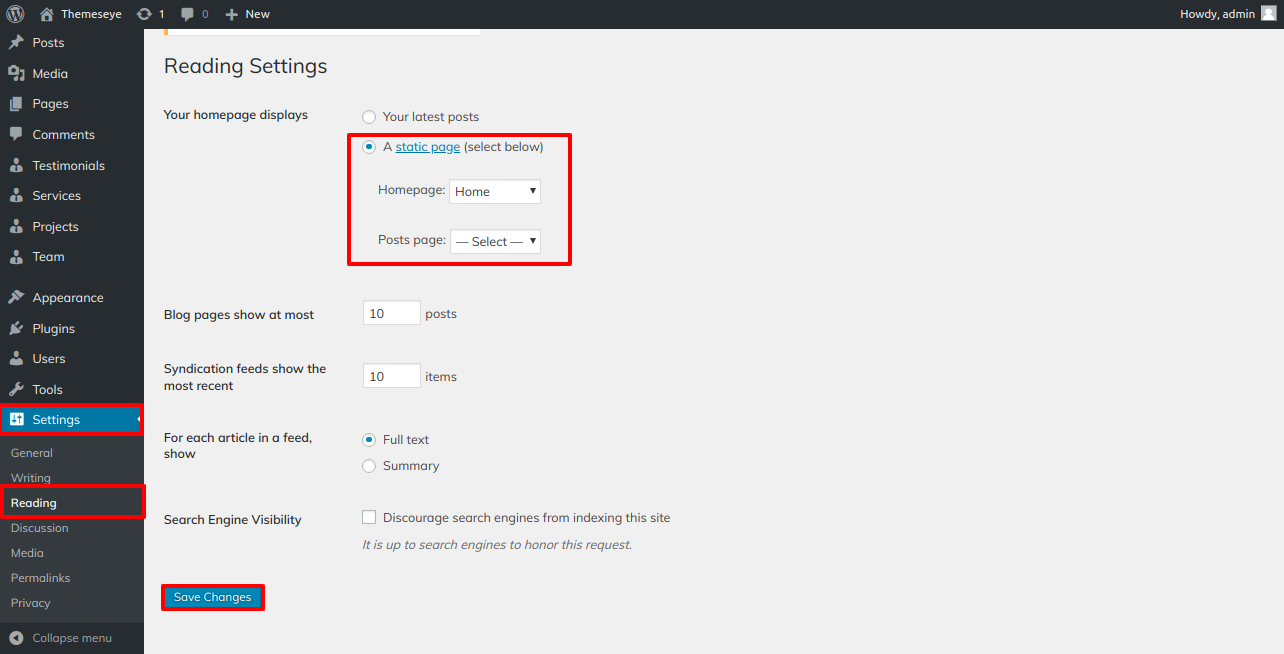
- Step 3 - Go to Dashboard >> Settings >> Reading, select home page as a front page

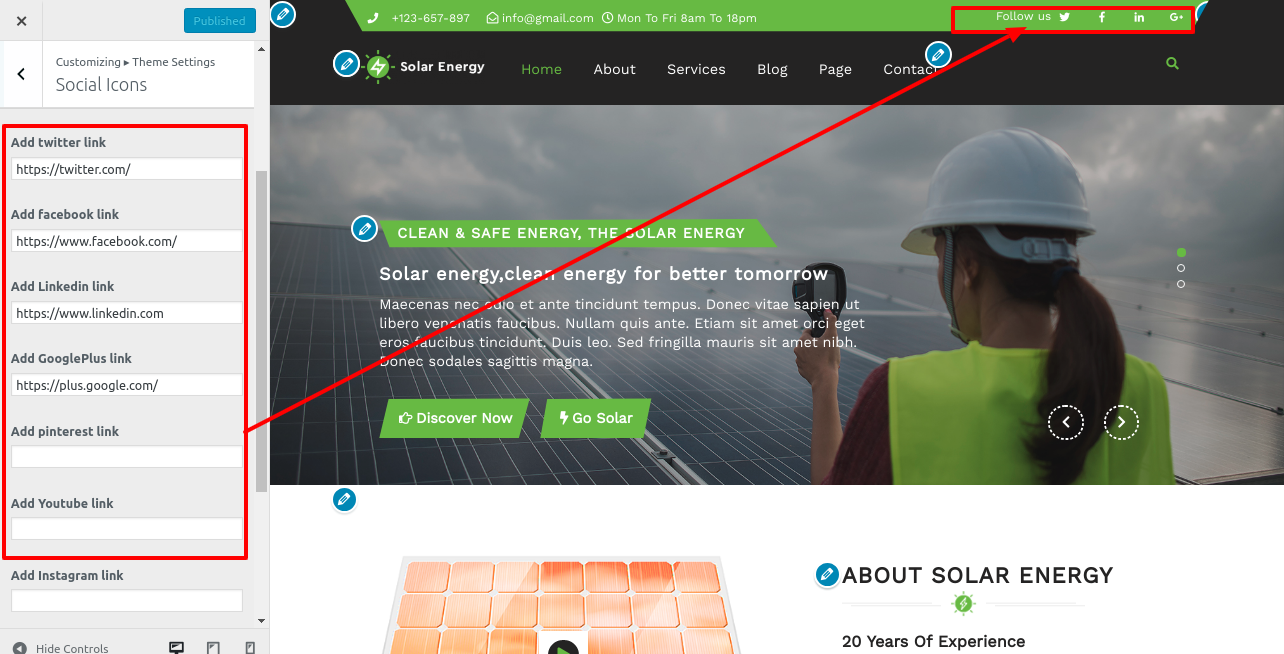
Header Setting
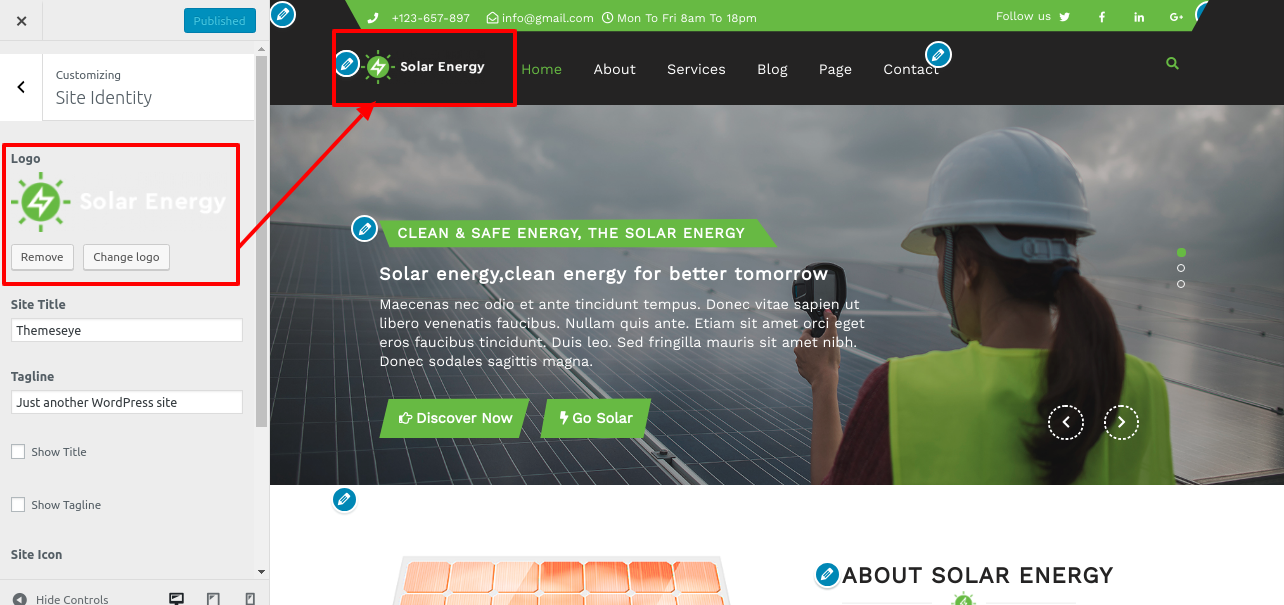
- Step 1 - Go to Dashboard >> >> Appearance >> Customize >> Site Identity.
- a. You can add logo from Select Logo button for set logo
- Step 2 If you want to add and assign the page to that area, go to Dashboard >> Pages >> add new page with addition of image. To allocate numerous pages to the same section, repeat this process several times.
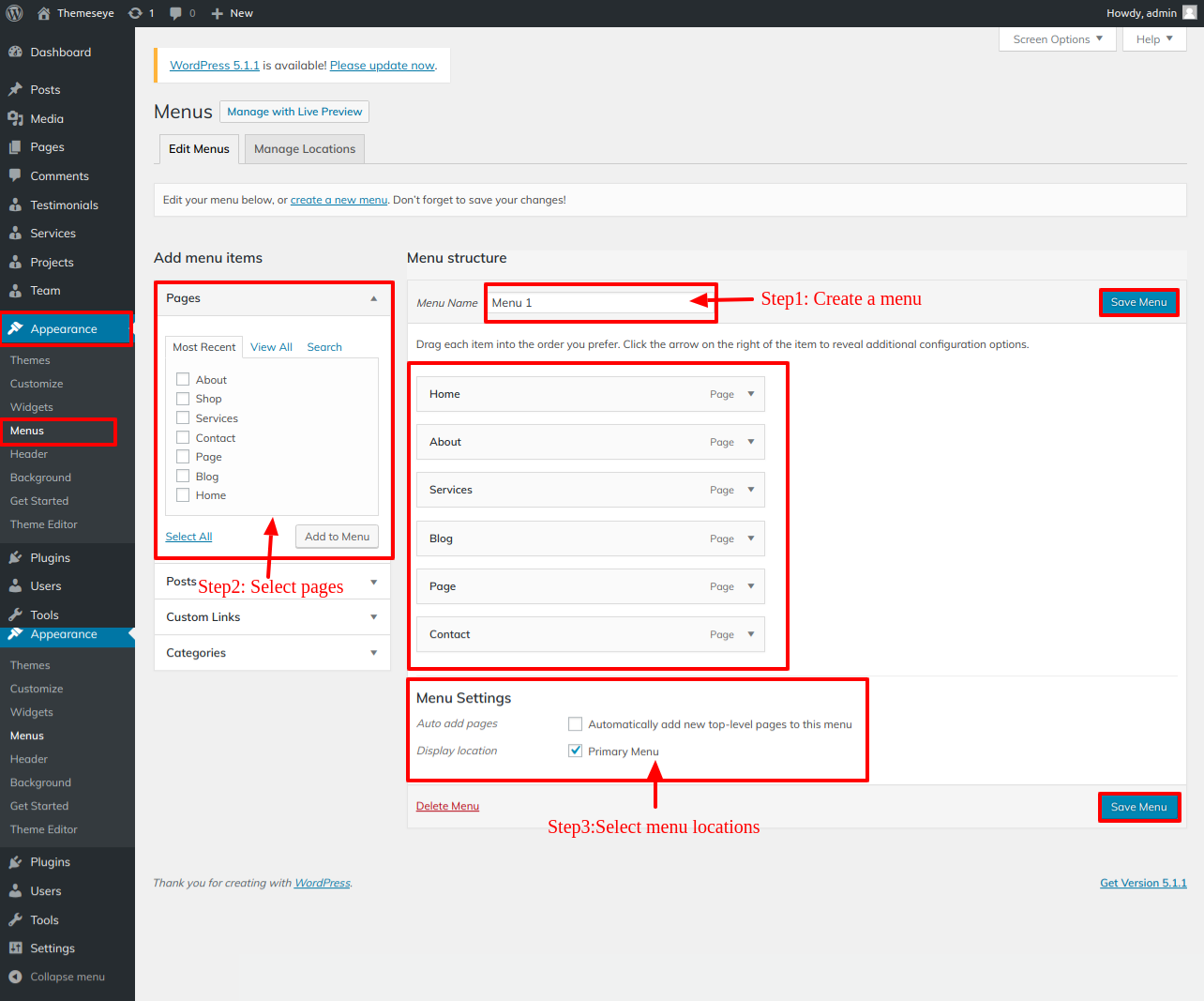
- Step 3 - Go to Dashboard >> Appearance >> Menus.
- Step 4 - Click on create a new menu as show in below image.
- Step 5 - Enter the menu's name, then click Create Menu as shown in below image.
- Step 6 - From the left side, choose Pages like Latest Blog, Pages, and About Us, then select Add to Menu button as show in below image
- Step 7 - After selecting pages select menu location and click on save menu.
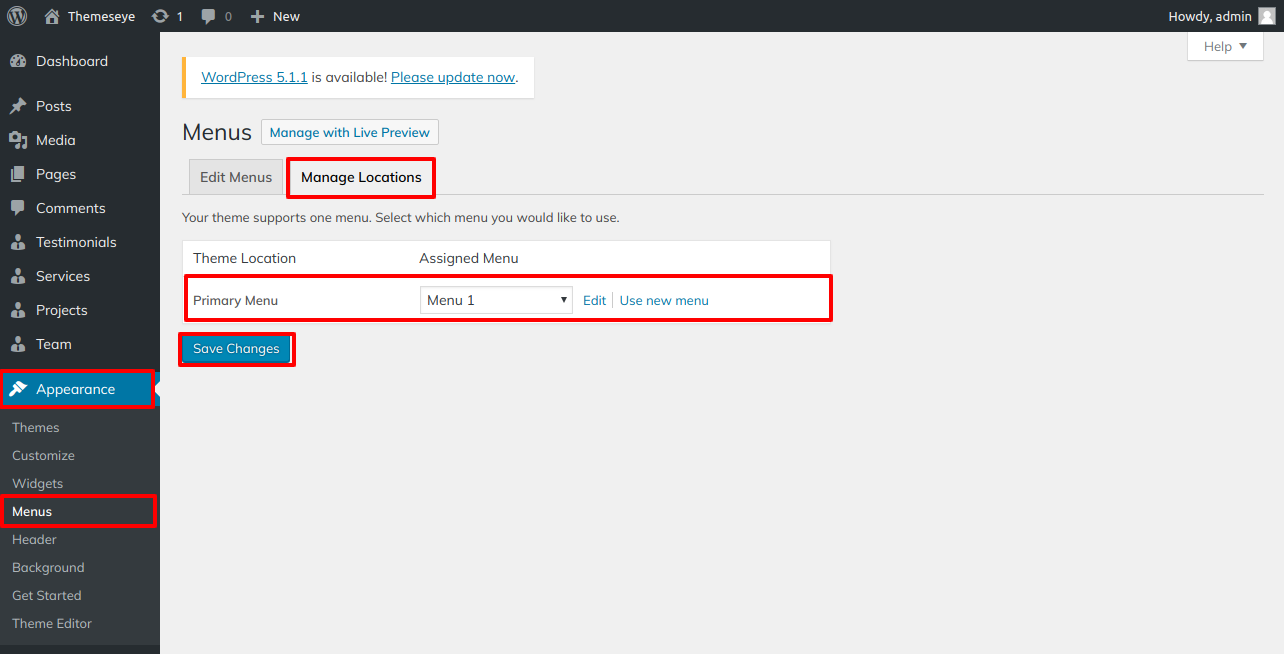
- Step 8 - Click on Manage Locations as show in below image.
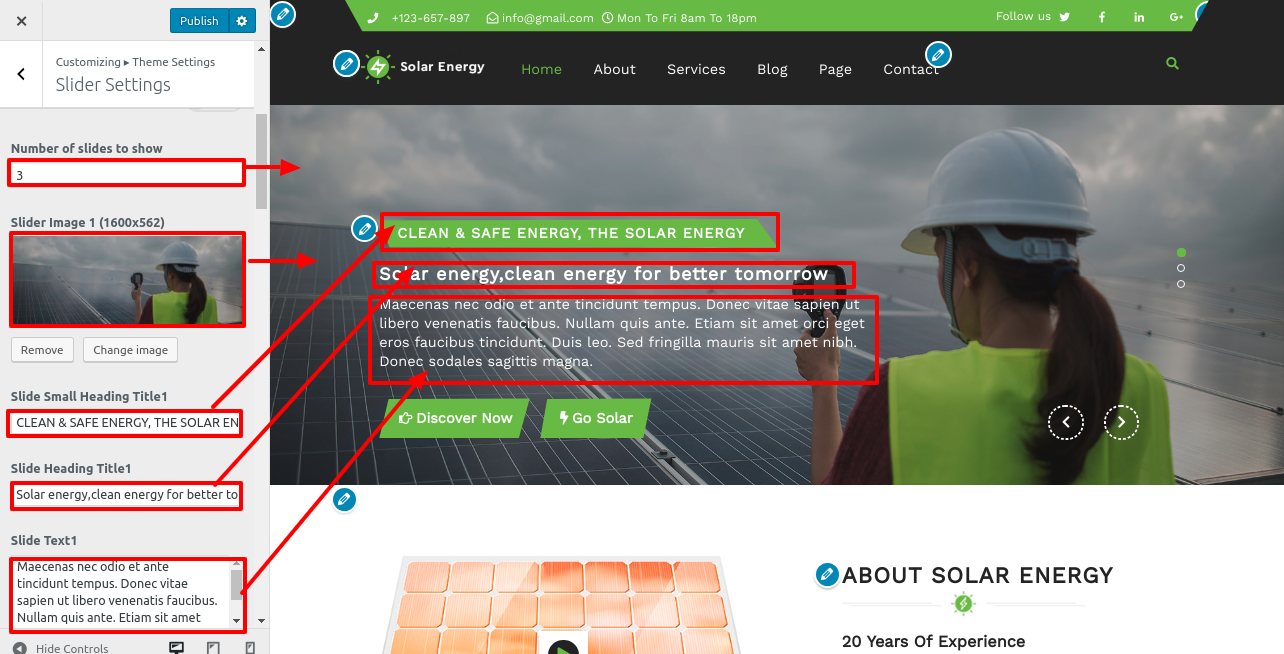
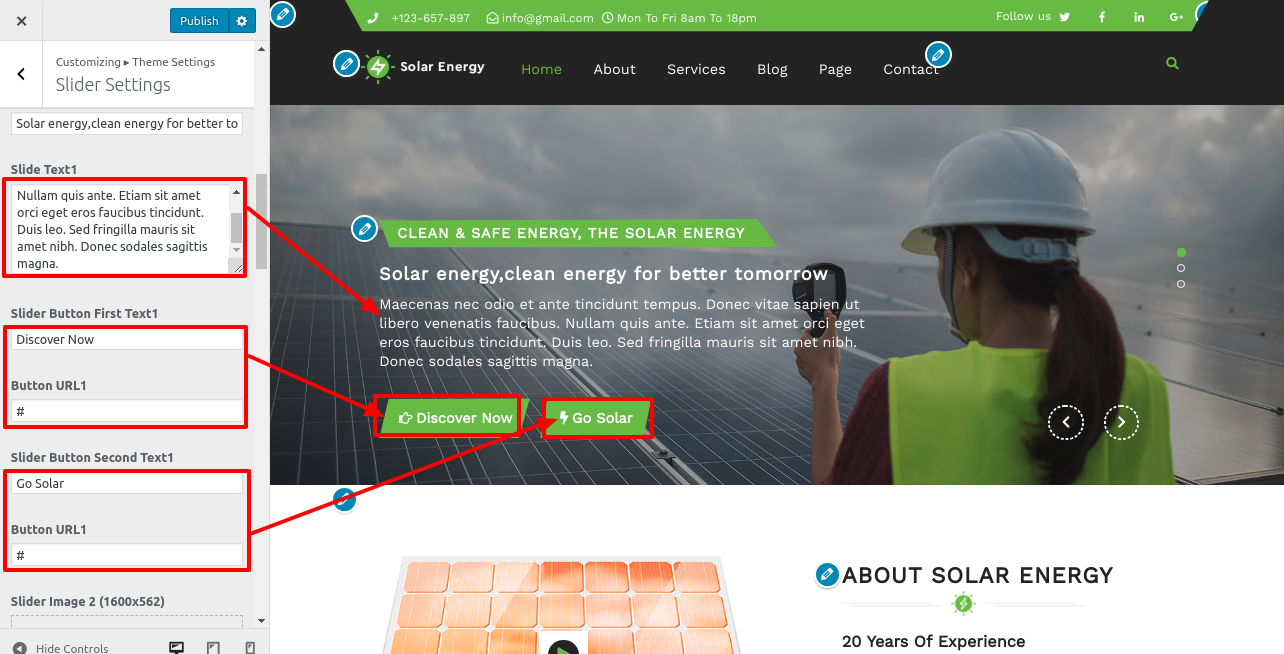
- Primary Menu Front Preview

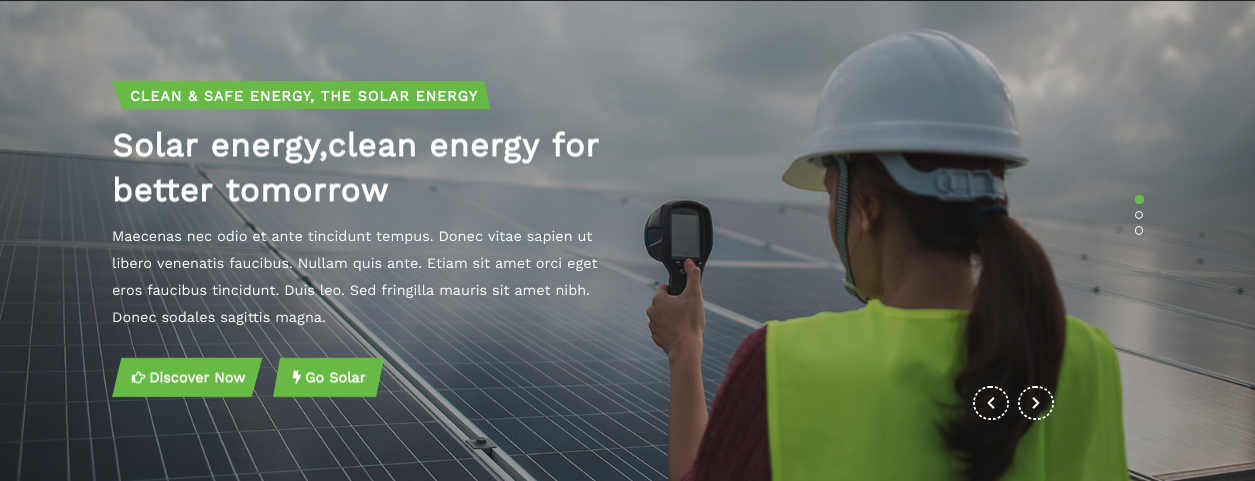
Final display of Header
About Video Section
Follow the instructions below to set up the About Video Section.
- Step 1 - Go to Dashboard >> Appearance >> Customize >> Theme Settings >> About Video section.
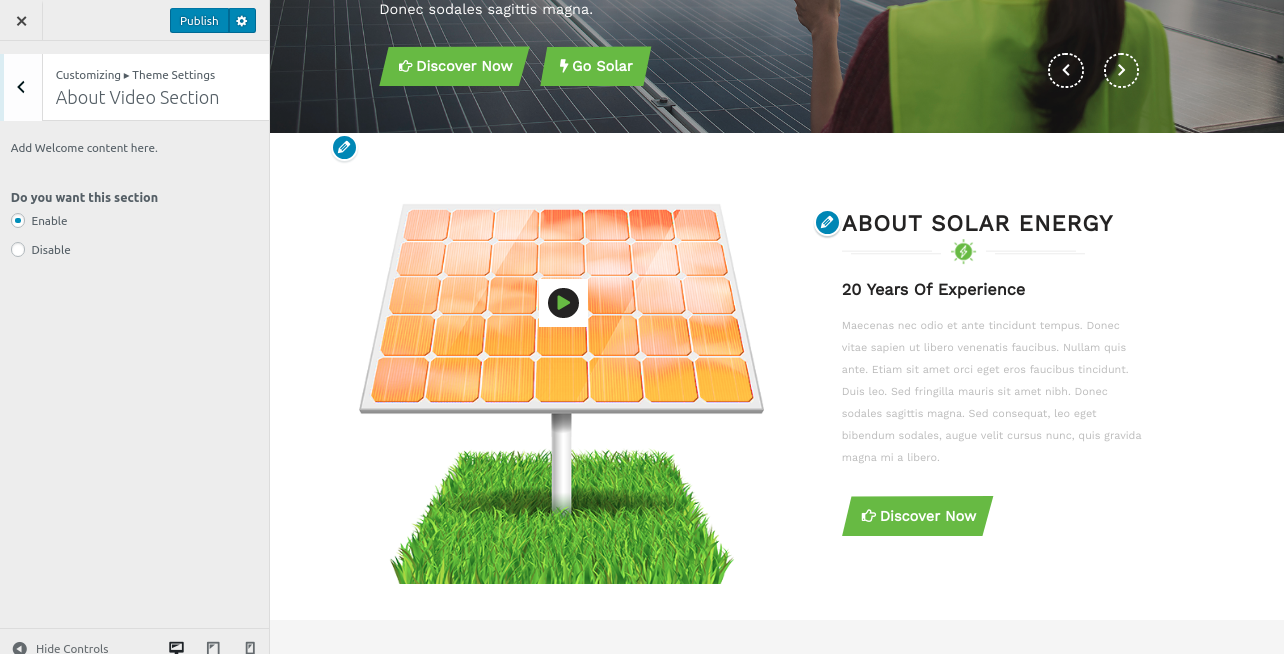
Setting Options : Include slider display enable/disable settings. You can activate or disable this section using this setting. This environment is crucial. If you want this section to show on your website, leave the option enabled; if you don't, pick the disable option, and this section will no longer be visible on your website.
Final display of About Video Section
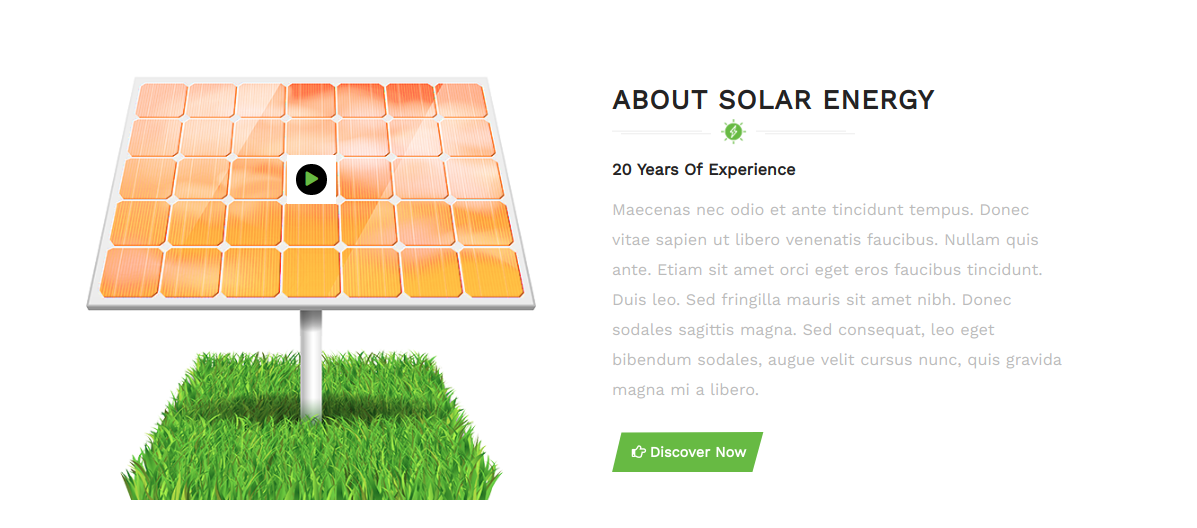
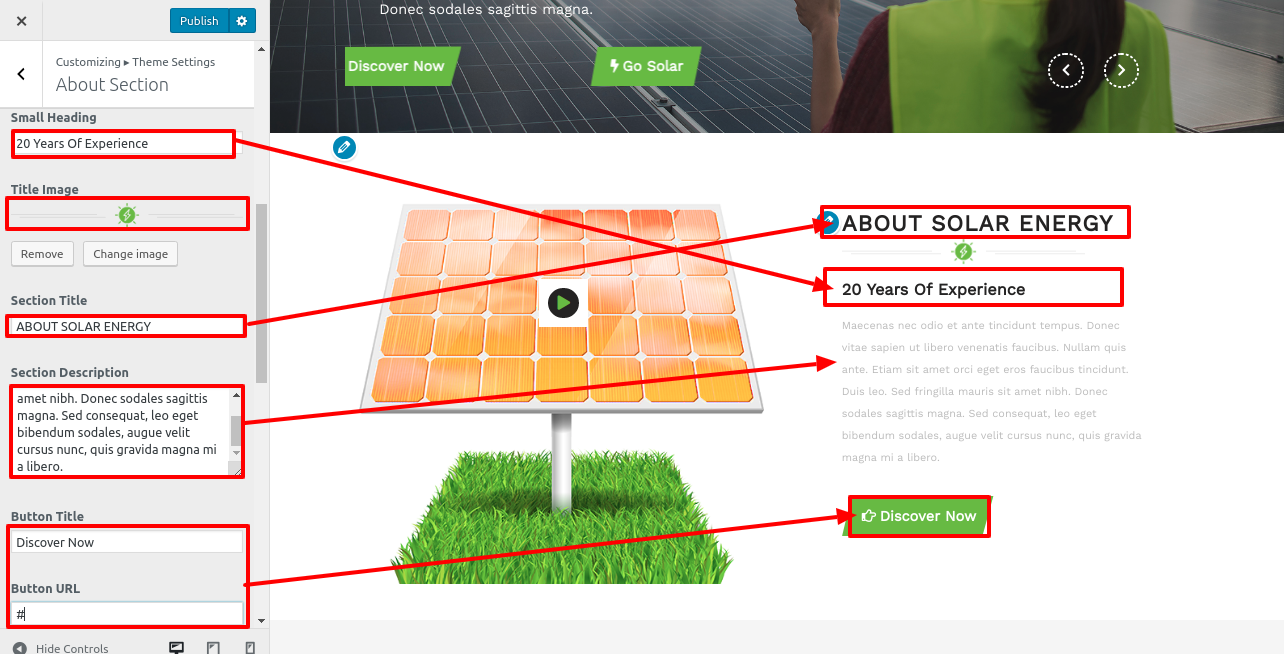
Setup About Section
Follow the steps below to build up the About Section.
- Step 1 - Go to Dashboard >> Appearance >> Customize >> Theme Settings >> About Section.
- (a) Add Background Image
- (b) Add Tab Title
- (c) Select About Image 1
- (d) Add Tab button Link
Step 2 - Manage Background
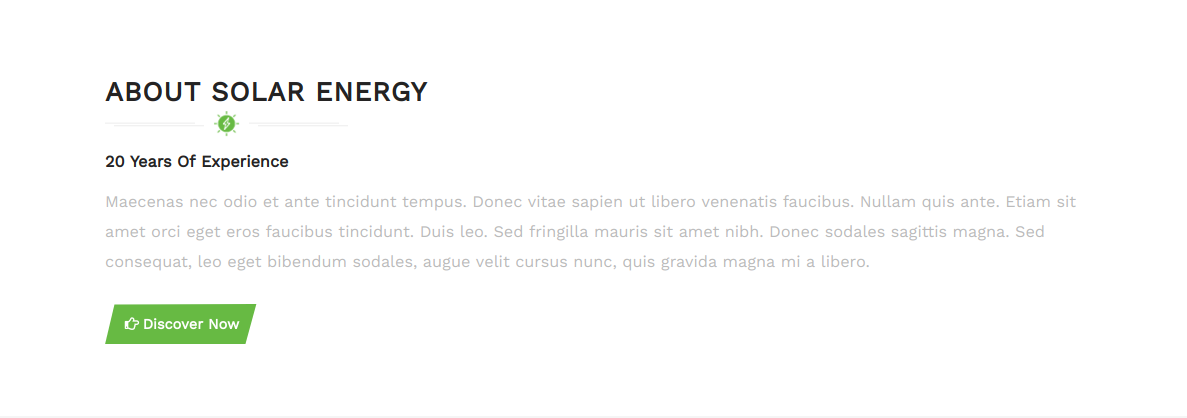
Final display of About Section
Setup Video Section
Follow the instructions below to set up the video section.
- Step 1 - Go to Dashboard >> Appearance >> Customize >> Theme Settings >> Video Section.
- (a) Add Background Image
- (b) Add Tab Title
- (c) Select About Image 1
- (d) Add Tab button Link
Step 2 - Manage Background
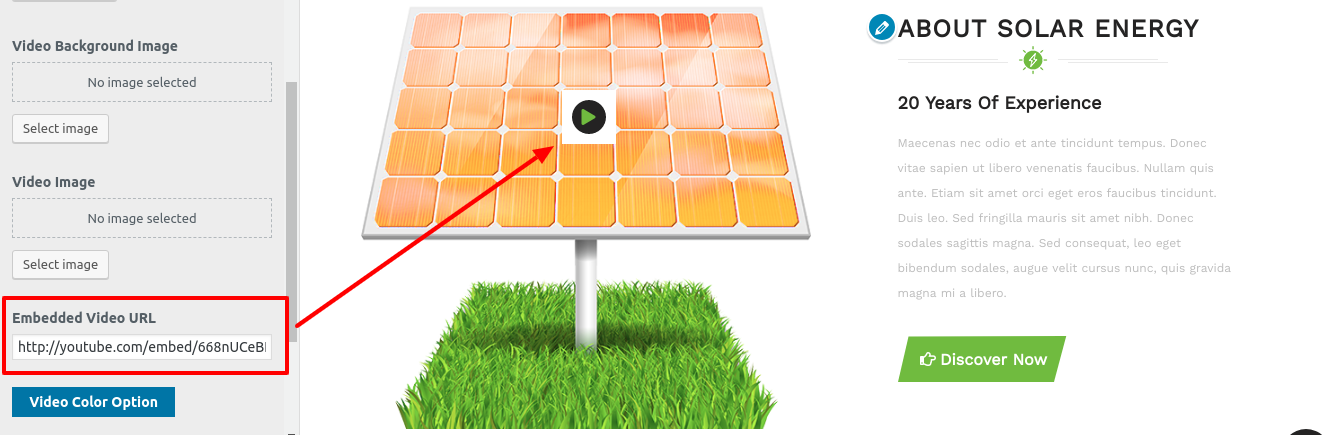
You must copy the source from the YouTube movie's embed code for this video.
You must substitute the URL for your particular movie in the About Section.
Final display of Video Section
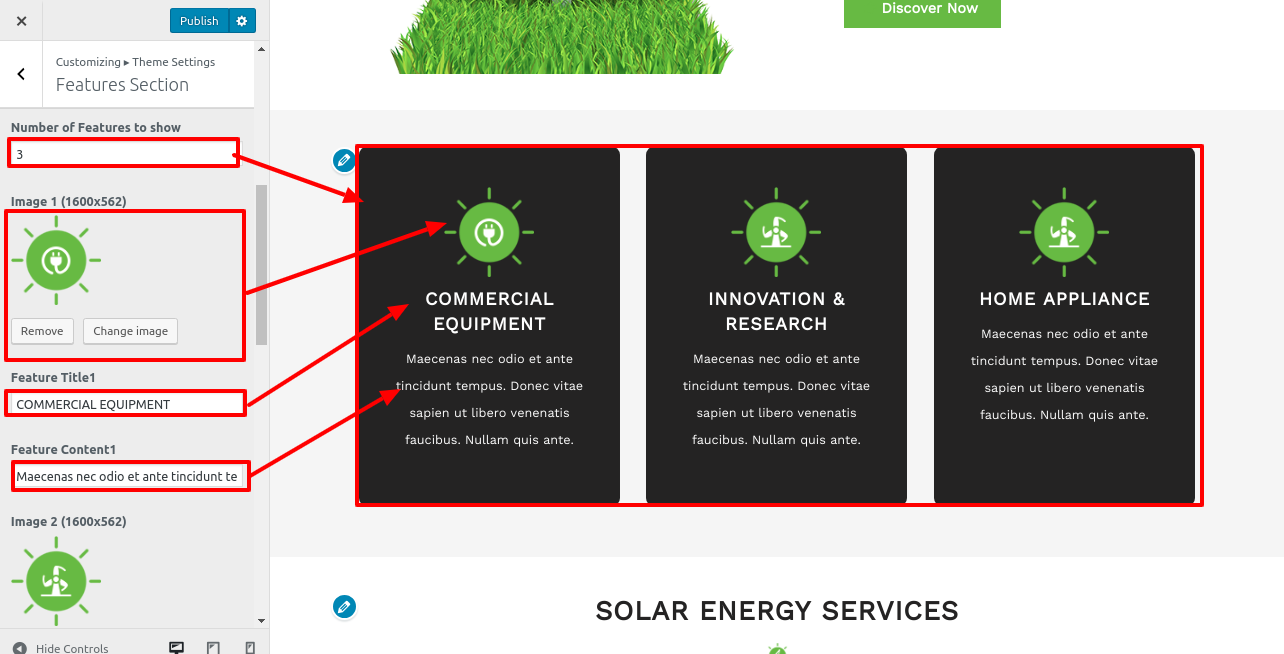
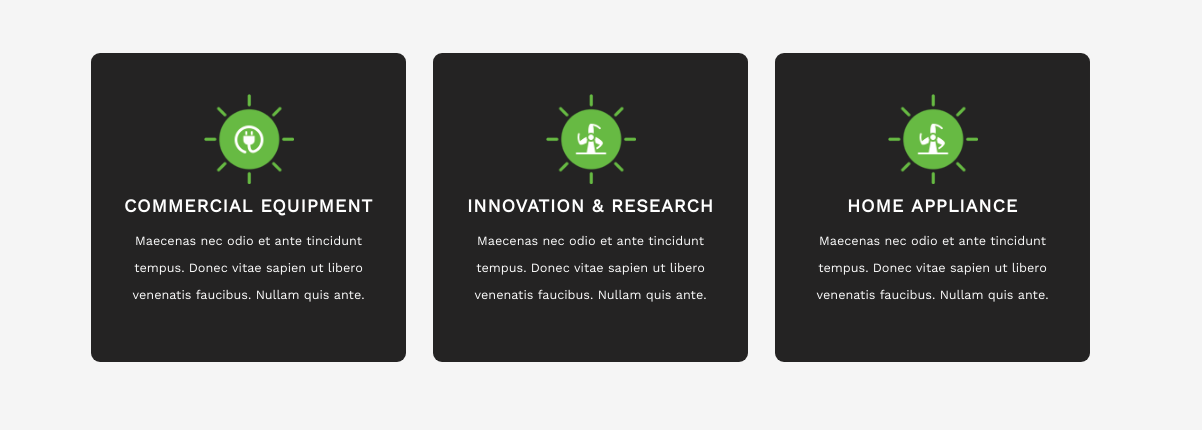
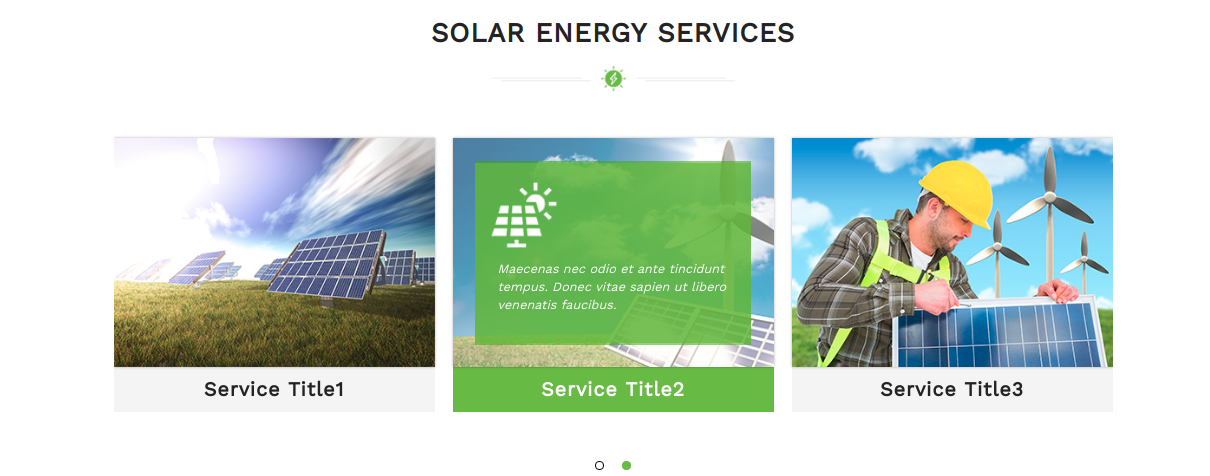
Setup Services Section
-
if you want to continue with this part.
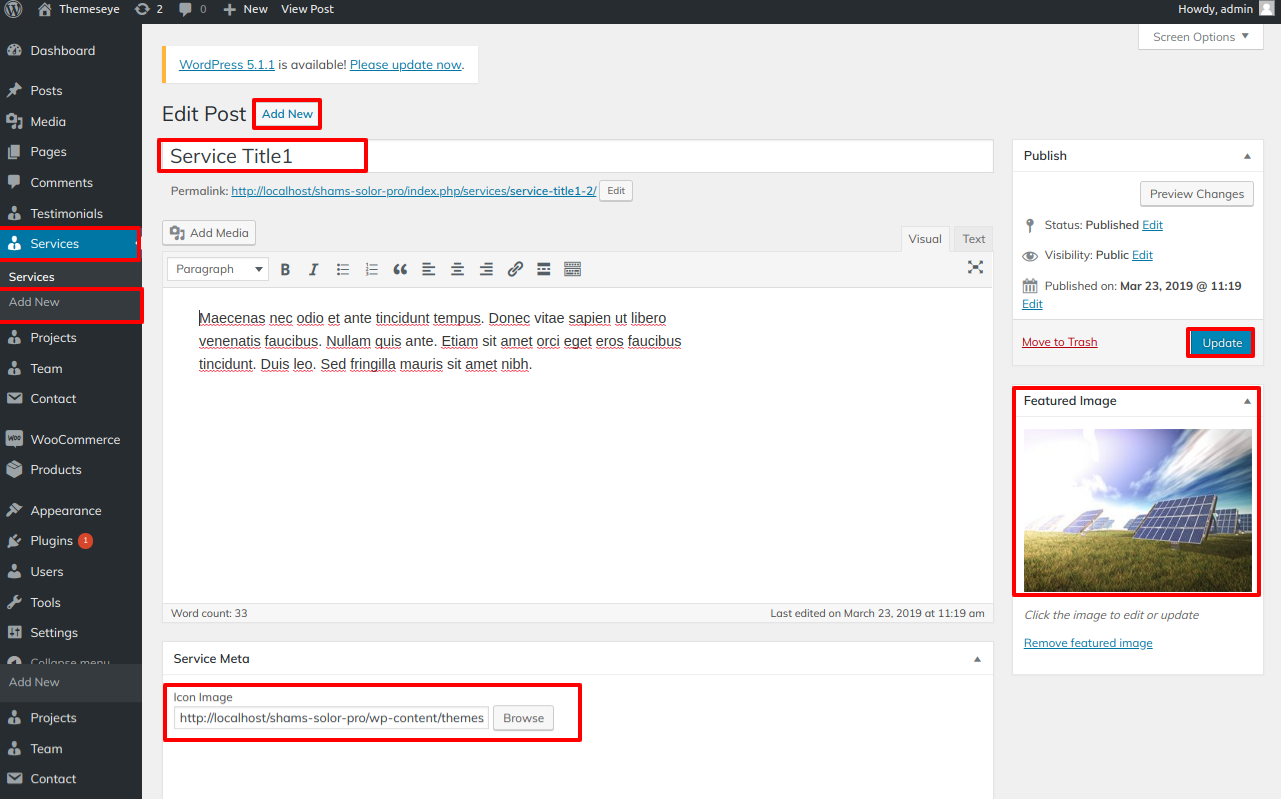
- Step 1 - Go to Dashboard >> Services >> Add New
- (c) Click Publish Button
- (a) Add New Services Title
- (b) Add Icon images
- Step 3 - Go to Dashboard >> Appearance >> Customize >> Themes setting >> Services Section.
- (a) Select background image
- (b) Add Title
- (a) Select Bottom Image
Note:You need to activate the "shams-solor-pro-posttype" Plugin.
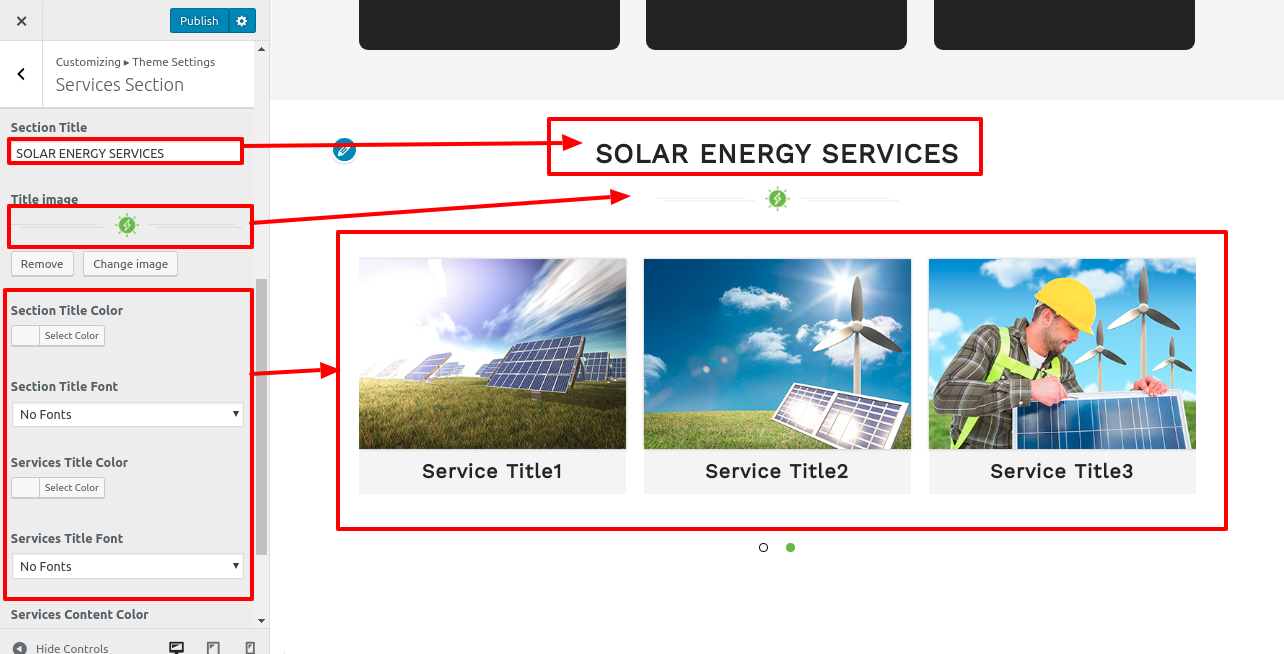
Final display of Are Services Section
Setup Project Section
To move on to the next part,
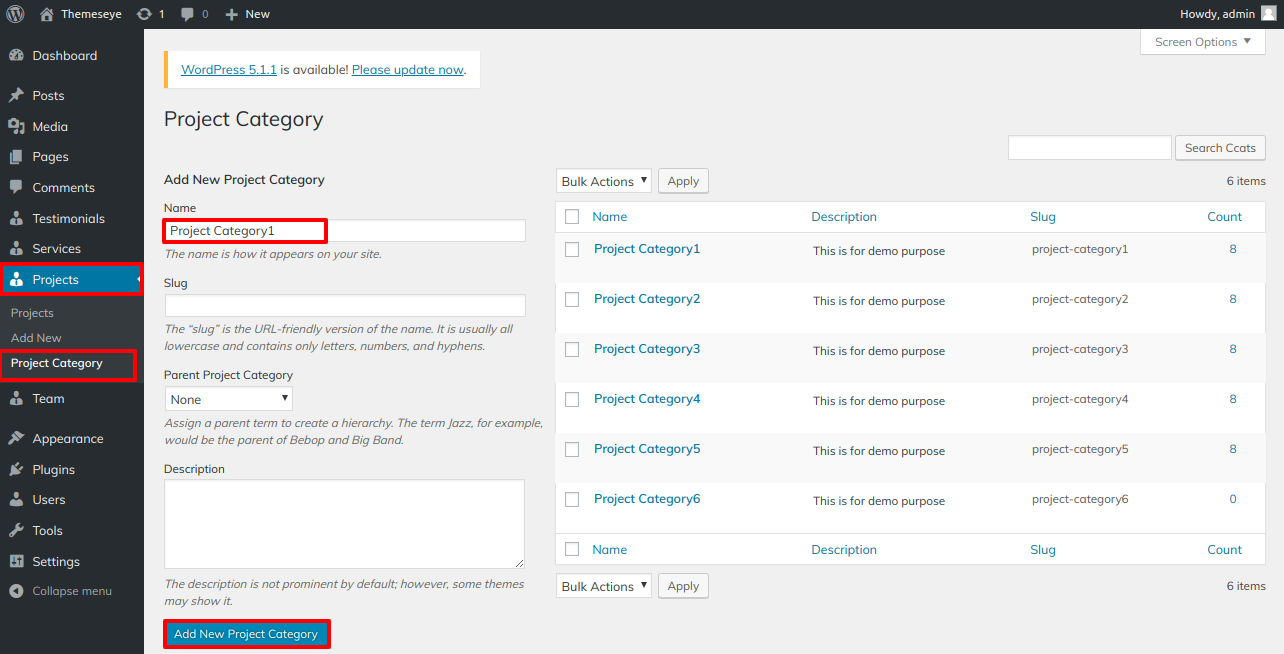
Note: The "shams-solor-pro posttype" plugin must be activated.- Step 1 - Go to Dashboard >> car >> Category >> Add New
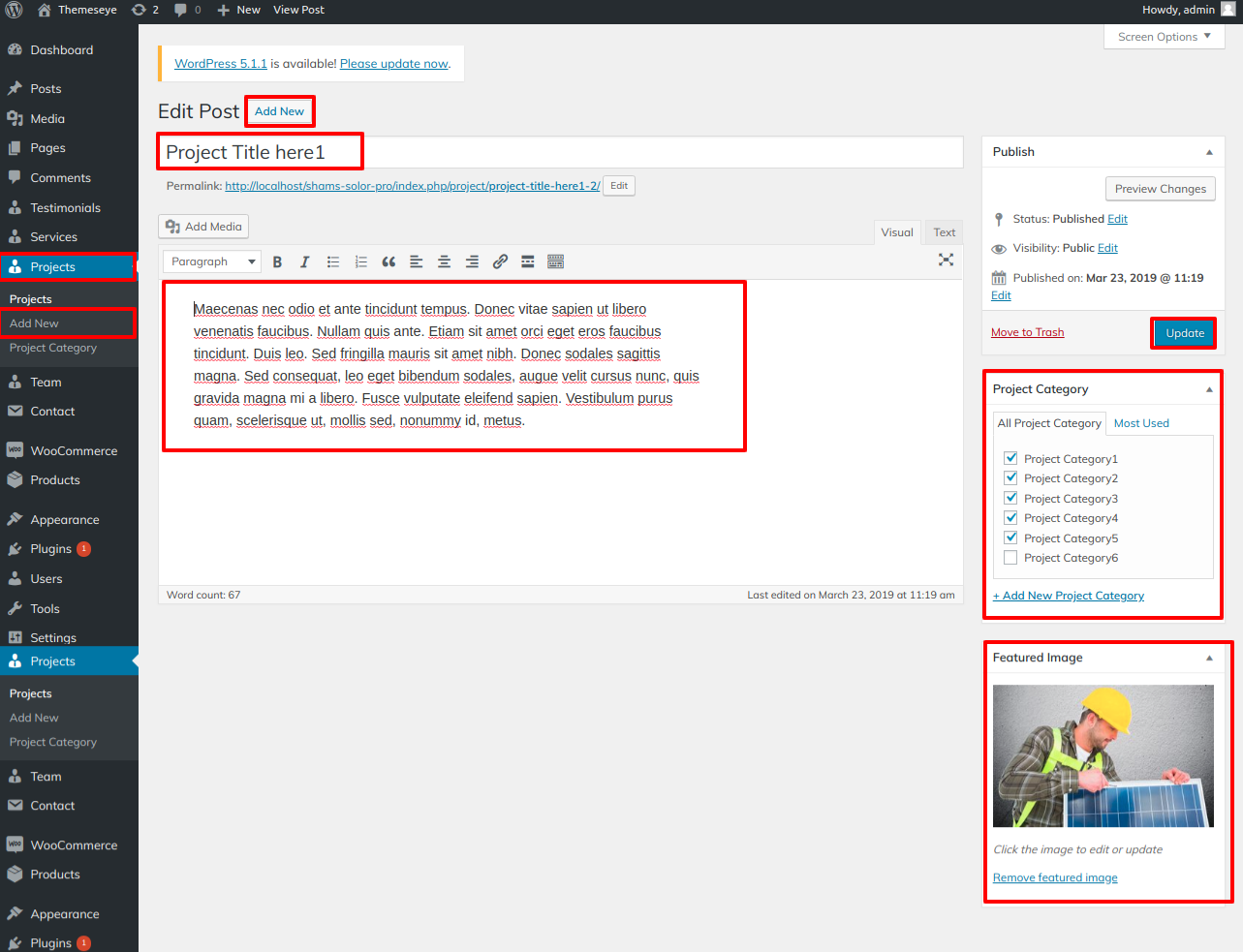
- Step 2 - Go to Dashboard >> Project >> Add New
- (b) Add Title
- (a) Add Featured Image
- (b) Select Categories
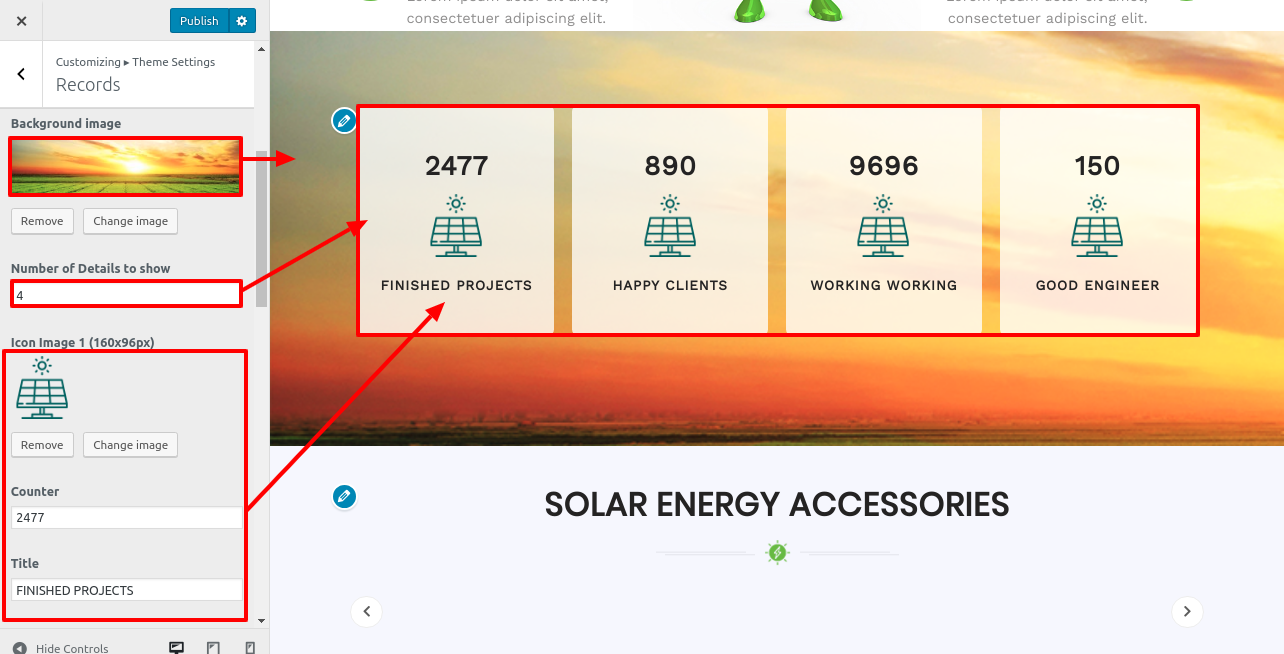
- Step 3 - Go to Dashboard >> Appearance >> Customize >> Project Section. Step 3 - Manage Background
- (a) Add Background Image
- (b) Categories No of Categories To Show
- (a) Add Category Title
- (a) Add Title
Create the Category for the Category First To set up the Category, take the procedures listed below.
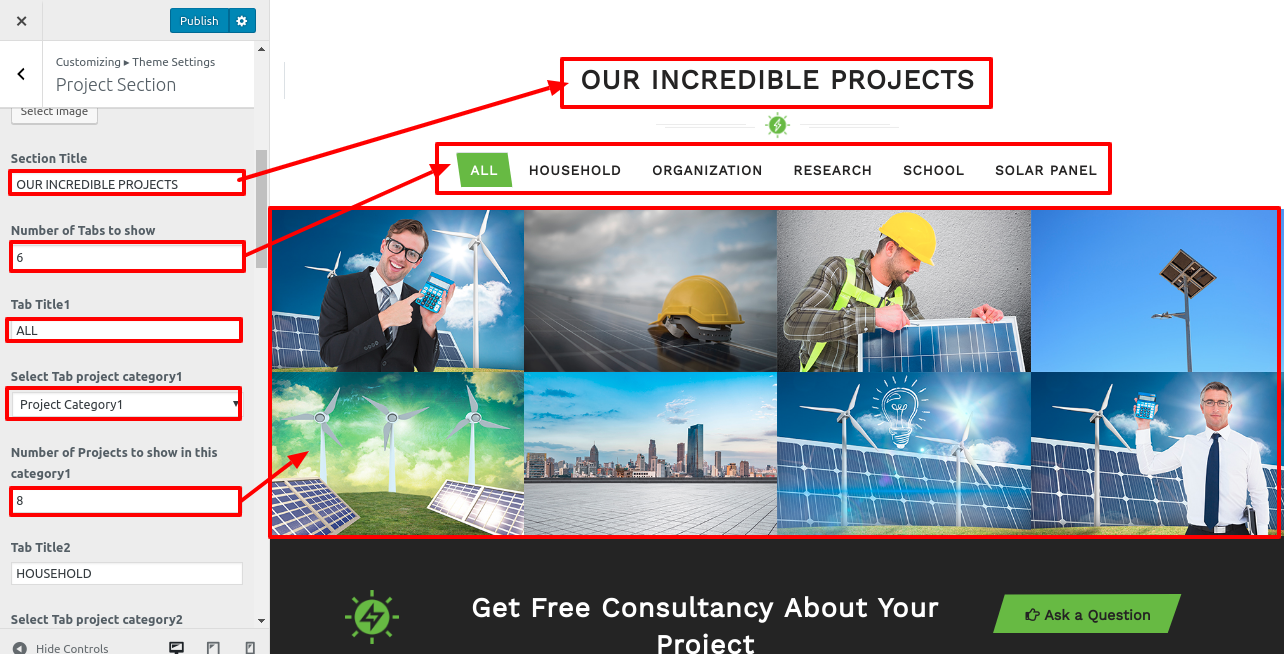
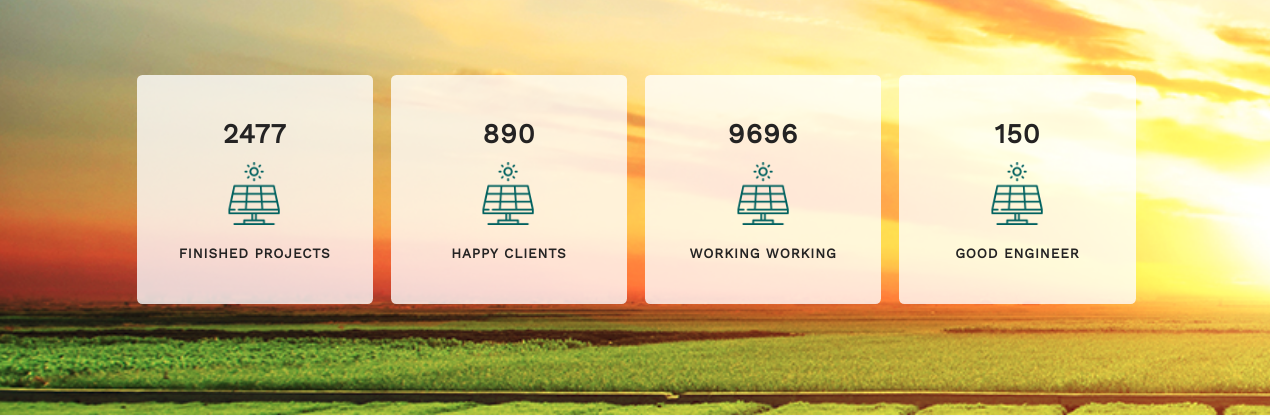
Final display of Project Section
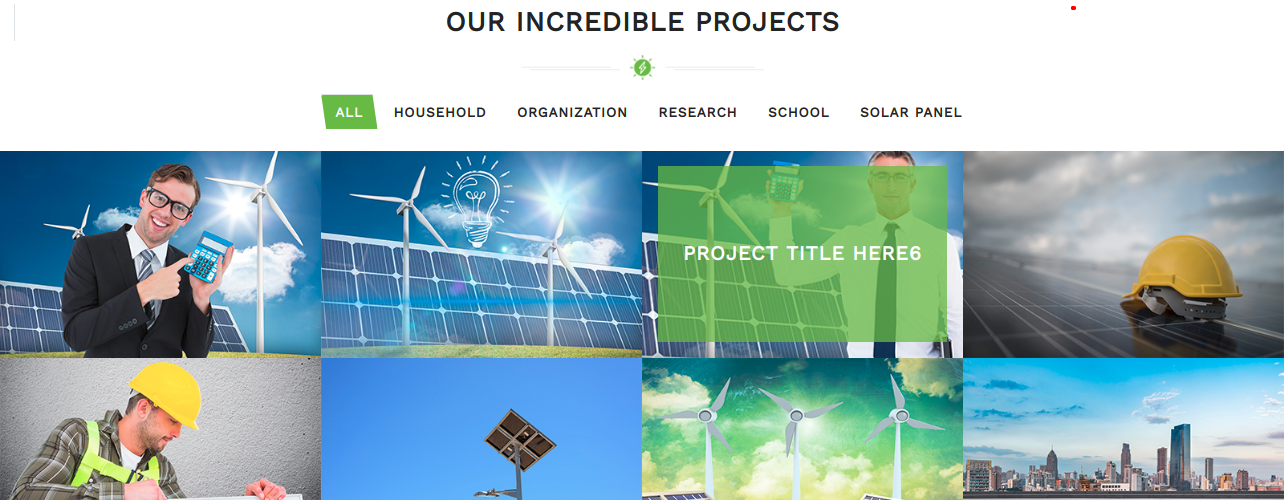
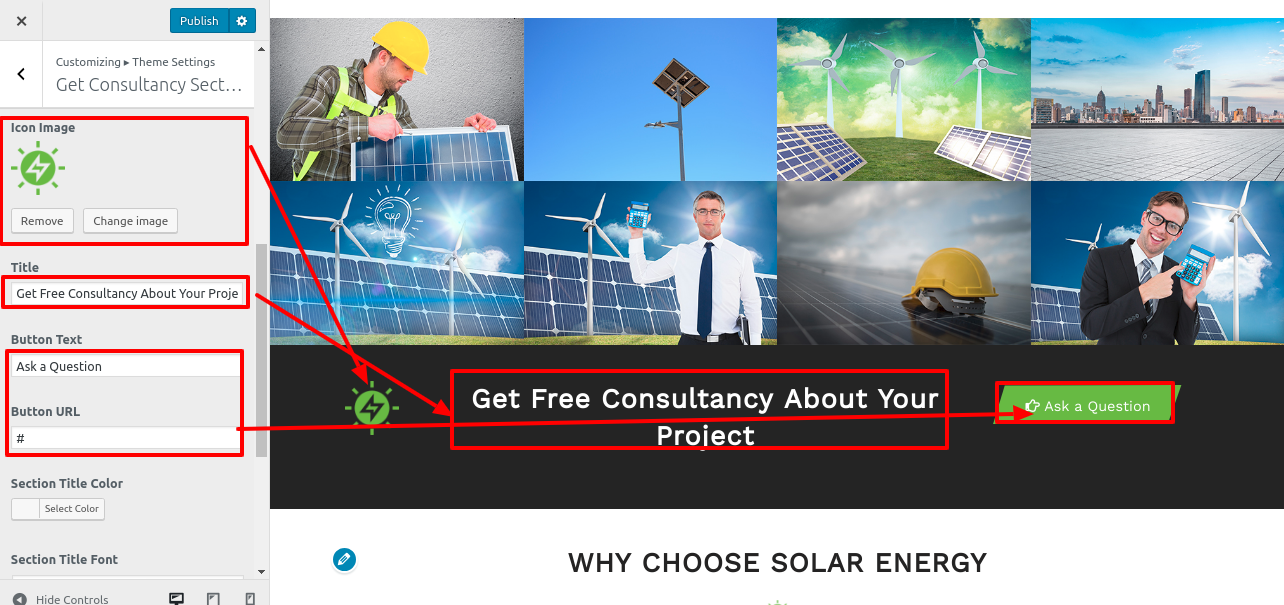

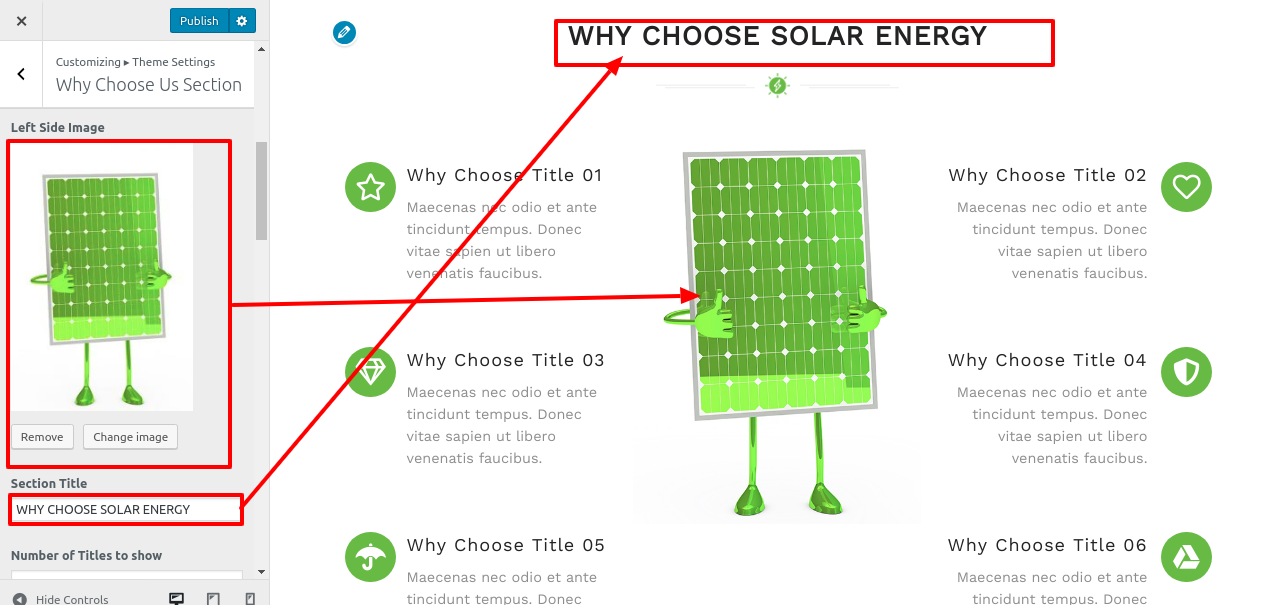
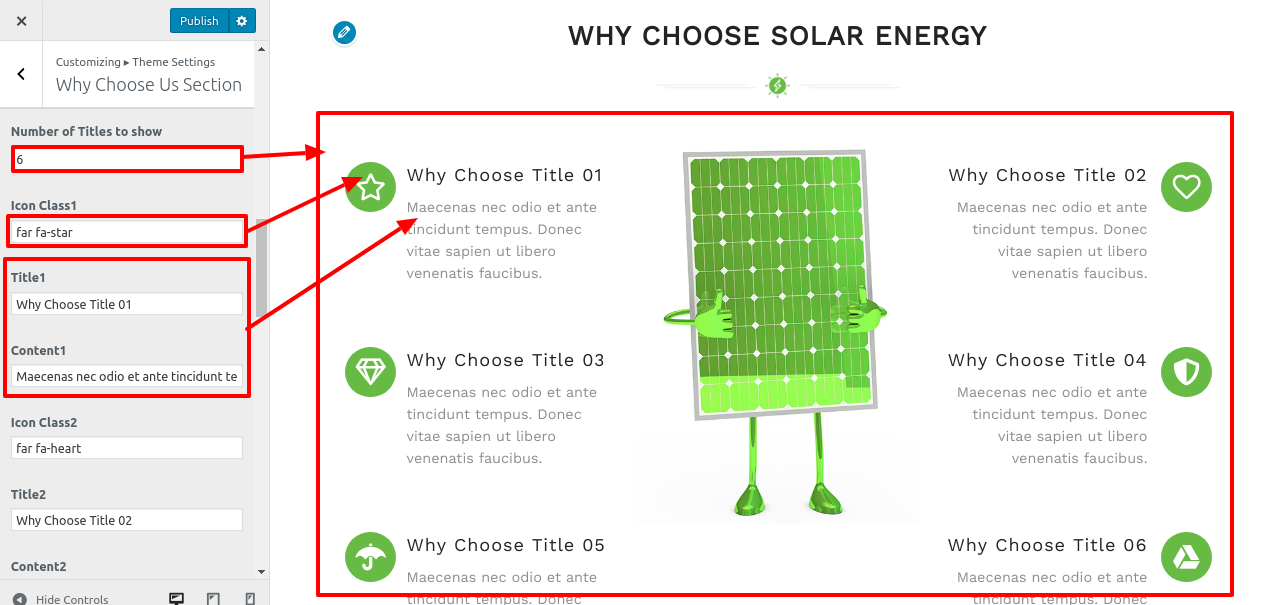
Setup Our Accessories Section
-
To continue with this section.
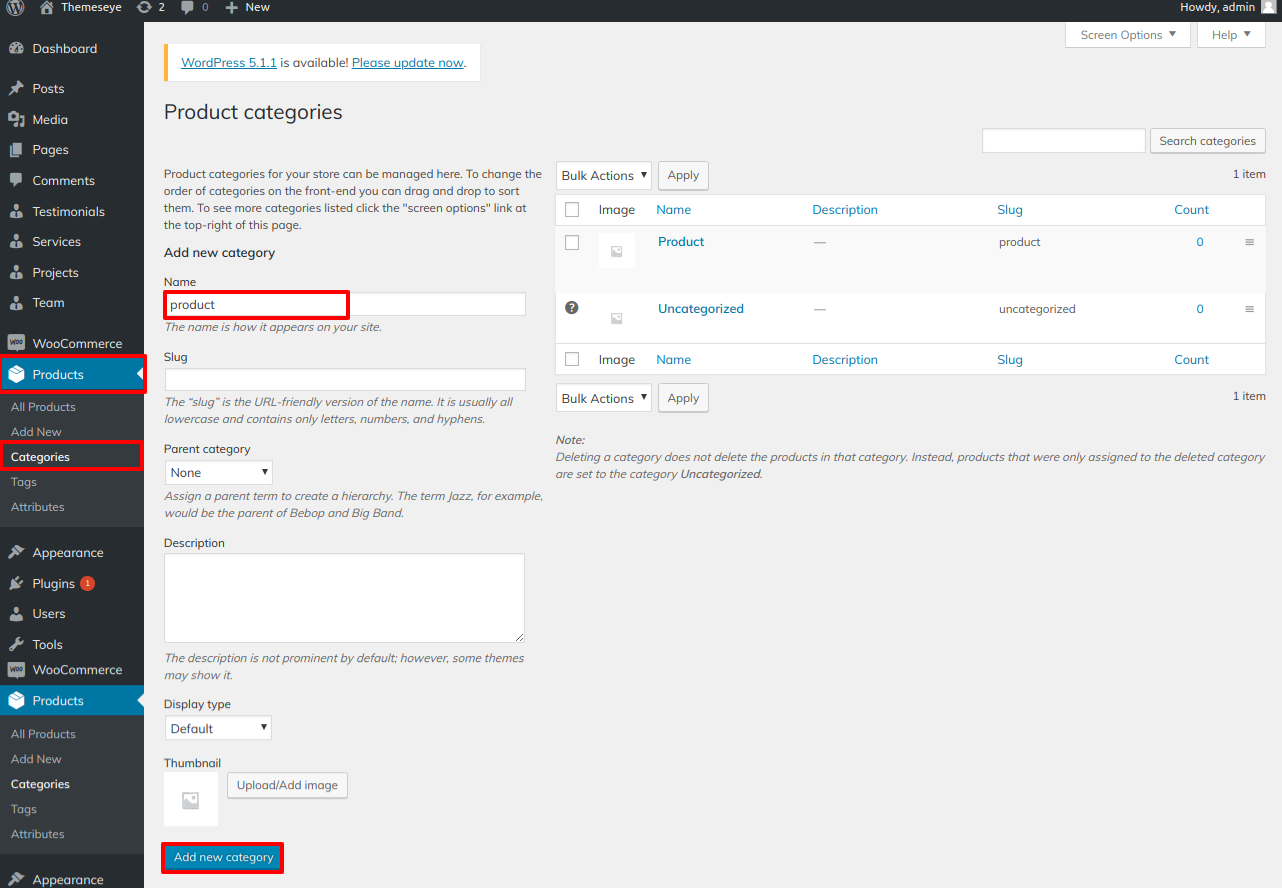
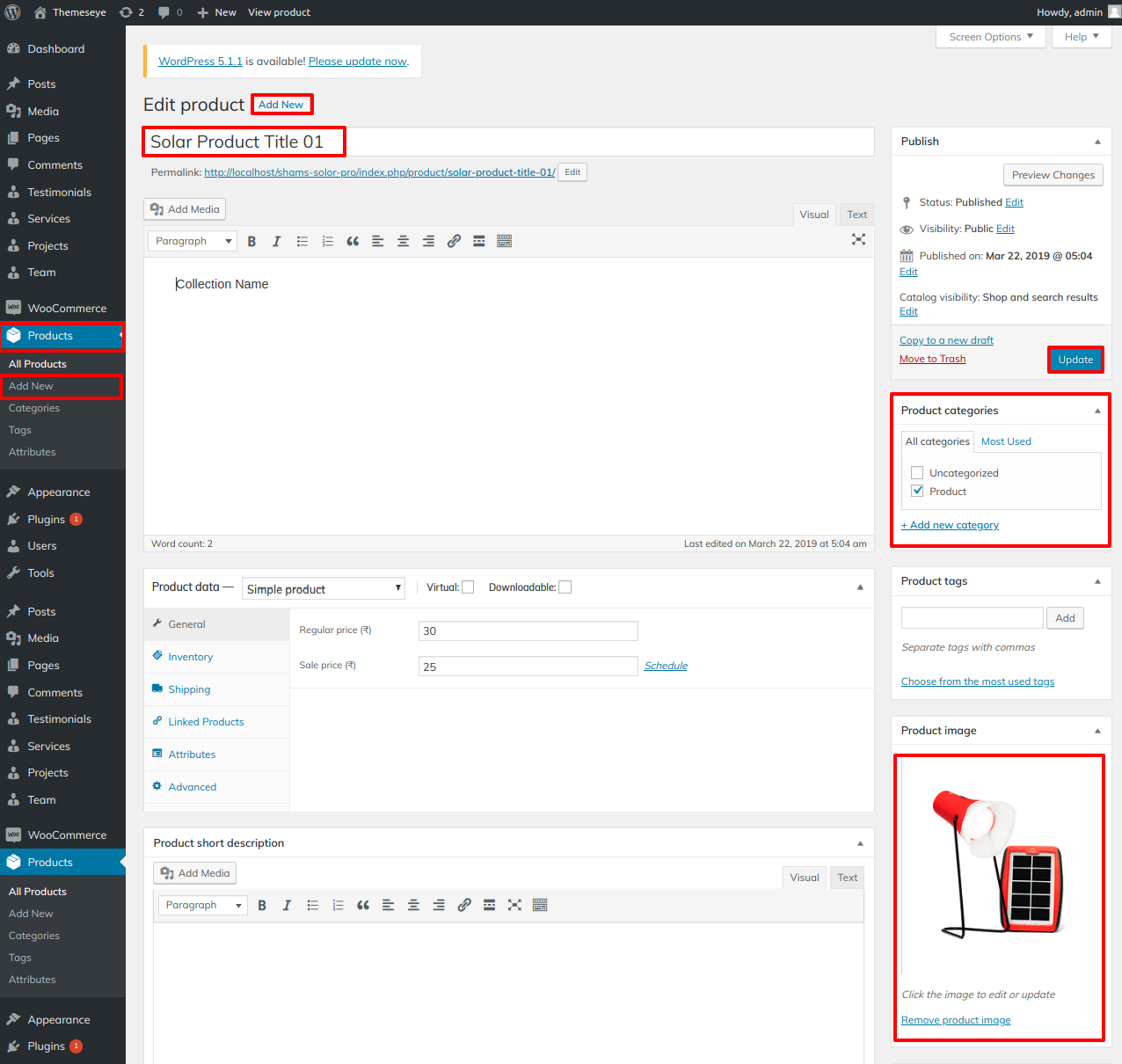
- Step 1 - Go to Dashboard >> Products >> Category >> Add New
- Step 2 - Go to Dashboard >> Products >> Add New
- Step 3 - Go to Dashboard >> Appearance >> Customize >> Themes section >> Our Accessories.
Note:You need to activate the "woocommerce"Plugin.
The woocommerce choice will show up on the dashboard after installation.
Create the Category for the Category First To set up the Category, take the procedures listed below.
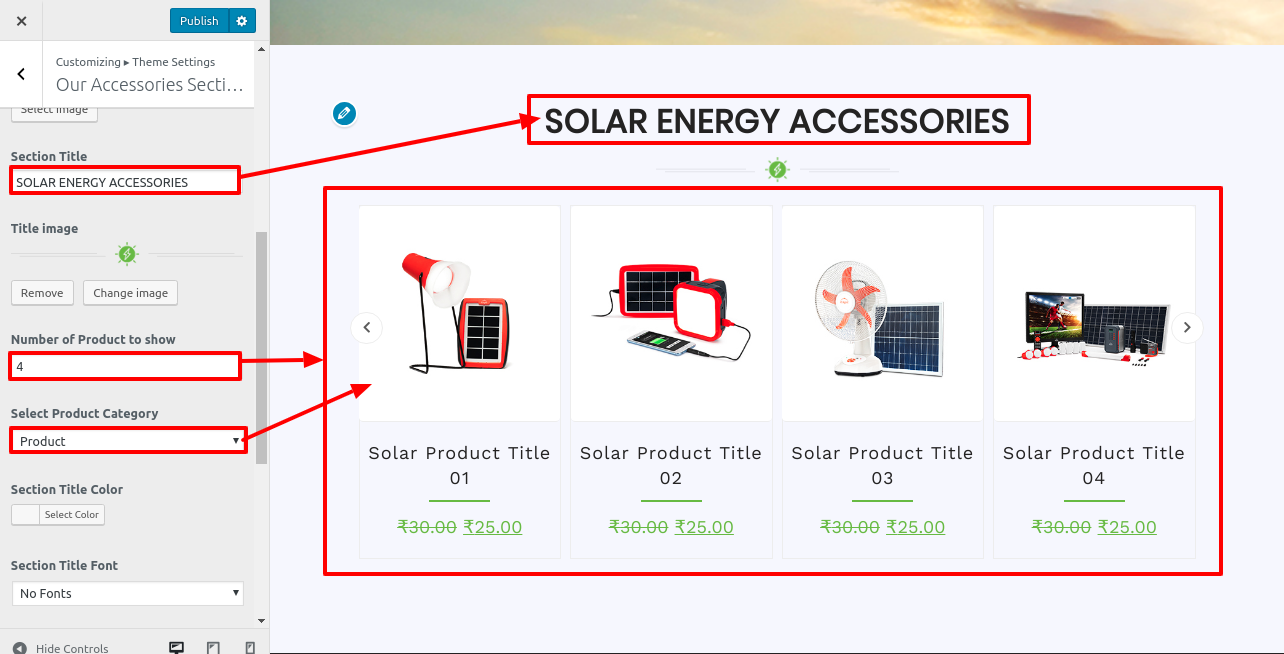
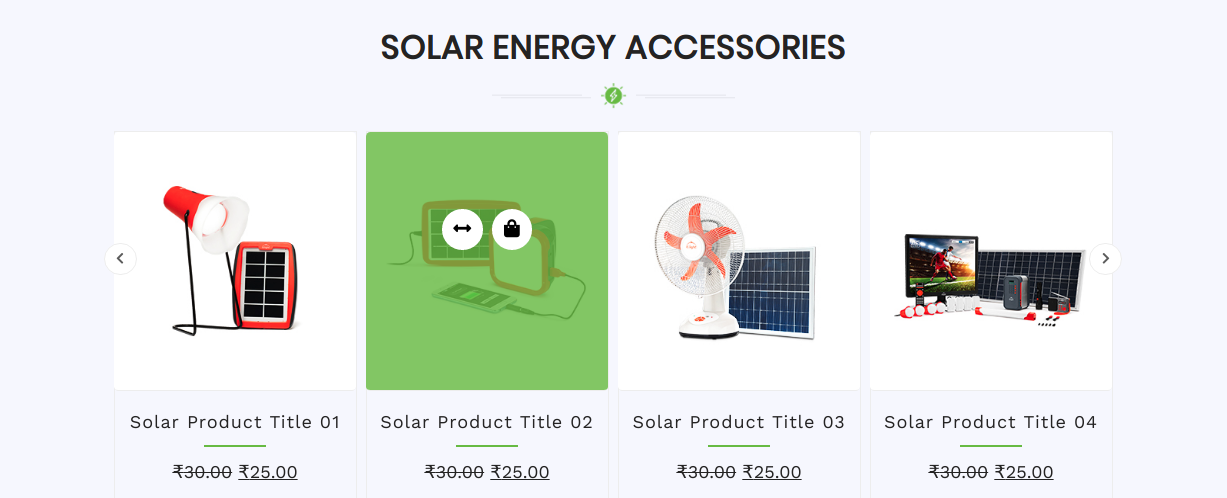
Final display of Are Our Accessories Section
Setup Team Section
-
if you want to continue with this part.
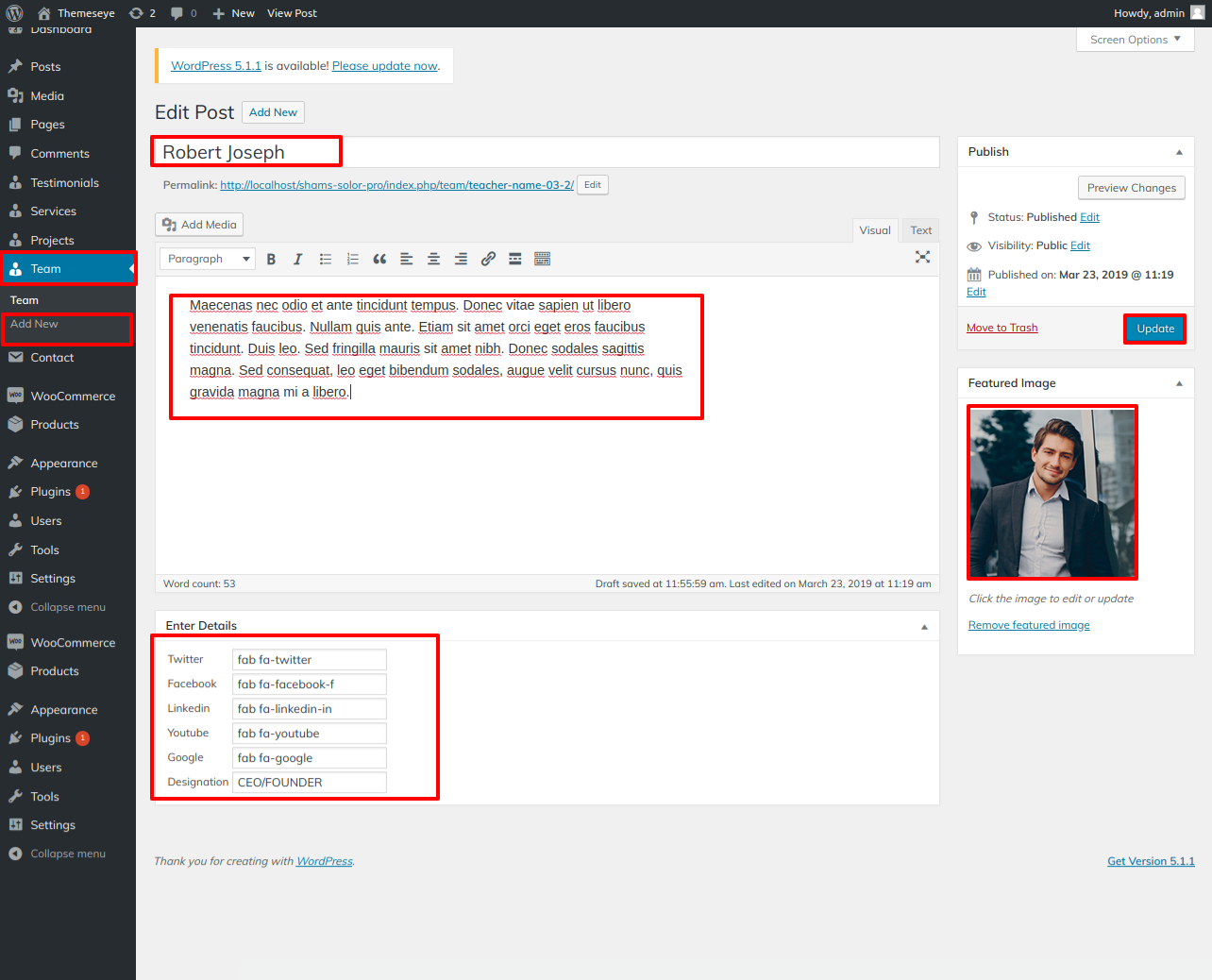
- Step 1 - Go to Dashboard >> Testimonial >> Add New
- (a) Enter Team Title
- (a) Featured Image
- (c) Publish
- Step 2 - Go to Dashboard >> Appearance >> Customize >> Themes setting >> Team Section
- (a) Select background image
- (a) Section Title
Note:You need to activate the "shams-solor-pro posttype" Plugin.
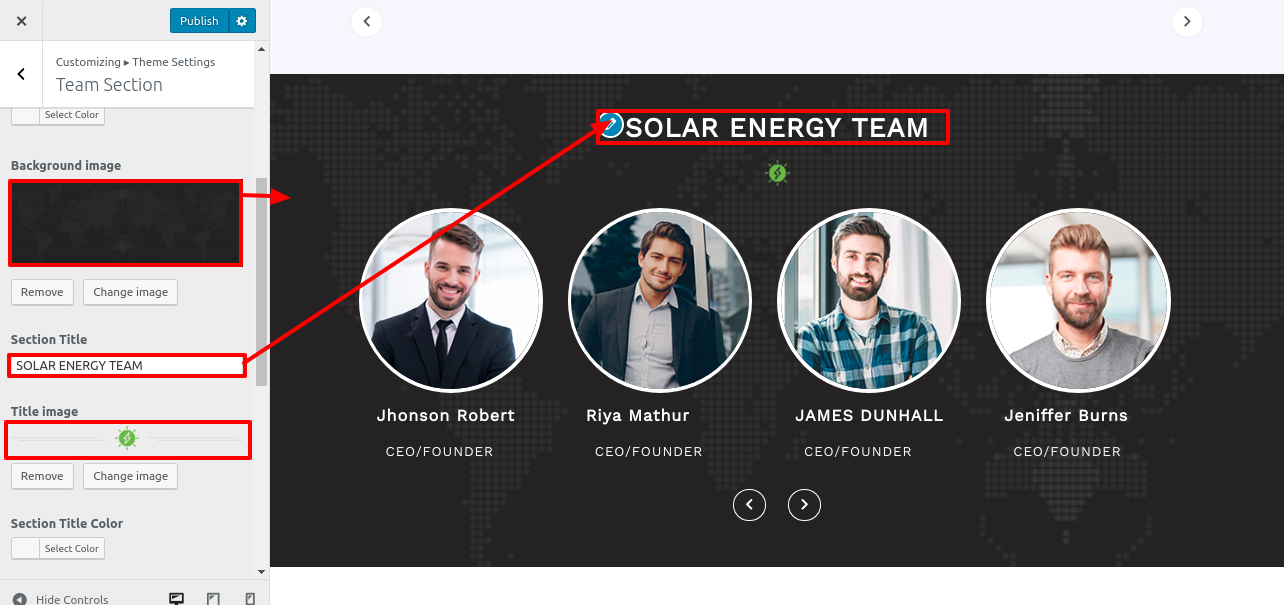
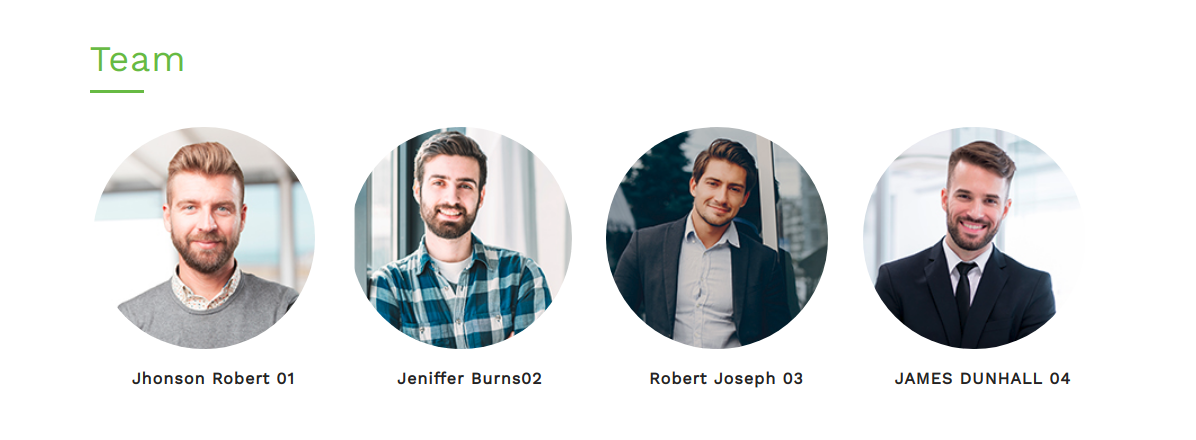
Final display of Team Section

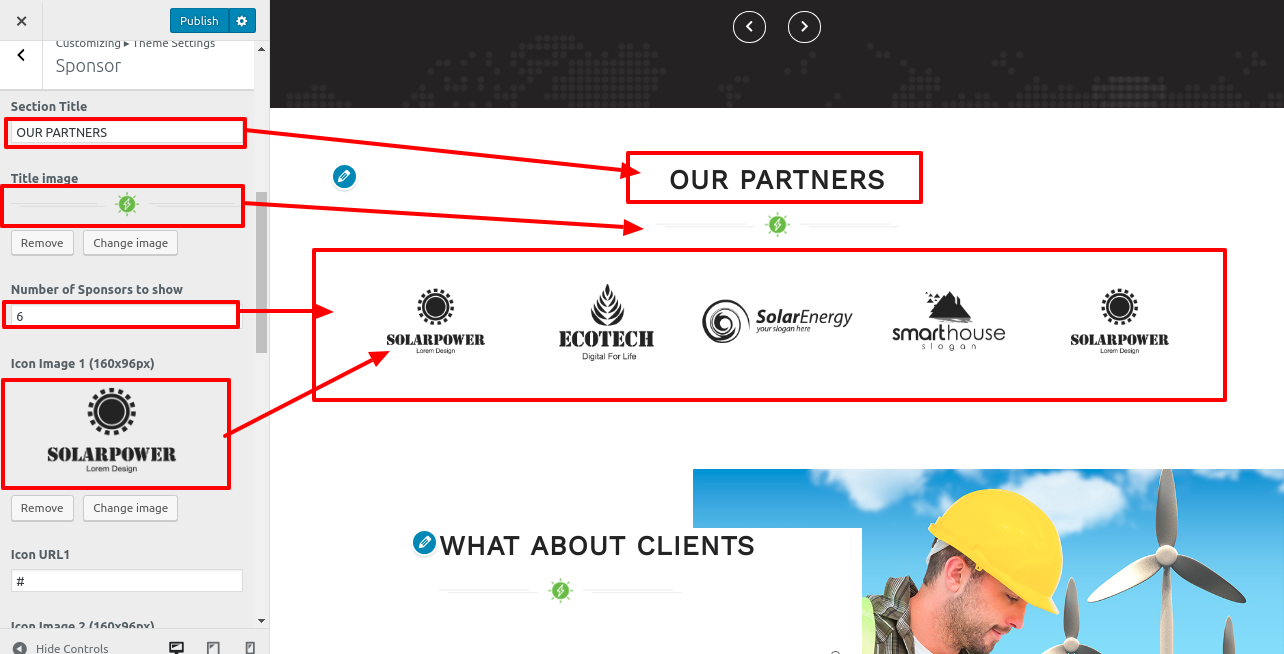

Setup Testimonial Section
-
Continue with this part after that.
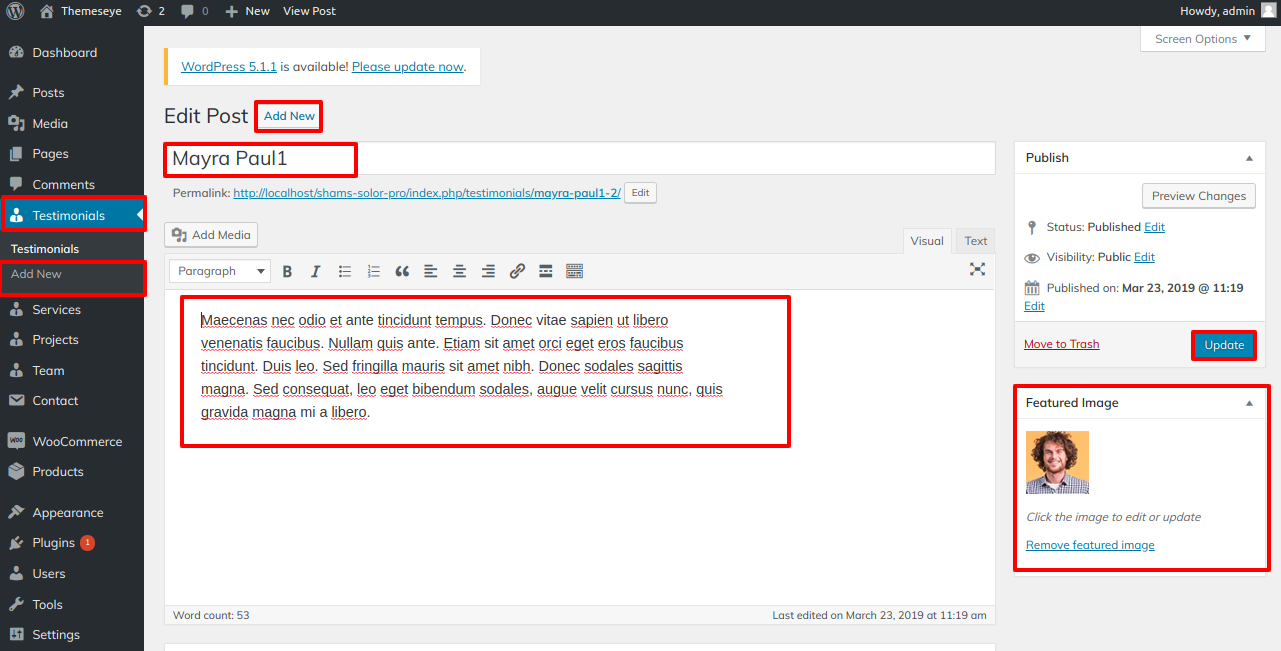
- Step 1 - Go to Dashboard >> Testimonial >> Add New
- (a) Enter Testimonial Title
- (a) Featured Image
- (c) Publish
- Step 2 - Go to Dashboard >> Appearance >> Customize >> Themes setting >> Testimonial
- (a) Select background image
- (a) Section Title
Note:You need to activate the "shams-solor-pro posttype" Plugin.
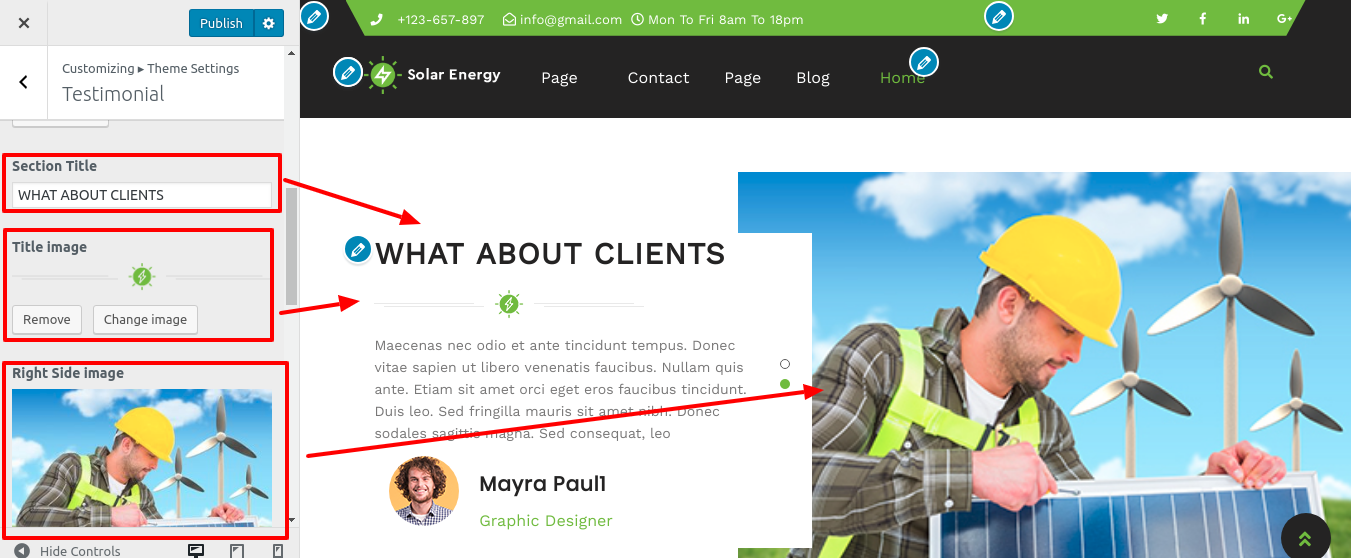
Final display of Testimonial Section

Setup Latest Blog Sections
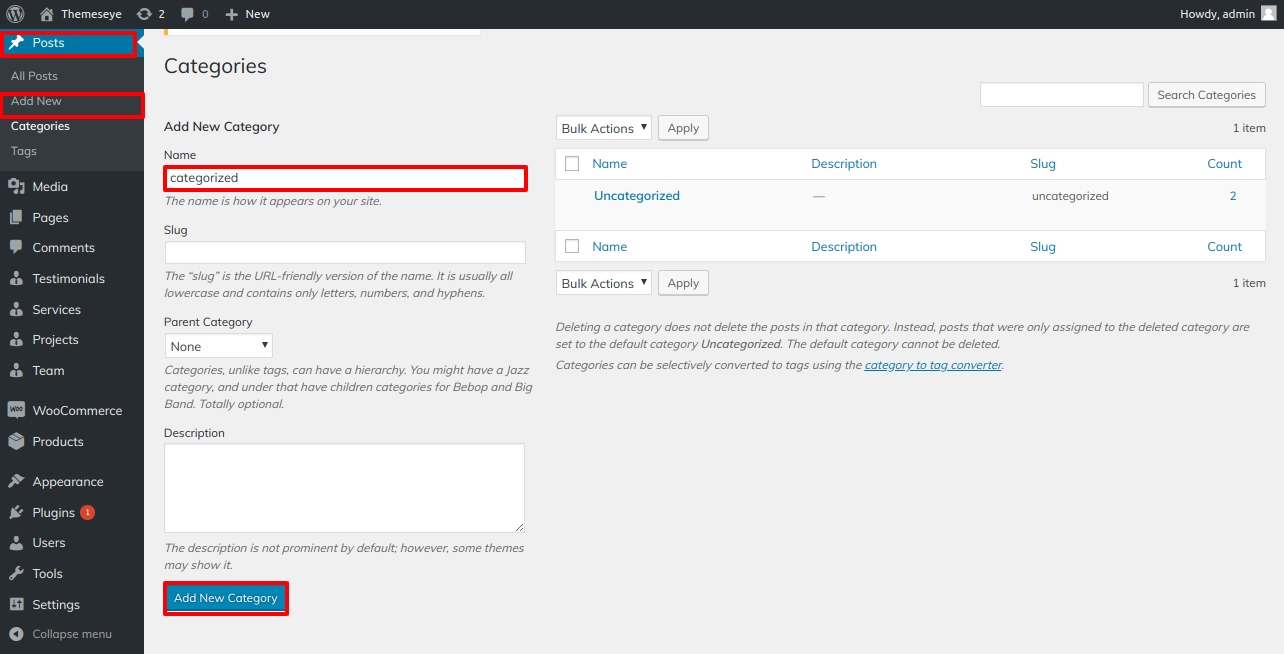
- Step 1 - Go to Dashboard >> post >> Category >> Add New
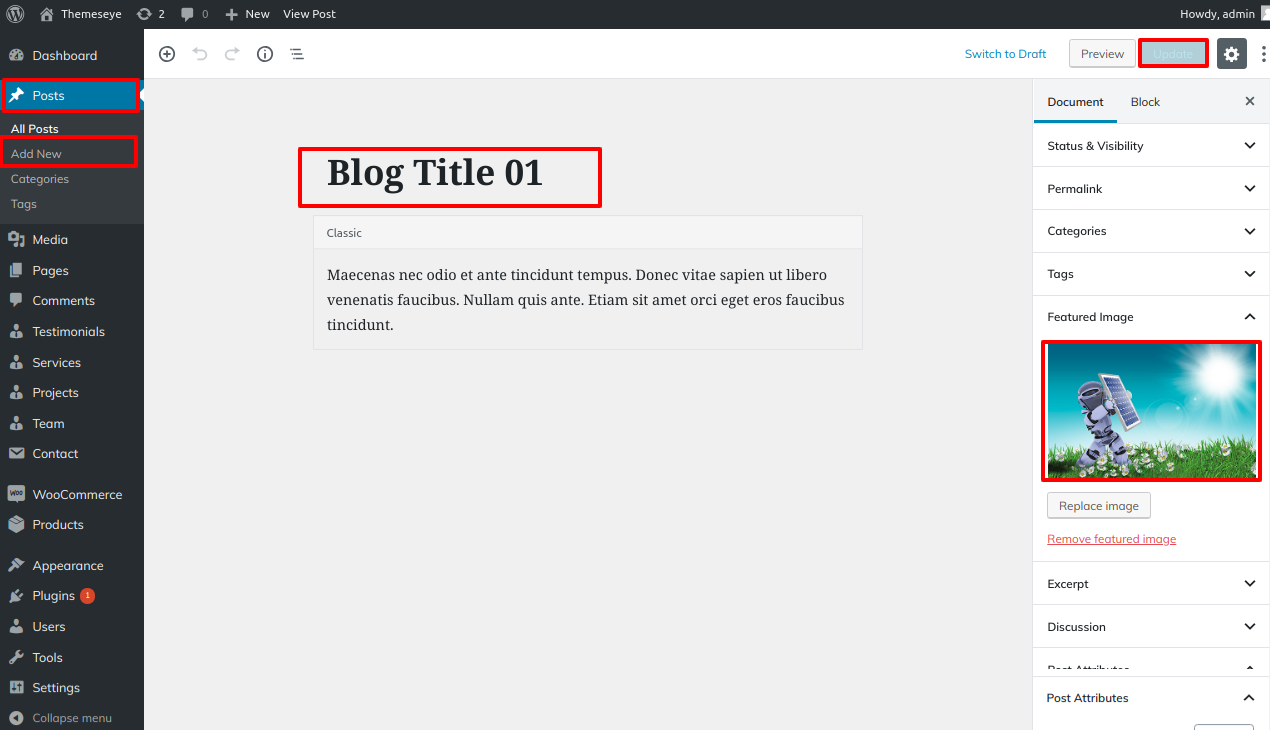
- Step 2 - Go to Dashboard >> post >> Add New
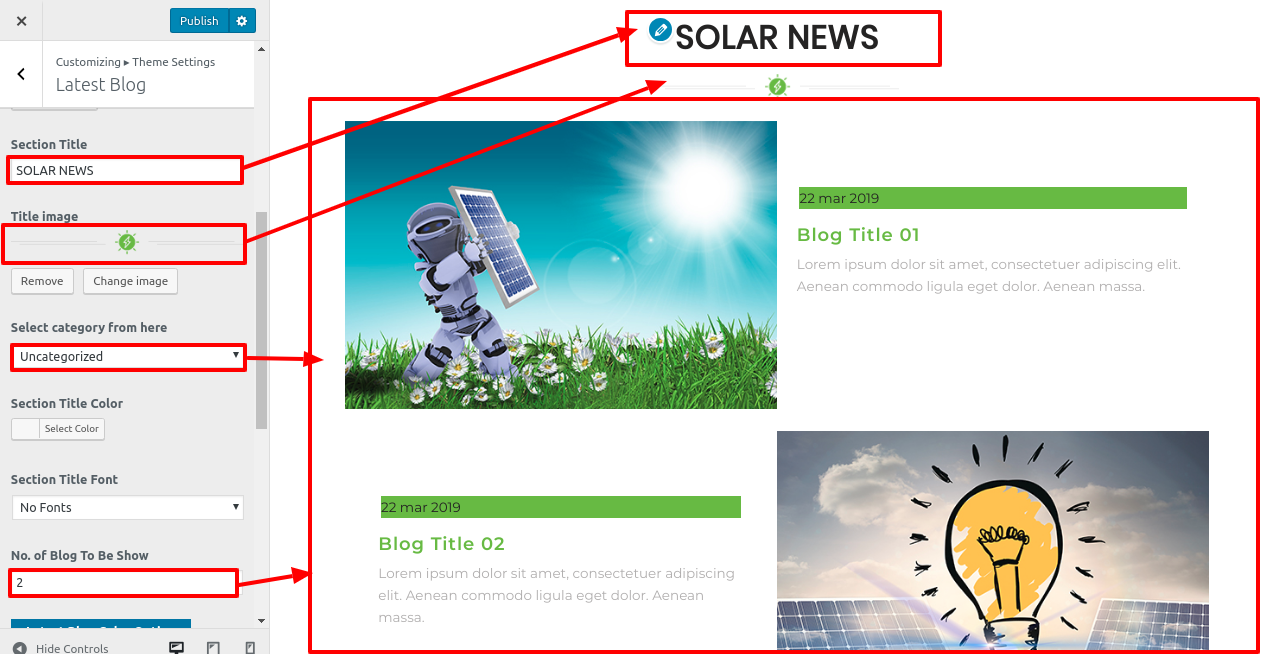
- Step 1 - Go to Dashboard >> Appearance >> Customize >> Themes setting >>Latest Blog
- (a) Add Title
- (c) Add No. of Blog To Be Show
- (c) Select Select category
The next part must be completed before moving on.
Create the Category for the Category First To set up the Category, take the procedures listed below.
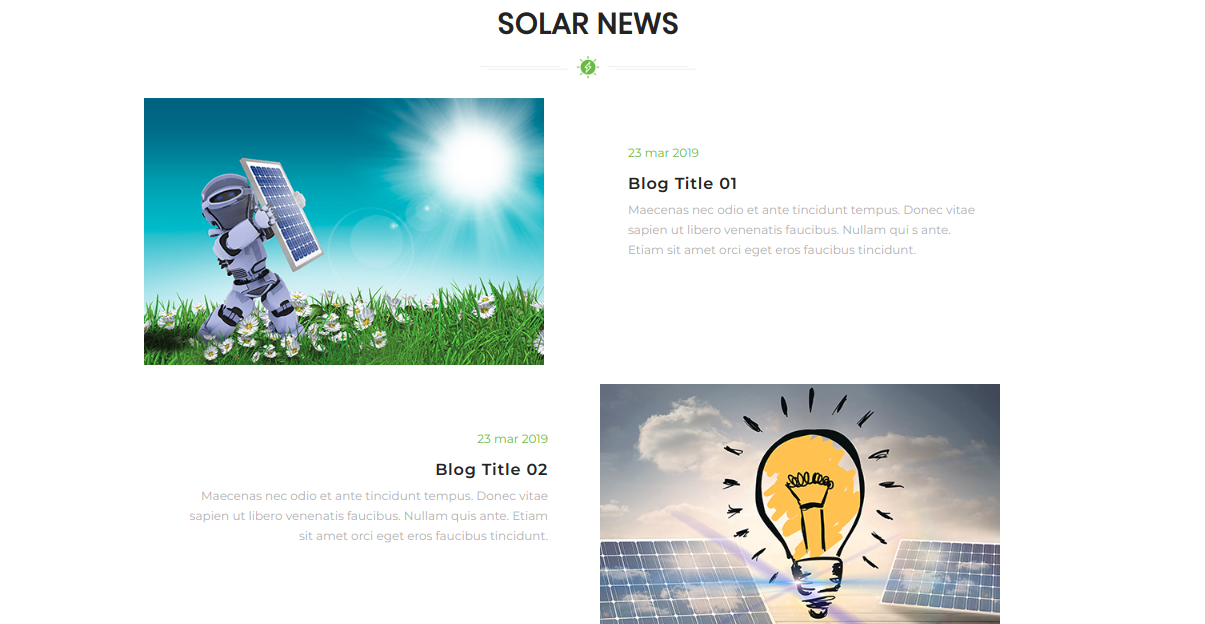
Final display of Latest Blog Section
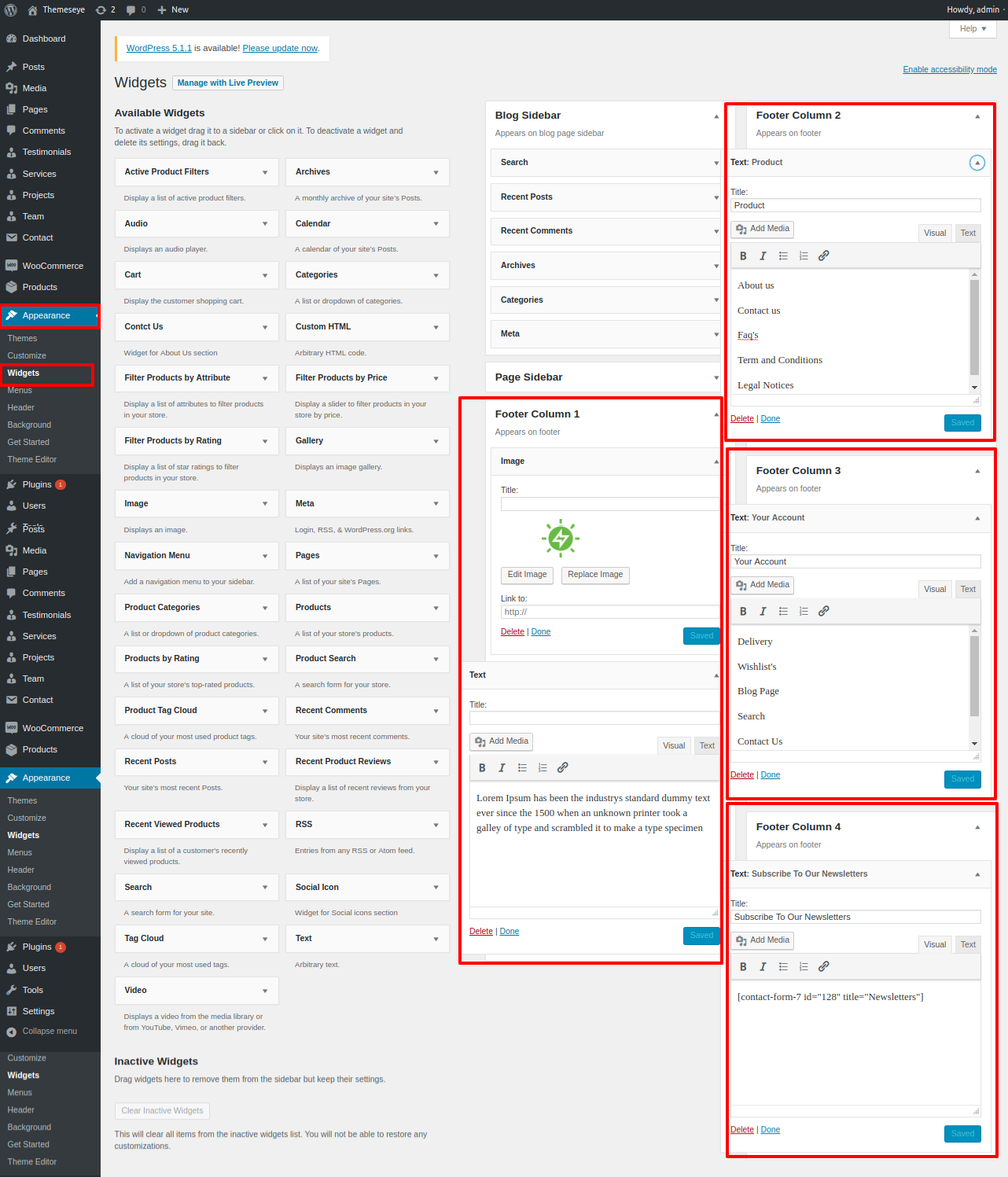
Footer Section
- Step 1 - Go to Dashboard >> Appearance >> Widgets
- Step 2. Select Footer
- (a) Footer One
- (b) Footer Two
- (c) Footer Three
- (d) Footer Four
- (ii) Click on "save" button
In order to procced with this section,
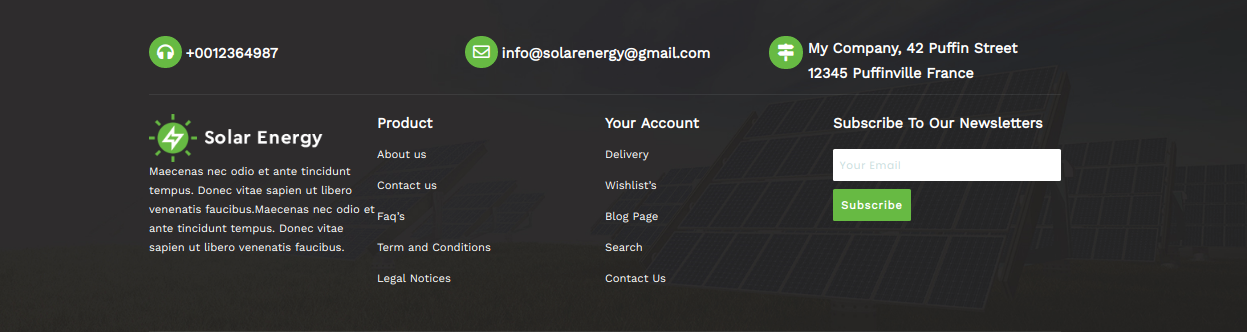
Final display of Footer Section

Setup Contact Page
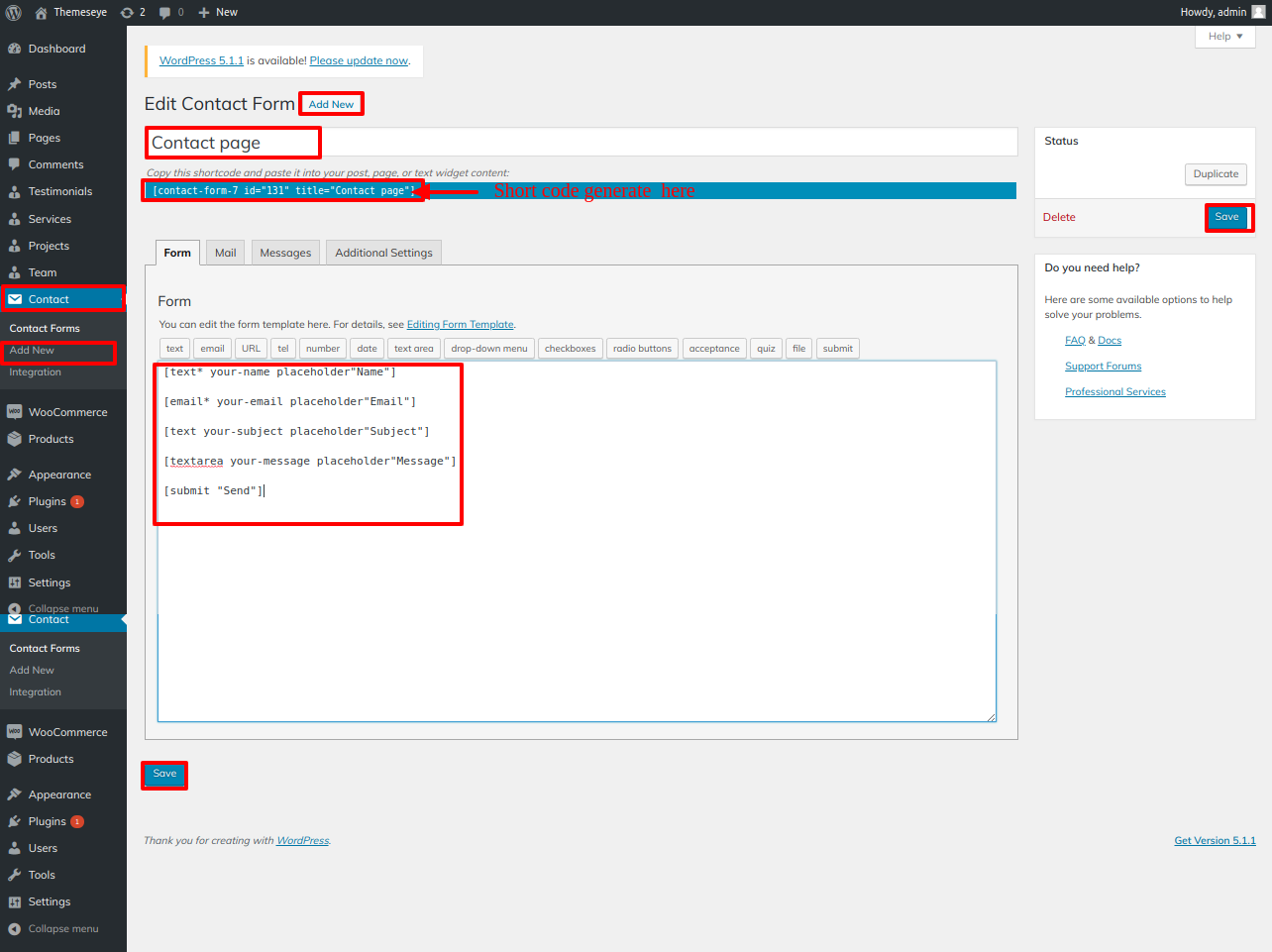
- Step 1 - Go to Dashboard >> contact >> add new
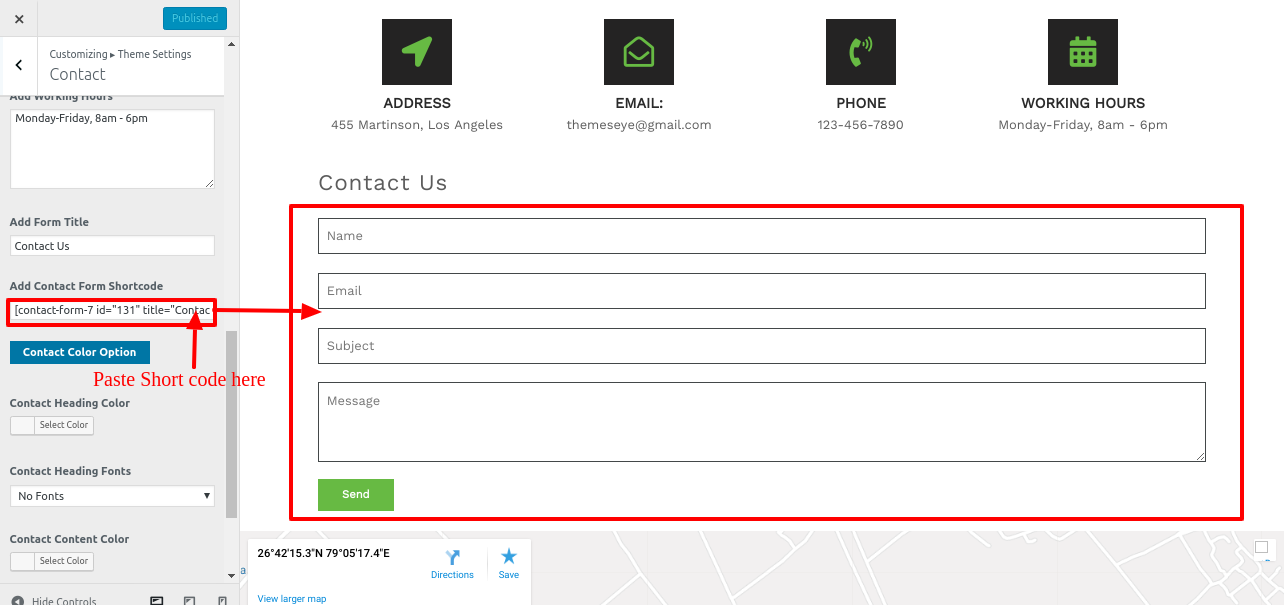
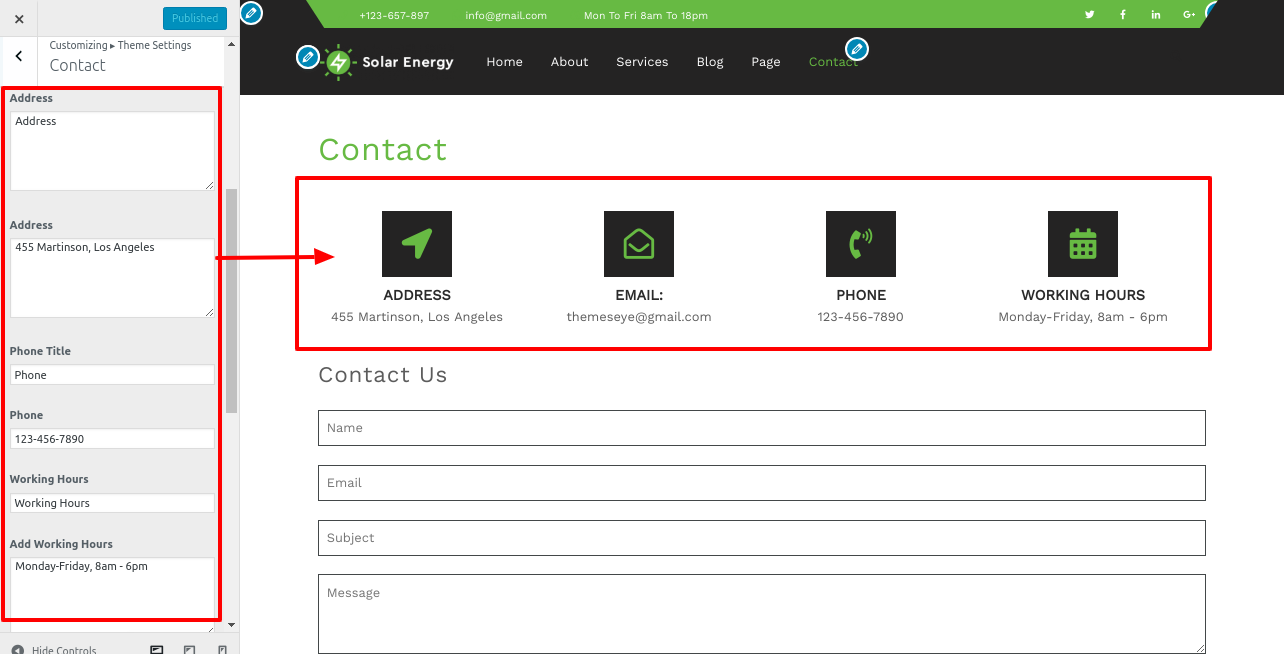
- Step 3 - Go to Dashboard >> Appearance >> Customize >> Themes Settings >> Contact
You must first upload and enable the Contact Form 7 plugin in order to set up the contact page.
The contact choice will be visible on the dashboard following installation.
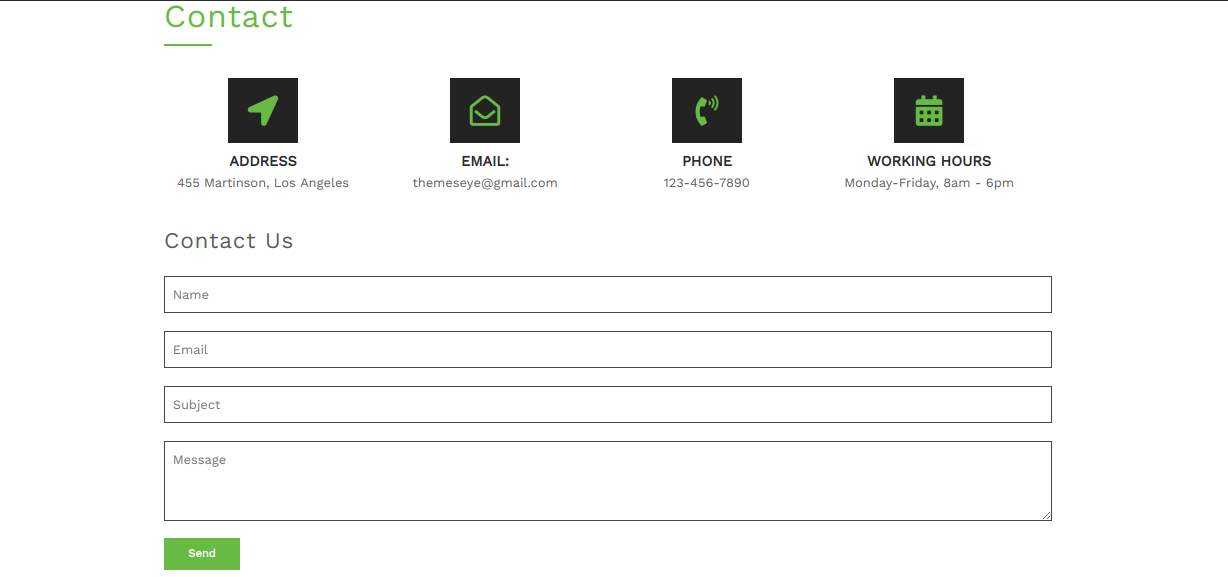
Final display of Contact Page.

Shortcodes
A shortcode is a powerful content building tool http://codex.wordpress.org/Shortcode. Shortcodes are easy to use. First of all, make sure that the editing mode is set to Visual.
All Shortcode
Testimonials Shortcode: [shams-solar-pro-testimonials]
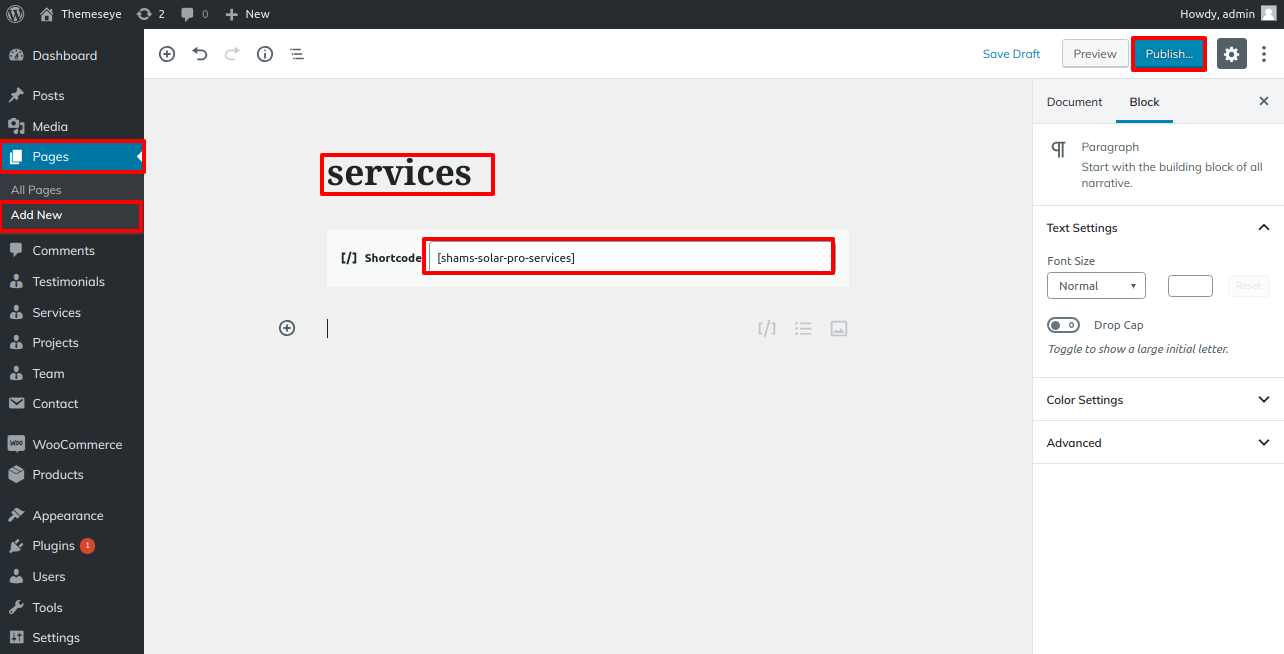
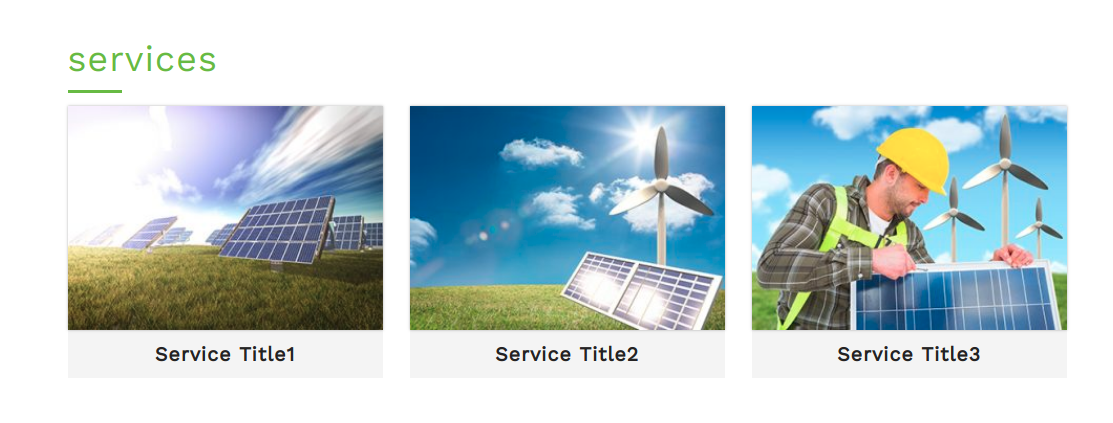
services Shortcode: [shams-solar-pro-services]
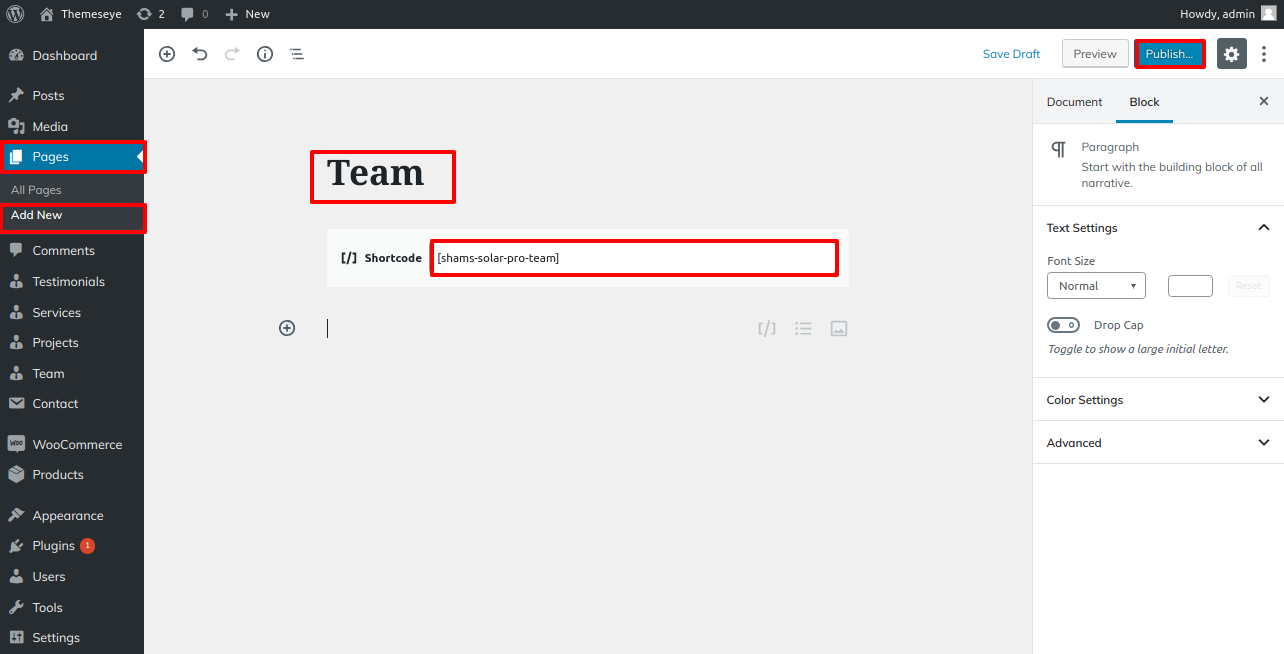
Team Shortcode: [shams-solar-pro-team]
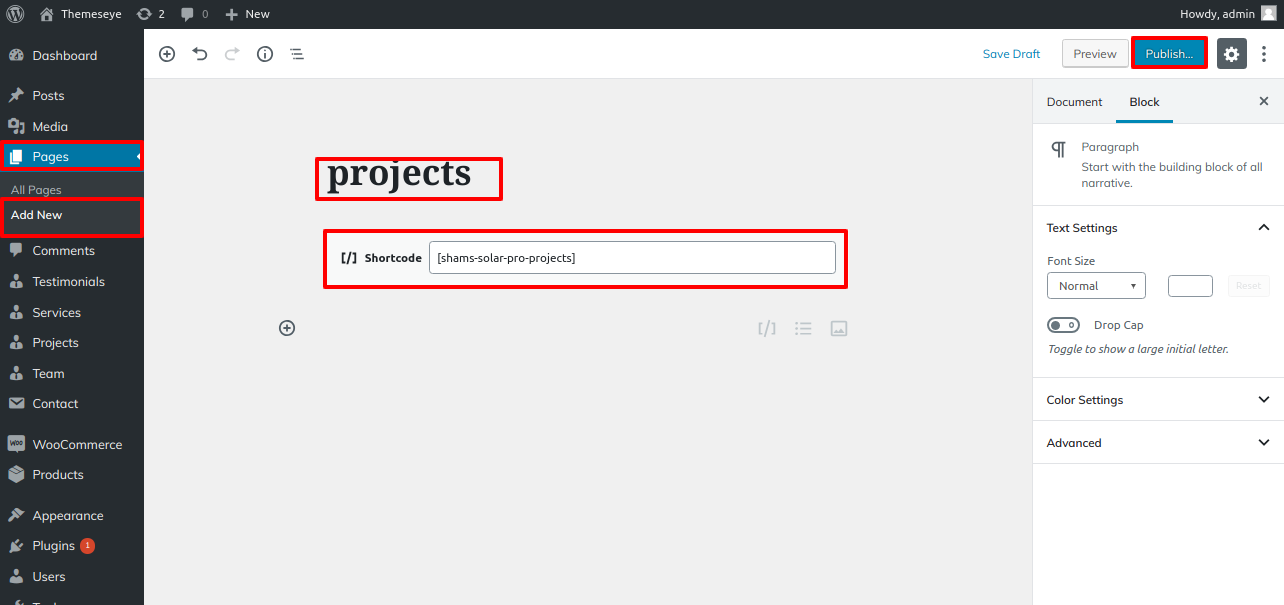
projects Shortcode: [shams-solar-pro-projects]
Testimonials Shortcode -
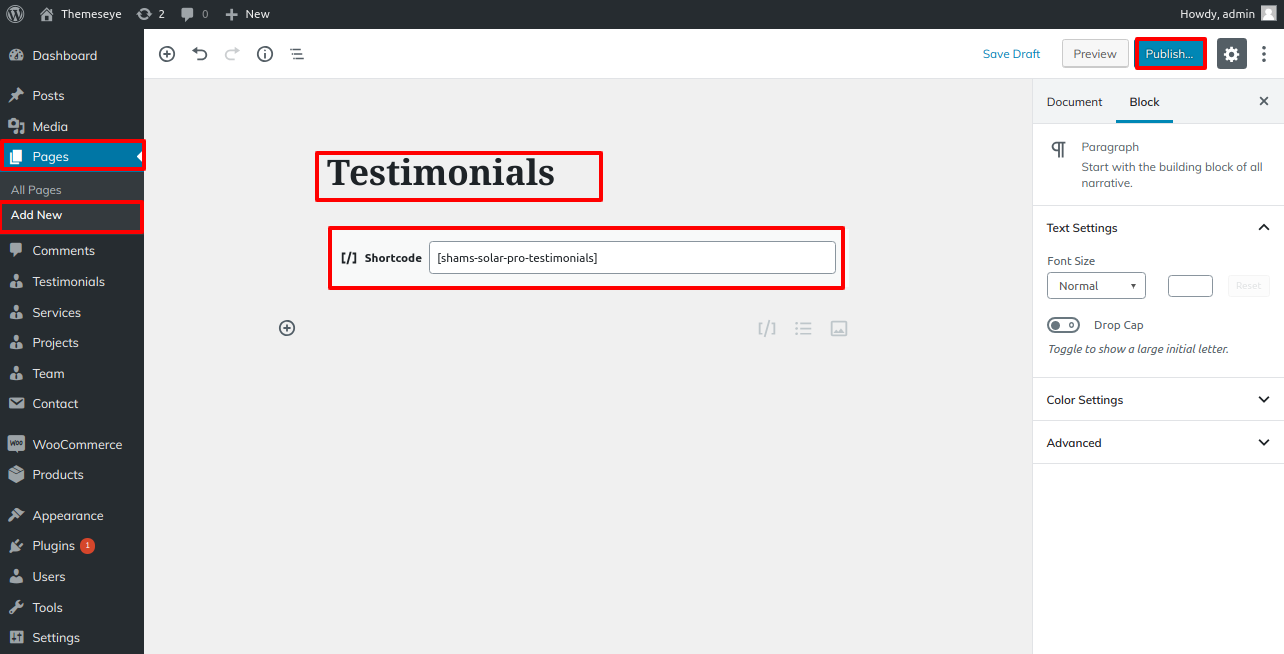
- Step 1 - Go to Dashboard >> Page
- (i) Click Add New button
- (ii) Add Testimonials Shortcode
- (iii) Select Default template at right bottom of page
- (iv) click publish button
- Step 2 - Used Testimonials [shams-solar-pro-testimonials]shortcode in page
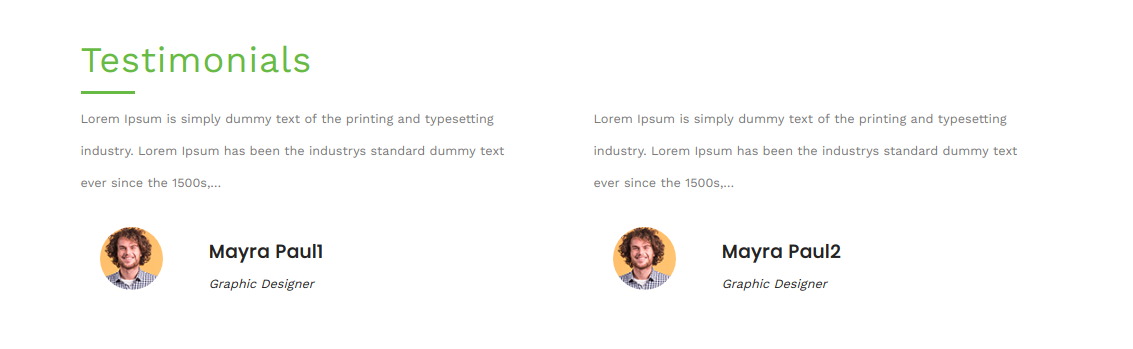
After adding shortcode ,Testimonial page look